WordPress Site Structure for SEO: Categories, Tags & Pillar Pages
Plan a WordPress site structure that search engines understand: categories vs tags, pillar pages and clusters, permalinks, breadcrumbs and which archives to noindex.
In this article
- Key takeaways
- Why site structure matters for SEO
- Plan a simple hierarchy
- Categories vs tags in WordPress
- Categories
- Tags
- Which archives should be indexed?
- Pillar pages and topic clusters
- URLs and permalinks
- Changing structure on an existing site
- Breadcrumbs
- Set up your structure with RankFlect SEO
- A quick site structure checklist
- Frequently asked questions
- Are categories or tags better for SEO?
- How many categories should a WordPress blog have?
- Should a post be in more than one category?
- What is the best permalink structure for SEO?
- Is it safe to change my site structure later?
Good WordPress site structure for SEO means organising your content into a clear hierarchy: a few broad categories, pillar pages that cover each main topic, detailed posts that link back to them, short readable URLs, and breadcrumbs that show where each page sits. Get this right and both readers and search engines understand what your site is about and which pages matter most. This guide shows how to plan it with WordPress's own tools: categories, tags, pages, permalinks and breadcrumbs.
Key takeaways
- Plan a shallow hierarchy: home page, a handful of main sections, then individual posts and pages.
- Categories are your table of contents. Use few of them, make them broad, and give each post one main category.
- Tags are optional. Use them only for cross-cutting topics you'll reuse, and noindex them if they create thin pages.
- Pillar pages anchor each topic and link to every cluster post.
- Choose a short permalink structure once and avoid changing it later.
Why site structure matters for SEO
Structure is how your content fits together. It affects SEO in a few concrete ways:
- Crawling and discovery. Google follows links. A page reachable from your menu, a category and a pillar page gets found and recrawled more easily than one buried on page 9 of an archive.
- Understanding topics. When related posts sit under the same category and link to the same pillar page, the topic of that section is obvious.
- Fewer weak pages. A planned structure avoids dozens of near-empty tag and category archives competing with your real content.
- Better search results. Google's SEO starter guide notes that parts of the URL can be shown in search results as breadcrumbs, which helps people judge whether a result is what they need.
Plan a simple hierarchy
Before you touch any settings, sketch the site on paper. Most sites fit a three-level shape:
- Home page: links to your main sections and best content.
- Main sections: categories (for blog posts), product categories (for shops) or parent pages (for service sites).
- Individual content: posts, products, service pages.
Here is an example for a gardening blog:
Home
├── Houseplants (category + pillar: "Houseplant care guide")
│   ├── How to repot a snake plant
│   ├── Why are monstera leaves turning yellow?
│   └── Best low-light houseplants
├── Vegetable garden (category + pillar: "Vegetable gardening for beginners")
│   ├── When to plant tomatoes
│   └── Raised bed soil mix
└── Composting (category + pillar: "Composting at home")
Aim to keep important content within about three clicks of the home page. If you need a fourth level, use a subcategory, but don't nest deeper than you have to.
Categories vs tags in WordPress
WordPress gives you two built-in ways to group posts. They behave differently, and using them well is the single biggest structure decision on most blogs.
Categories
Categories are hierarchical: as the WordPress documentation explains, each category can have a parent, so "Mammals" can sit under "Animals". Every post belongs to at least one category; if you don't choose one, WordPress uses the default category.
- Keep the list short. Five to ten broad categories is plenty for most blogs.
- One main category per post. A post in four categories muddies the structure. If it fits two, pick the best one as its primary category.
- Rename "Uncategorized" to something useful, or set a different default category under Settings → Writing.
- Write a category description. Many themes show it at the top of the archive, and SEO plugins can use it as the meta description.
Tags
Tags are flat, with no parents. They describe specific details that cut across categories, such as "beginner" or "succulents". They are optional.
- Use tags sparingly, and only for terms you'll use on several posts.
- Avoid one-post tags. Each tag creates an archive page. A tag used once is a thin page that repeats a single post.
- Don't duplicate categories. A tag called "Houseplants" next to a category called "Houseplants" creates two archives for the same thing.
Which archives should be indexed?
Category archives often deserve to rank, especially when they have a good description and are well organised. Tag, date and author archives usually don't add much on a typical blog, and on a single-author blog the author archive repeats the main blog list. Noindex the archives that don't help searchers and keep them out of your sitemap. Our guide to noindexing a WordPress page covers how and why to leave them crawlable.
Pillar pages and topic clusters
A category archive is a list. A pillar page is a written guide. Pairing the two gives each section of your site a strong anchor.
- Pillar page: a long, evergreen guide to a broad topic, such as "Houseplant care guide". It summarises each subtopic and links to the detailed post for it.
- Cluster posts: focused articles on one subtopic each. Each links back to the pillar and to one or two sibling posts.
Pick pillar topics from your main categories. Write the pillar once the cluster has a few posts, then update it each time you publish a new cluster post. Over time, the pillar becomes the most-linked page in its section, which is exactly the signal you want.
URLs and permalinks
WordPress's permalink settings are under Settings → Permalinks. The options are Plain (?p=123), Day and name, Month and name, Numeric, Post name and Custom structure. The WordPress docs describe the Plain default as not user-friendly and not optimised for search engines.
For most sites, Post name (/%postname%/) is the best choice:
- Short, readable URLs such as
/repot-snake-plant/. - No dates, so evergreen posts don't look old.
- You can move a post to another category without changing its URL.
A category-based structure (/%category%/%postname%/) shows the hierarchy in the URL, which some large sites like. The trade-off is that recategorising a post changes its URL. WordPress also notes that when a post has several categories, only one appears in the permalink, chosen alphabetically unless a plugin lets you pick.
Whichever you choose, follow Google's URL structure guidance: use words people understand and separate them with hyphens. Keep slugs short. "/repot-snake-plant/" beats "/how-to-repot-a-snake-plant-the-complete-step-by-step-guide-for-2026/".
Changing structure on an existing site
Changing permalinks or moving posts between categories changes URLs. Every old URL needs a 301 redirect to its new address, or you lose the links and rankings it had. Plan changes in one go, set up redirects before you switch, and check Search Console afterwards. See our guide to 301 redirects in WordPress.
Breadcrumbs
Breadcrumbs show where a page sits: Home › Houseplants › How to repot a snake plant. They give readers a one-click way up to the section, add an internal link from every post to its category, and can replace the bare URL in Google results when the page has breadcrumb structured data.
Many themes include breadcrumbs. If yours doesn't, an SEO plugin can add them. Make sure only one trail is visible on the page.
Set up your structure with RankFlect SEO
RankFlect SEO adds the SEO controls on top of WordPress's own structure. All of the settings below are in the free plugin.
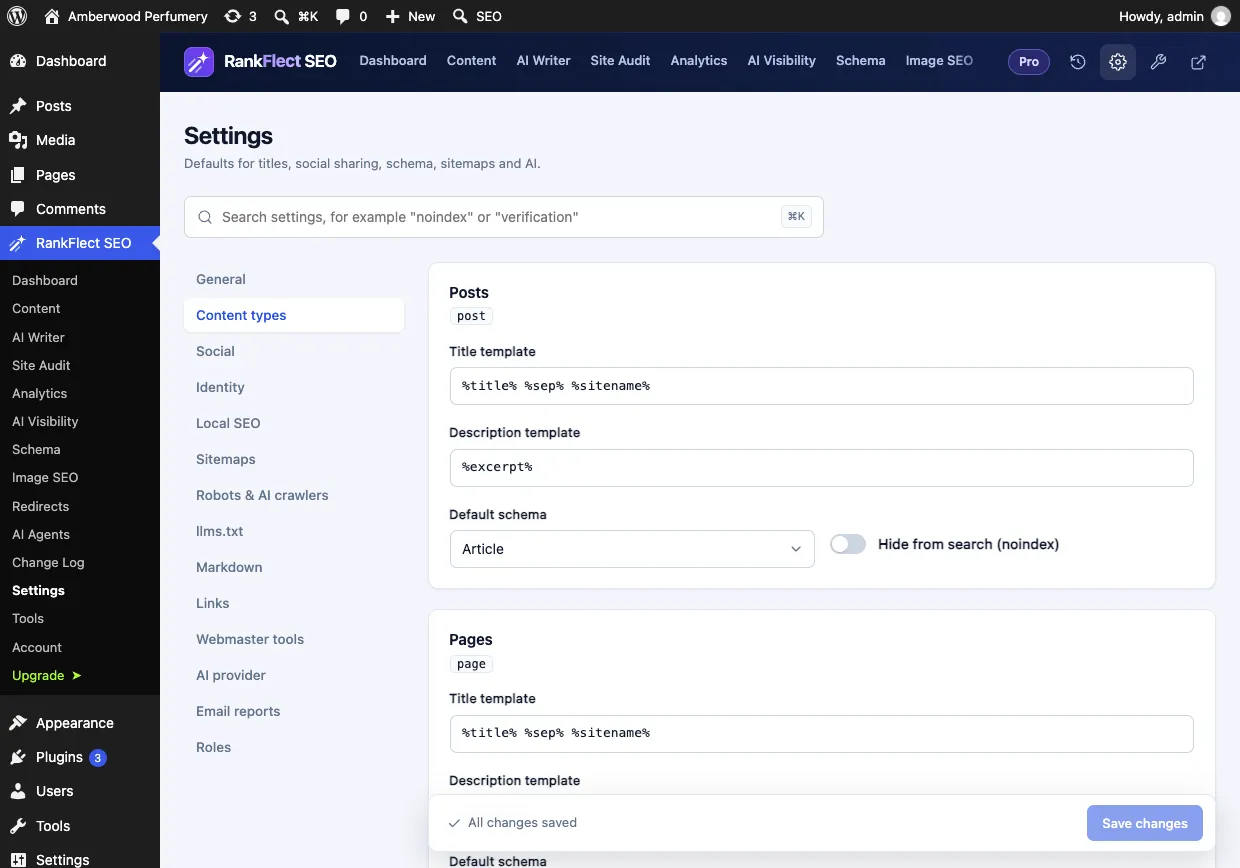
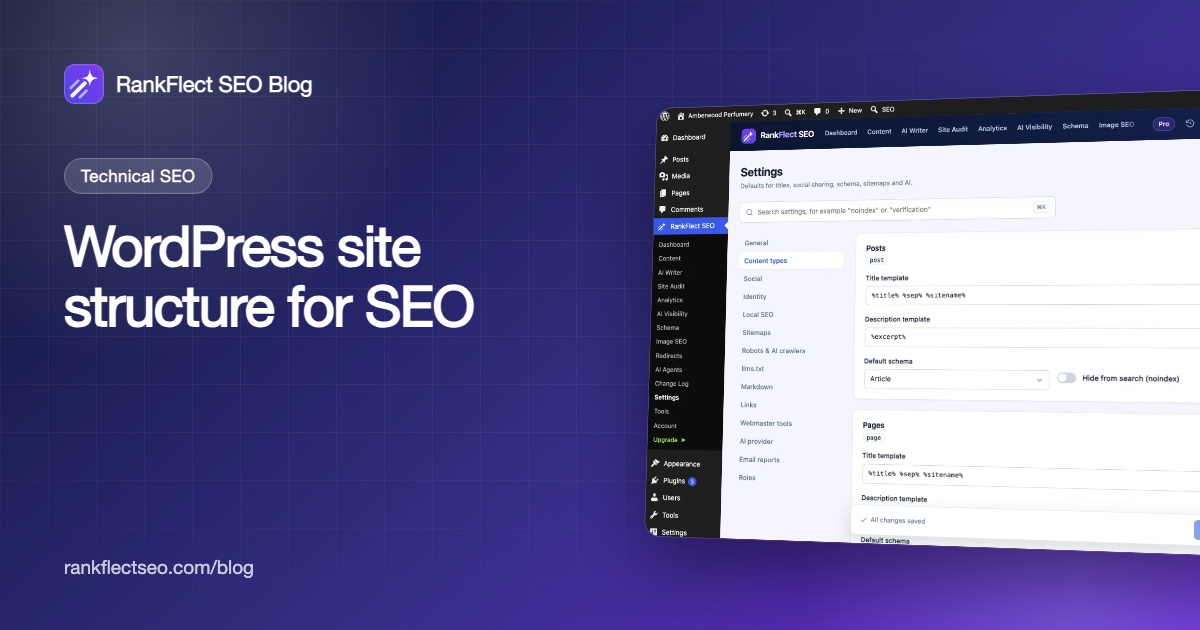
- Set defaults for each content type. Go to RankFlect SEO → Settings → Content types. Each content type has a title template, a description template, a default schema type and a Hide from search (noindex) switch, as shown above. See Settings for posts, pages and custom post types.
- Decide which archives to index. The Taxonomies card on the same screen has a title template and a Noindex switch for each taxonomy. Tags and Formats are noindexed by default; categories are indexed. Noindexed archives are left out of the sitemap.
- Write category titles and descriptions. Open a category under Posts → Categories and fill in the RankFlect SEO section, or leave it empty to use the term's description. You can also hide a single archive from search there. See SEO for categories, tags and taxonomies.
- Keep page 2+ of archives out of the index if you like, with Noindex page 2+ of archives under Settings → General. See Set up titles and meta descriptions.
- Pick a primary category. When a post has two or more categories, a Primary category field appears in the editor. Breadcrumbs, the
%category%variable and category permalinks use it. - Mark your pillar pages. In the editor's Advanced section, turn on This post is Pillar Content, or use the bulk action on the posts list. See Advanced post settings.
- Show breadcrumbs. Add the Breadcrumbs (RankFlect SEO) block or the
[rankflect_breadcrumbs]shortcode.BreadcrumbListschema is added either way. See Breadcrumbs. - Keep old URLs working. When you change the slug of a published post, RankFlect SEO adds a 301 redirect from the old address automatically.
The weekly site audit then checks for orphan posts and thin content, so you can see where the structure has gaps. To set this up on your site, download RankFlect SEO free.
A quick site structure checklist
- Five to ten broad categories, each with a description.
- "Uncategorized" renamed or no longer the default.
- One main (primary) category per post.
- Tags used only for repeated topics, or noindexed.
- One pillar page per main category, linking to all its cluster posts.
- Post name permalinks, short hyphenated slugs.
- Breadcrumbs on posts and pages, with one visible trail.
- Thin archives (tags, dates, single-author archives) noindexed.
- 301 redirects for every URL you change.
Frequently asked questions
Are categories or tags better for SEO?
Categories are more important for structure, because they are hierarchical and every post has one. Tags are optional extras. Categories usually deserve to be indexed; tags often create thin archive pages and are noindexed by many SEO plugins by default.
How many categories should a WordPress blog have?
There is no fixed number, but most blogs do well with five to ten broad categories. If a category has only one or two posts, merge it into a broader one. If a category grows very large, split it with subcategories.
Should a post be in more than one category?
It can be, but one main category keeps the structure clean. If a post fits two, set a primary category so breadcrumbs and category-based URLs use the right one.
What is the best permalink structure for SEO?
For most sites, Post name (/%postname%/) is the best choice: short, readable and stable when you move posts between categories. Avoid the Plain default, and avoid dates for evergreen content.
Is it safe to change my site structure later?
Yes, if you redirect every changed URL with a 301 redirect. Plan all changes at once, set up the redirects before switching, and watch Search Console for 404 errors afterwards.
- #site structure
- #categories vs tags
- #pillar pages
- #permalinks
- #wordpress seo
Written by
RankFlect SEO TeamThe people who build RankFlect SEO, the WordPress SEO plugin with a built-in MCP server. We write about what we learn shipping SEO tools for AI search.
All articles →Let AI agents fix your SEO. You keep the undo button.
RankFlect SEO is free for unlimited sites, with a built-in MCP server, approval for every change and no AI credits.