Internal Linking for WordPress: The Complete 2026 Guide
How to plan internal links in WordPress: site structure, topic clusters, anchor text, orphan pages, broken links, and the free tools that show where links are missing.
In this article
- Key takeaways
- Why internal linking matters for SEO
- Start with a clear site structure
- Topic clusters and pillar pages
- Write good anchor text
- How many internal links should a page have?
- Find and fix orphan pages
- Fix broken internal links
- Internal links vs external links
- Internal linking tools in WordPress
- What WordPress gives you
- Internal linking with RankFlect SEO (free)
- In RankFlect SEO Pro
- A simple internal linking routine
- Frequently asked questions
- Do internal links help SEO?
- What is an orphan page in WordPress?
- Should internal links open in a new tab?
- Is it bad to link to the same page many times?
- Should I nofollow internal links?
Internal linking in WordPress means linking your posts and pages to each other with descriptive anchor text, so readers and search engines can find every page and understand which ones matter most. Good internal linking comes down to a clear site structure, links from strong pages to the pages you want to rank, no orphan pages, and fixing broken links before they pile up. This guide covers each step, with the free and paid tools that make it faster.
Key takeaways
- Google finds and understands pages largely through links. Every page you care about needs at least one link from another page on your site.
- Use descriptive anchor text that tells the reader what the target page is about. Avoid "click here".
- Build topic clusters: a pillar page links to its detailed posts, and they link back.
- Find and fix orphan pages (no internal links pointing to them) and broken internal links on a regular schedule.
- There is no ideal number of links per page. Add links where they help the reader.
Why internal linking matters for SEO
Internal links do three jobs at once.
- Discovery. Search engines follow links to find pages. Google's link best practices put it plainly: "Every page you care about should have a link from at least one other page on your site." A sitemap helps, but links are how Google sees that a page is part of your site.
- Context. Anchor text and the surrounding words tell Google what the linked page is about. A link with the text "mango pickle recipe" is a strong hint.
- Importance. Pages that many of your other pages link to look more important than pages buried four clicks deep with a single link.
They help readers too. A good internal link answers the next question the reader has, which keeps them on your site longer and leads them to the pages that convert.
Start with a clear site structure
Internal linking is easier when the site has a shape. Most WordPress sites work well with three levels:
- Home page, linking to your main sections.
- Section pages: categories, product categories, or pillar pages that cover a broad topic.
- Detail pages: individual posts, products or guides.
Try to keep important pages within three clicks of the home page. Your menu, category pages and breadcrumbs provide the backbone. Breadcrumbs are worth adding because they give every page a link back up to its section, and Google can show the trail in search results. See Breadcrumbs for how RankFlect SEO adds the trail and its BreadcrumbList schema.
Topic clusters and pillar pages
A topic cluster is a group of pages on one subject:
- A pillar page covers the broad topic, for example "Indoor plant care".
- Cluster posts go deep on one part each: "How to repot a snake plant", "Why are my monstera leaves yellow?", "Best low-light plants".
The pillar links to every cluster post, and each cluster post links back to the pillar and to one or two related posts. This makes the relationship between pages obvious to search engines and gives readers a clear path through the topic.
Write good anchor text
Anchor text is the clickable text of a link. Google's guidance says good anchor text is descriptive, reasonably concise and relevant to the page it links to. A quick test: read only the link text. If it doesn't make sense on its own, rewrite it.
- Bad: "To learn more, click here."
- Better: "Our guide to repotting a snake plant shows each step."
- Too much: "best cheap indoor plants low light easy care beginners" as one long link. That reads as spam.
Vary anchor text naturally. Linking to the same page with "snake plant repotting", "how to repot a snake plant" and "repotting guide" is normal. Linking with the exact same keyword phrase from every page looks forced.
Use real HTML links (<a href="...">). Google says it can reliably follow links only when they are <a> elements with an href. Buttons or menus that only work with JavaScript may not be followed.
How many internal links should a page have?
Google says there is no magic number. A sensible rule for blog posts:
- At least one link to a related page in the body of every post.
- A link to the pillar page or main section the post belongs to.
- More links in longer posts, as long as each one helps the reader at that point.
Links in the main content are more useful than a footer full of links, because they come with context. If a page has so many links that a reader couldn't sensibly follow them, it has too many.
Find and fix orphan pages
An orphan page has no internal links pointing to it. Readers can't reach it from your site, and search engines may find it only through the sitemap, if at all. Orphans are common on older blogs: a post gets published, never linked from anything, and slowly fades.
To fix orphan pages:
- Find them. Crawl your site with an SEO crawler or use your SEO plugin's link counts (see below) and look for pages with zero incoming internal links.
- Decide if each page is worth keeping. If it's useful, keep it. If it's thin or out of date, update it, merge it into a better page with a 301 redirect, or remove it.
- Link to it from two or three related pages, ideally ones that already get traffic, using descriptive anchor text.
- Add it to its pillar page or category, so it's part of a cluster.
The opposite problem matters too: posts with no outgoing internal links are dead ends. Add a link from each one to a related post or the pillar page.
Fix broken internal links
Broken links send readers to a 404 page and waste the crawl time Google gives your site. They usually appear when you change a slug, delete a post, or restructure categories.
- Prevent them. When you change a published post's slug, add a 301 redirect from the old URL. Our guide to 301 redirects in WordPress covers how.
- Find them. Check the "Not found (404)" pages in Google Search Console, crawl your site, or use a link checker.
- Fix the link at its source when you can, so it points straight to the right page. A redirect is the fallback for links you can't edit, such as links from other sites.
- Update links that go through redirects. They work, but a direct link is cleaner and faster.
Internal links vs external links
Internal links point to your own site; external links point to other sites. Both have a place. Linking to good external sources helps readers check your facts. For paid or affiliate links, mark them as sponsored, and use ugc for links in user content, as Google's guide to qualifying outbound links asks.
Never add nofollow to your own internal links to "save" link value. It tells Google not to follow links to your own pages, which is the opposite of what you want. If a page shouldn't be in search, noindex the page itself.
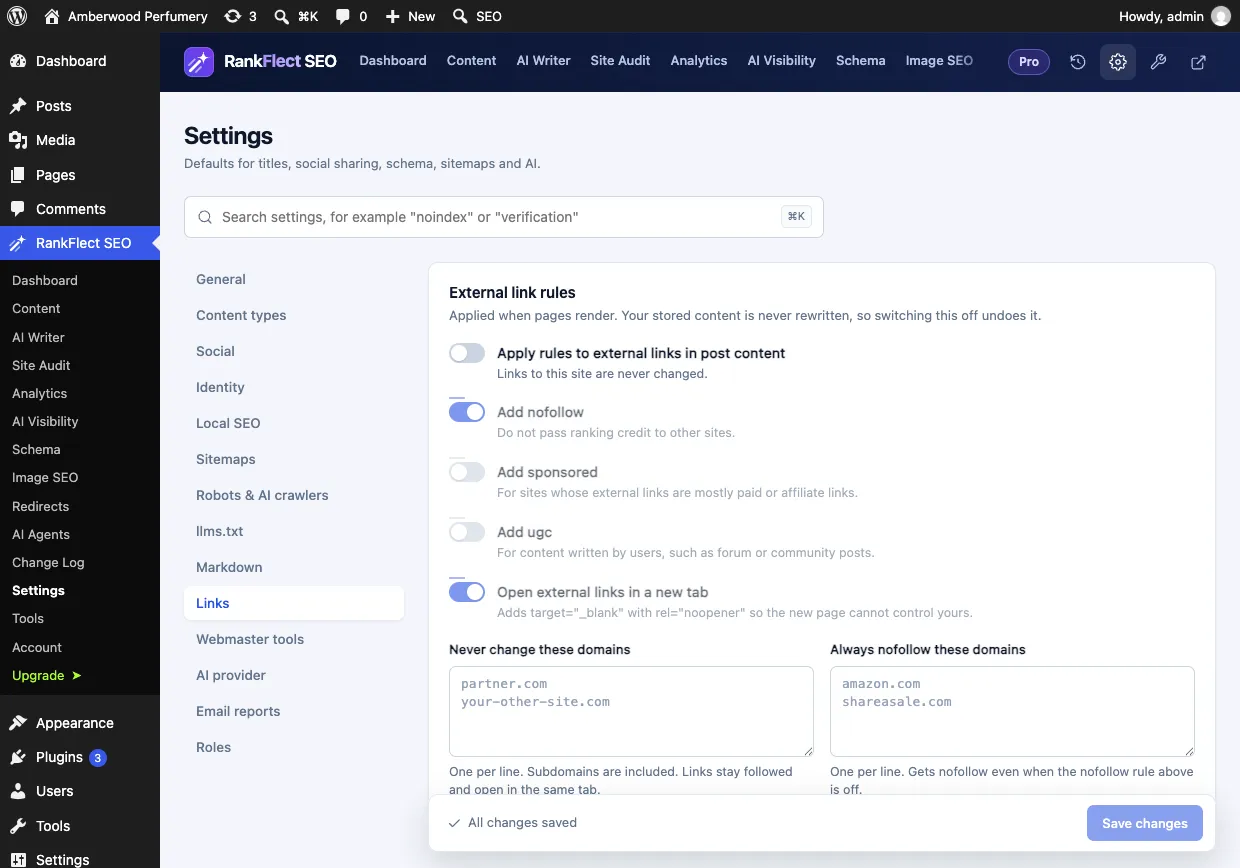
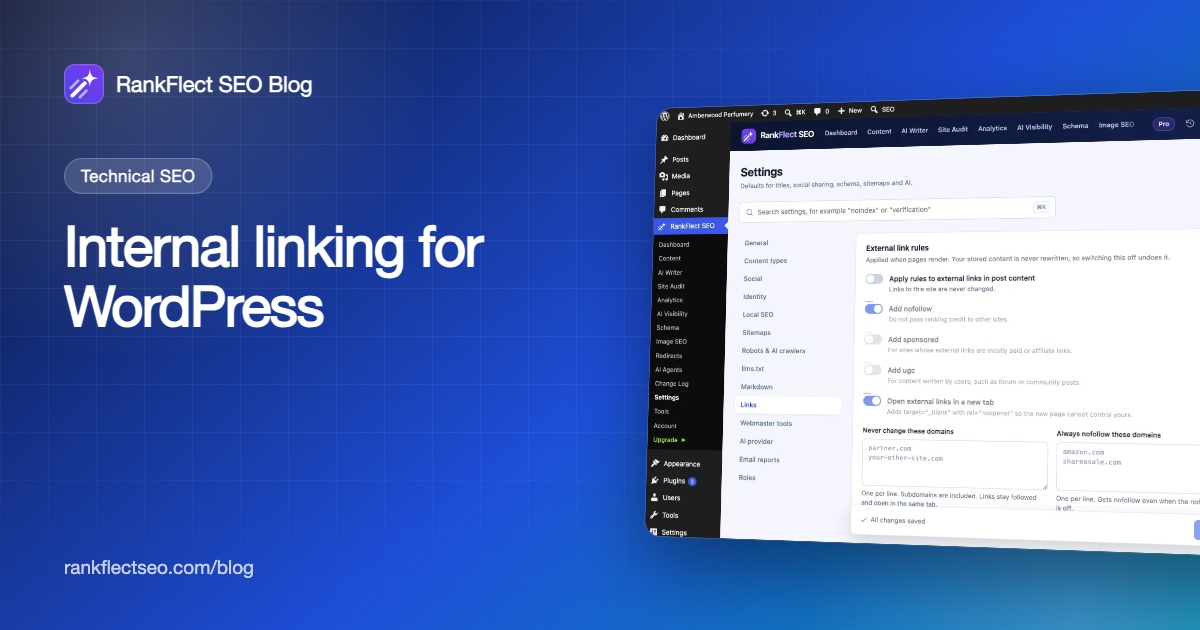
In RankFlect SEO, Settings → Links holds the external link rules shown above. They apply only to links to other sites: as the screen says, "Links to this site are never changed", so your internal links stay followed. See External link rules.
Internal linking tools in WordPress
You can do internal linking by hand: search your site for a topic, open related posts, and add links. That works on a small blog. On a larger site, tools help you see where links are missing.
What WordPress gives you
The block editor's link tool searches your own posts and pages as you type, so linking to an existing post takes a few seconds. WordPress does not show you link counts or orphan pages, so you need a plugin or a crawler for that.
Internal linking with RankFlect SEO (free)
The free RankFlect SEO plugin includes several internal linking helpers:
- Link counts. A Links column on your posts lists and a card in the editor show each post's incoming and outgoing internal links and flag orphaned posts. For content you published before installing the plugin, Tools → Rebuild link counts counts the links on existing posts.
- An editor check. The "Internal links" check in the content analysis flags a post with no links to other pages on your site, so you catch it before you publish.
- Site audit checks. The site audit runs automatically every 7 days on every plan. Two of its checks are "Orphan posts (no internal links point to them)" and "Posts with no internal links".
- Pillar content. Mark your most important posts with This post is Pillar Content in the editor's Advanced section, or with a bulk action on the posts list. See Advanced post settings.
- Automatic redirects. When you change the slug of a published post, RankFlect SEO adds a 301 redirect from the old address, so existing internal links keep working. See Automatic redirects.
In RankFlect SEO Pro
- Internal link suggestions. An Internal links section in the editor suggests posts to link to, ranked with AI, which you can insert. Suggestions favour posts marked as pillar content.
- Broken link checker. It scans every internal and external link in your published content in the background and lets you unlink, replace or redirect a broken link in one click, including fixing the same URL in every post that uses it. See Broken link checker.
To try the free link counts and orphan checks on your own site, download RankFlect SEO.
A simple internal linking routine
- When you publish: link from the new post to its pillar page and one or two related posts. Then add a link to the new post from at least one older, related post.
- Monthly: check for orphan posts and posts with no internal links, and fix the most important ones.
- When you change a URL: make sure a 301 redirect is in place, then update internal links to the new address.
- Quarterly: review each pillar page and add links to new cluster posts.
Frequently asked questions
Do internal links help SEO?
Yes. Google uses links to find pages and to understand what they're about, and its documentation says every page you care about should have a link from at least one other page on your site. Internal links also help readers find related content.
What is an orphan page in WordPress?
An orphan page is a published post or page that no other page on your site links to. Readers can't reach it by browsing, and search engines may struggle to find it. Fix it by linking to it from related posts, or merge or remove it if it isn't useful.
Should internal links open in a new tab?
Usually not. Readers expect links within the same site to open in the same tab, and they can choose a new tab themselves. Opening a new tab is more common for external links.
Is it bad to link to the same page many times?
It isn't harmful, but it rarely helps. One well-placed link to a page in a post is usually enough. Link to different related pages instead of repeating the same link.
Should I nofollow internal links?
No. Nofollow on internal links tells search engines not to follow links to your own pages. If you don't want a page in search results, use noindex on that page instead.
- #internal linking
- #internal links
- #orphan pages
- #anchor text
- #wordpress seo
Written by
RankFlect SEO TeamThe people who build RankFlect SEO, the WordPress SEO plugin with a built-in MCP server. We write about what we learn shipping SEO tools for AI search.
All articles →Let AI agents fix your SEO. You keep the undo button.
RankFlect SEO is free for unlimited sites, with a built-in MCP server, approval for every change and no AI credits.