Crawled – Currently Not Indexed: How to Fix It (Step by Step)
Google crawled your page but didn't index it. What the Search Console status means, which URLs you can ignore, and seven steps to get important pages indexed.
In this article
- Key takeaways
- What "crawled – currently not indexed" means
- Crawled vs discovered – currently not indexed
- Common causes on WordPress sites
- URLs that were never meant to rank
- Thin or low-value content
- Duplicate or near-duplicate content
- Weak internal linking
- A new or low-authority site
- Soft 404s and rendering problems
- How to fix crawled – currently not indexed, step by step
- Step 1: Sort the URLs and ignore the ones that don't matter
- Step 2: Inspect each important URL
- Step 3: Rule out technical blocks in WordPress
- Step 4: Make the page worth indexing
- Step 5: Fix duplicates
- Step 6: Add internal links
- Step 7: Request indexing
- When to wait instead of fixing
- How RankFlect SEO helps
- Frequently asked questions
- Is "crawled – currently not indexed" a penalty?
- How long does it take for a crawled page to get indexed?
- Should I keep clicking Request indexing?
- Why are my WordPress feed URLs crawled but not indexed?
- Will submitting a sitemap fix it?
"Crawled – currently not indexed" in Google Search Console means Google visited the page but decided not to add it to its index, at least for now. It is not an error or a penalty, and Google says it is common on many sites. For pages that matter, the fix is to make the page clearly worth indexing: rule out technical blocks, add unique value, strengthen internal links, then request indexing and give Google time.
This guide explains what the status means, why it happens, and how to fix it step by step on a WordPress site.
Key takeaways
- Google crawled the page but didn't index it. Nothing is blocking it; Google chose not to include it yet.
- Many URLs in this report are fine to ignore: feeds, paginated archives, parameters and thin tag pages.
- For important pages, the usual causes are thin or duplicate content, weak internal links, or a new site Google doesn't trust yet.
- Fix the page first, then use URL Inspection to request indexing. Requesting again and again without changes won't help.
- Indexing is never guaranteed, and it can take days or weeks.
What "crawled – currently not indexed" means
Google's Page indexing report help defines it in one line: "The page was crawled by Google but not indexed." It adds that Google doesn't index all pages across the web, so this is a common message for many sites and "doesn't necessarily indicate an issue that needs attention."
The key word is currently. The page may be indexed later, after Google recrawls it, or it may stay out. Google may also drop pages from the index over time and list them here.
Crawled vs discovered – currently not indexed
The two statuses look alike but mean different things:
- Crawled – currently not indexed: Google fetched the page, looked at it, and decided not to index it. The issue is usually the page itself or how it fits into your site.
- Discovered – currently not indexed: Google knows the URL exists but hasn't crawled it yet. Google's help says this is typically because crawling was expected to overload the site, so the crawl was rescheduled. That points more to crawl capacity and site-wide signals.
This guide is about the first one. If you've never connected your site, our guide to Google Search Console for WordPress shows how to set it up and find the Page indexing report.
Common causes on WordPress sites
URLs that were never meant to rank
WordPress creates many URLs besides your posts and pages. Google often crawls them and leaves them out, which is fine. Typical examples:
- Feed URLs, such as
/feed/and/post-name/feed/ - Paginated archives, such as
/page/2/ - URLs with parameters, such as
?replytocom=or tracking parameters - Tag, date and author archives with little content of their own
- Attachment pages for images
Thin or low-value content
Short posts that repeat what hundreds of other pages say give Google little reason to index them. The same goes for placeholder pages, near-empty product pages and auto-generated pages.
Duplicate or near-duplicate content
Two posts on the same topic, product variants with the same description, or the same content under several URLs. Google picks one and leaves the rest out. Sometimes these show up as "Duplicate without user-selected canonical" instead.
Weak internal linking
A page that nothing on your site links to looks unimportant. Orphan pages, and pages buried deep in archives, are more likely to be left out.
A new or low-authority site
New sites often see many pages in this state at first. Google indexes more of a site as it learns that the site publishes useful content.
Soft 404s and rendering problems
A page that looks empty or like an error to Google, for example because content loads only after JavaScript runs or a plugin breaks the layout, may not be indexed.
How to fix crawled – currently not indexed, step by step
Step 1: Sort the URLs and ignore the ones that don't matter
In Search Console, open Indexing → Pages and click Crawled – currently not indexed. Export the list. Mark each URL as:
- Should be indexed: posts, pages, products and categories you want people to find.
- Doesn't need to be indexed: feeds, pagination, parameters, attachments, thin archives.
Only the first group needs work. For the second group, you can leave them alone, or add noindex to archives you never want in search. See our guide to noindexing a WordPress page.
Step 2: Inspect each important URL
Paste the URL into the URL Inspection tool at the top of Search Console. Check:
- Indexing allowed? If the page has
noindex, the status would normally be "Excluded by 'noindex' tag", but check anyway after recent changes. - User-declared vs Google-selected canonical. If Google picked a different URL as canonical, it sees the page as a duplicate.
- Test live URL and View tested page. Look at the screenshot and HTML. If your main content is missing, you have a rendering problem to fix first.
Step 3: Rule out technical blocks in WordPress
- Make sure Settings → Reading → Discourage search engines from indexing this site is unticked.
- Check the page's own noindex and canonical settings in your SEO plugin. See Noindex, nofollow and canonical URLs.
- Check that robots.txt doesn't block CSS or JavaScript files the page needs. See Edit robots.txt.
- Make sure the page is in your XML sitemap with a correct last-modified date. See XML sitemaps.
Step 4: Make the page worth indexing
This is the step that fixes most cases. Search for the page's main topic and compare your page with what already ranks. Then:
- Add something the other pages don't have: first-hand experience, original photos, real examples, data you collected, clearer steps.
- Answer the question fully, near the top, with clear headings.
- Merge weak posts. If you have three short posts on the same topic, combine them into one strong post and 301-redirect the others to it. See Redirects.
- Remove or noindex pages with no real purpose, such as old tag pages with one post. Fewer weak pages make the rest of the site look stronger.
Step 5: Fix duplicates
If the page is a near-copy of another page on your site, decide which one should rank. Point the canonical tag at it, or redirect the duplicate. Google's help says that if you think Google chose the wrong canonical, you can mark the canonical explicitly, and if the pages aren't really duplicates, make their content clearly different.
Step 6: Add internal links
Link to the page from two or three related posts that are already indexed, ideally ones that get traffic, using descriptive anchor text. Add it to its category page or pillar page. A page that your site clearly values is a better candidate for the index.
Step 7: Request indexing
Once the page has really changed, open it in URL Inspection and click Request indexing. Google's help says indexing "typically takes only a day or so, but can take much longer in some cases", and that submitting a request "does not guarantee that the page will appear in the Google Index." There is also a daily limit on requests, so save them for pages you've improved.
For many changed pages at once, an up-to-date sitemap with lastmod dates is a better signal than dozens of manual requests. If you've fixed the issue across many pages, you can also click Validate fix in the report. Google says validation typically takes up to about two weeks and sometimes longer.
When to wait instead of fixing
Not every page in this report needs action. Wait a few weeks before changing anything when:
- The page was published in the last week or two. New pages often pass through this status before being indexed.
- You just moved the site, changed URLs or launched a redesign. Google needs time to recrawl.
- The URL is a feed, a parameter URL or an archive page you don't care about.
Act sooner when an important, established page drops out of the index, or when most of your posts are in this state. That usually points to a site-wide quality or technical problem.
How RankFlect SEO helps
The free RankFlect SEO plugin covers several of the checks above:
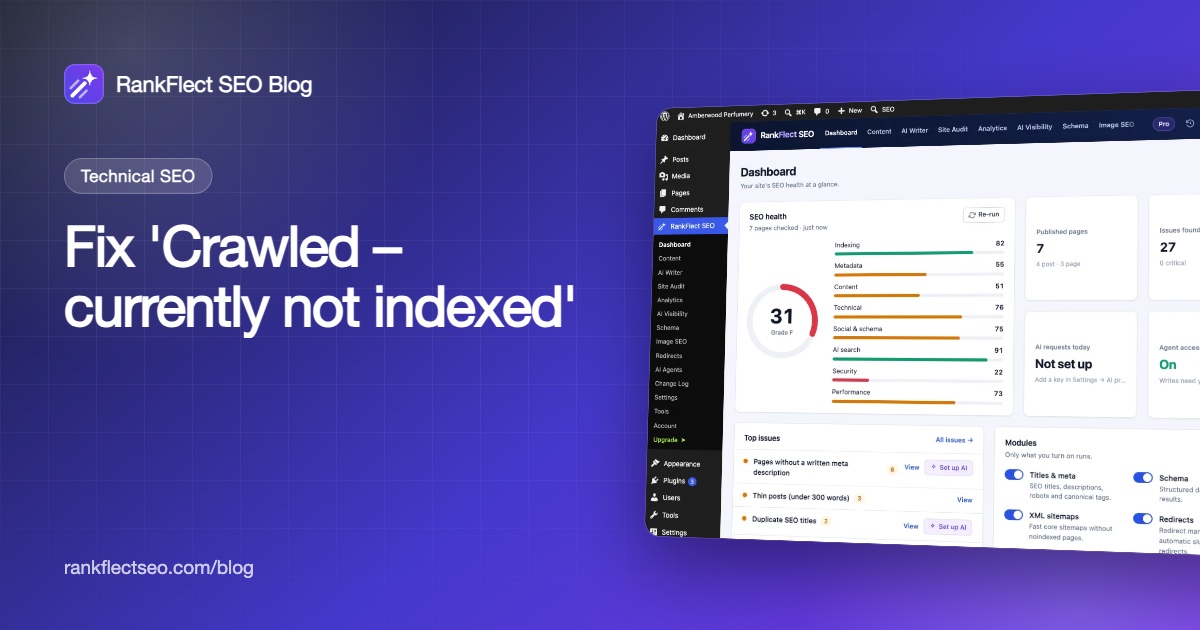
- A weekly site audit. The site audit runs automatically every 7 days on every plan. Its checks include "Search engines are blocked", thin posts under 300 words, duplicate SEO titles, and orphan posts that no other page links to.
- Clean sitemaps. Noindexed content is left out of the XML sitemaps, so you don't send Google mixed signals.
- Noindex for thin archives. Tag archives are noindexed by default, and you can noindex any content type, taxonomy or single post.
- Internal link counts on your posts lists, with orphaned posts flagged.
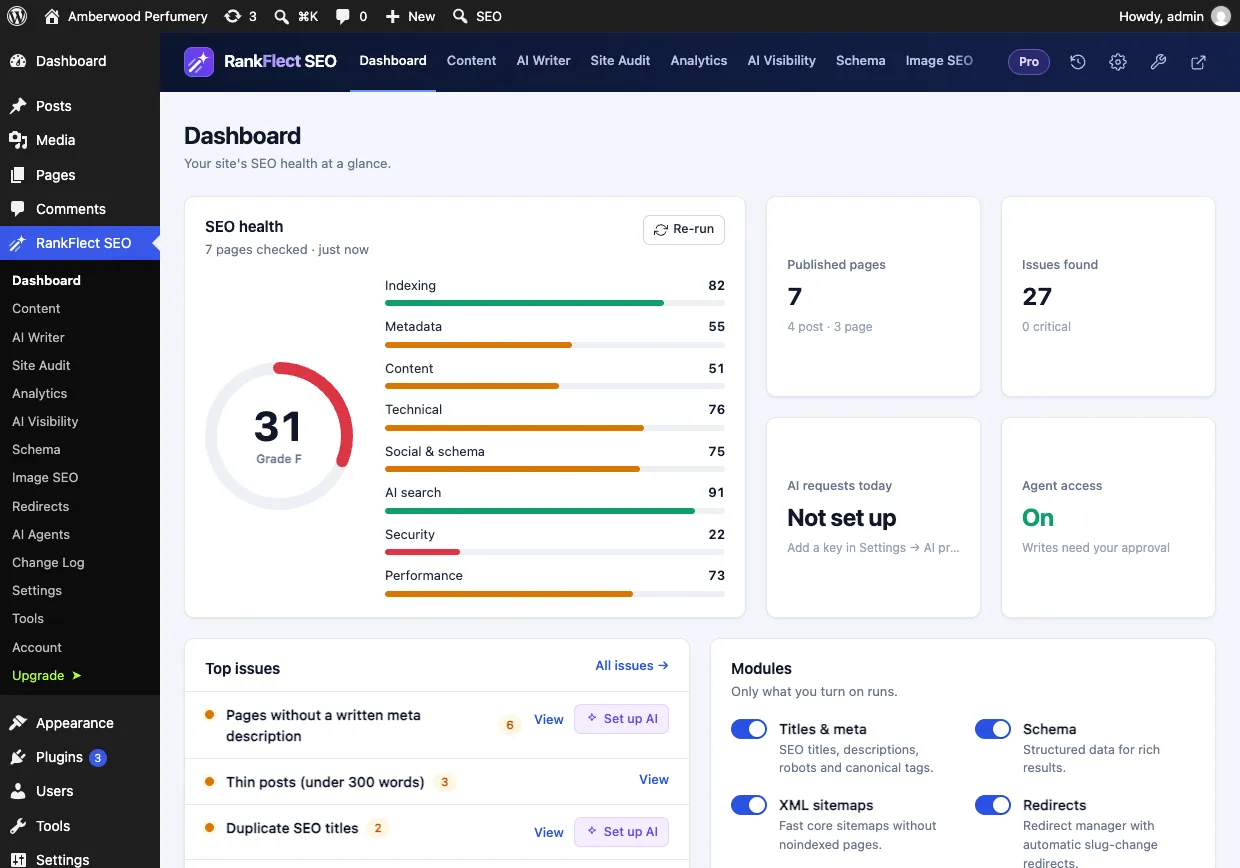
The Dashboard above shows the latest audit at a glance, with the top issues to fix first, such as thin posts and duplicate SEO titles.
In RankFlect SEO Pro, Index status asks Google's URL Inspection API whether each page is indexed and shows what Google says, for example "Crawled - currently not indexed", with a link to open the page in Search Console. It adds a Google index column to your posts lists and can check pages automatically every day. It reads the status only; to ask Google to index a page, you still use Request indexing in Search Console. It needs a Search Console connection.
You can download RankFlect SEO free to run the audit on your own site.
Frequently asked questions
Is "crawled – currently not indexed" a penalty?
No. It is not a manual action or a penalty. Google says it is a common status that doesn't necessarily need attention. It means Google decided not to index that page for now.
How long does it take for a crawled page to get indexed?
There is no fixed time. Google says indexing typically takes a day or so after a request but can take much longer, and it may not happen at all if Google doesn't see enough value in the page. Improve the page before you request indexing again.
Should I keep clicking Request indexing?
No. Requests have a daily limit, and asking again without changing the page doesn't change Google's decision. Request indexing once after a real improvement, then wait.
Why are my WordPress feed URLs crawled but not indexed?
Feeds are meant for feed readers, not search results, so Google usually leaves them out. That's expected, and you can ignore those URLs in the report.
Will submitting a sitemap fix it?
A sitemap helps Google find and recrawl pages, but it doesn't make Google index a page it considers low value. Use the sitemap together with better content and internal links.
- #crawled currently not indexed
- #google search console
- #indexing
- #page indexing report
- #wordpress seo
Written by
RankFlect SEO TeamThe people who build RankFlect SEO, the WordPress SEO plugin with a built-in MCP server. We write about what we learn shipping SEO tools for AI search.
All articles →Let AI agents fix your SEO. You keep the undo button.
RankFlect SEO is free for unlimited sites, with a built-in MCP server, approval for every change and no AI credits.