How to Noindex a WordPress Page: 3 Methods That Actually Work
Keep thank-you pages, thin archives and private landing pages out of Google. Three ways to noindex a WordPress page, and how to confirm it worked.
In this article
- Key takeaways
- What noindex does (and what it doesn't)
- Noindex vs robots.txt vs password protection
- Which WordPress pages should you noindex?
- Method 1: Noindex a single WordPress page with an SEO plugin
- Noindex several pages at once
- Don't confuse noindex with "hide from site search"
- Method 2: Noindex a whole content type, taxonomy or archive
- Method 3: Noindex a WordPress page with code
- Noindex PDFs and other files with X-Robots-Tag
- The whole-site switch: "Discourage search engines"
- Don't block a noindexed page in robots.txt
- How to check that a page is noindexed
- How long until the page disappears from Google?
- Frequently asked questions
- How do I noindex a page in WordPress without a plugin?
- Should I use noindex, follow or noindex, nofollow?
- Will noindexing a page hurt the rest of my site?
- Why is my noindexed page still in Google?
- Does noindex remove the page from my sitemap?
To noindex a WordPress page, add a noindex robots meta tag to that page only, then leave the page crawlable so Google can see the tag. The easiest way is the noindex switch in your SEO plugin's settings for that page. Without a plugin, a few lines of code using WordPress's wp_robots filter do the same job, and an X-Robots-Tag header covers PDFs and other files.
This guide shows each method, which pages are worth hiding, how to confirm the tag is live, and the robots.txt mistake that stops noindex from working at all.
Key takeaways
- Noindex asks search engines not to show a page in their results. The page stays live for visitors.
- Google must be able to crawl the page to see the tag. Never block a noindexed page in robots.txt.
- WordPress's "Discourage search engines" setting noindexes the whole site, not one page.
- Use your SEO plugin's per-page switch for single pages, and content type or taxonomy settings for whole groups.
- Removal happens when Google recrawls the page. Use URL Inspection to request a recrawl, or the Removals tool for an urgent temporary hide.
What noindex does (and what it doesn't)
A noindex rule is an instruction in the page's HTML head or in its HTTP headers:
<meta name="robots" content="noindex, follow">Google's guide to blocking indexing with noindex says that once Googlebot crawls the page and sees the rule, it drops the page from search results, even if other sites link to it. The follow part means links on the page can still be followed, which is usually what you want.
Noindex is not a privacy tool. The page stays public, anyone with the link can open it, and other search engines may read the rule differently. For private content, use a password or a login.
Noindex vs robots.txt vs password protection
- Noindex: Google crawls the page, reads the tag and leaves the page out of results. This is the right tool for removing a page from search.
- robots.txt Disallow: Google doesn't crawl the page, so it never sees a noindex tag. Google notes that a blocked URL can still appear in results if other pages link to it.
- Password or login: the content is not reachable at all, so it can't be indexed.
Which WordPress pages should you noindex?
Noindex pages that serve visitors but add nothing to search results:
- Thank-you, order confirmation and download-delivery pages.
- Landing pages for paid campaigns that duplicate a main page.
- Login, account, cart and checkout pages.
- Internal search result pages.
- Thin archives: tag pages that repeat categories, date archives and author archives on a single-author blog.
- Staging copies of your site, if they are publicly reachable.
- Legal boilerplate you don't want ranking for brand searches, if that matters to you.
Don't noindex pages that should bring traffic. If a page is weak, improving or merging it usually beats hiding it. And don't use noindex to fix duplicate content between two pages that should both exist: that is a job for a canonical URL.
Method 1: Noindex a single WordPress page with an SEO plugin
Every major SEO plugin has a per-page indexing switch in the editor. The labels differ, but the steps are the same: open the page, find the robots or advanced settings, tick noindex, and update the page.
In RankFlect SEO, which includes this in the free plugin:
- Open the page in the block editor and click the RankFlect SEO button in the editor toolbar.
- Choose Advanced in the panel's menu.
- Turn on the Robots Meta Override toggle.
- Tick No index. Leave No follow unticked unless you also want search engines to ignore the links on the page.
- Click Update to save the page.
The General section then shows "This page is hidden from search engines (noindex). Change it under Advanced.", and the page is dropped from your XML sitemap automatically. The same card also offers No archive, No snippet and No image index. The details are in Noindex, nofollow and canonical URLs and Advanced post settings.
In the Classic Editor and Elementor, the Advanced tab has a Hide from search engines (noindex) switch instead. See SEO in the Classic Editor.
Noindex several pages at once
Recent versions of RankFlect SEO also let you set noindex from Pages → All Pages: select pages and use the bulk action, or change one page with Quick Edit. Noindexed pages get a badge in the SEO column, and every change is recorded in the Change Log so you can undo it.
Don't confuse noindex with "hide from site search"
RankFlect SEO's Advanced section also has Hide from this site's search results and Hide from archive pages. Those only affect your own site's search box and post lists. They do nothing for Google. To keep a page out of Google, use No index.
Method 2: Noindex a whole content type, taxonomy or archive
When every item of a type should stay out of search, such as a custom post type for testimonials or internal documents, set it once instead of page by page.
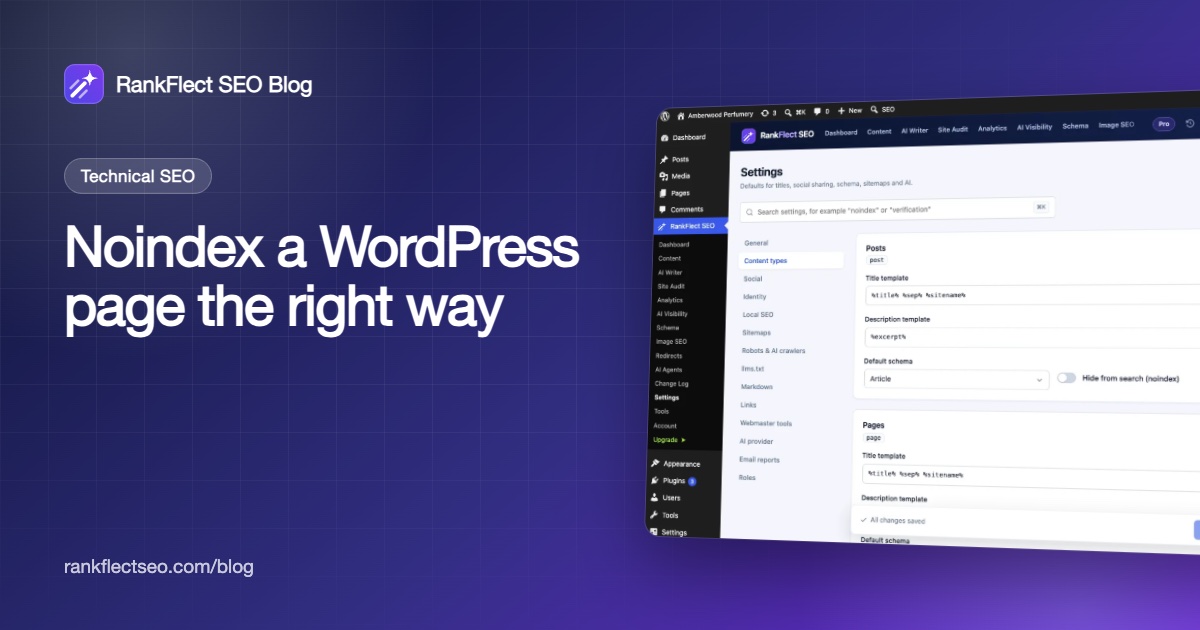
- Content types: go to RankFlect SEO → Settings → Content types and turn on Hide from search (noindex) on the content type's card. Every item gets noindex, its canonical tag is left out, and it is removed from the XML sitemap.
- Taxonomies: in the Taxonomies card on the same page, turn on Noindex for a taxonomy. Tags and Formats are noindexed by default.
- Single category or tag: on the term's edit screen, tick Hide this archive from search engines. See SEO for categories, tags and taxonomies.
- Archives: Settings → General → Archives & thin pages has switches for author archives, date archives, search results and page 2+ of archives.
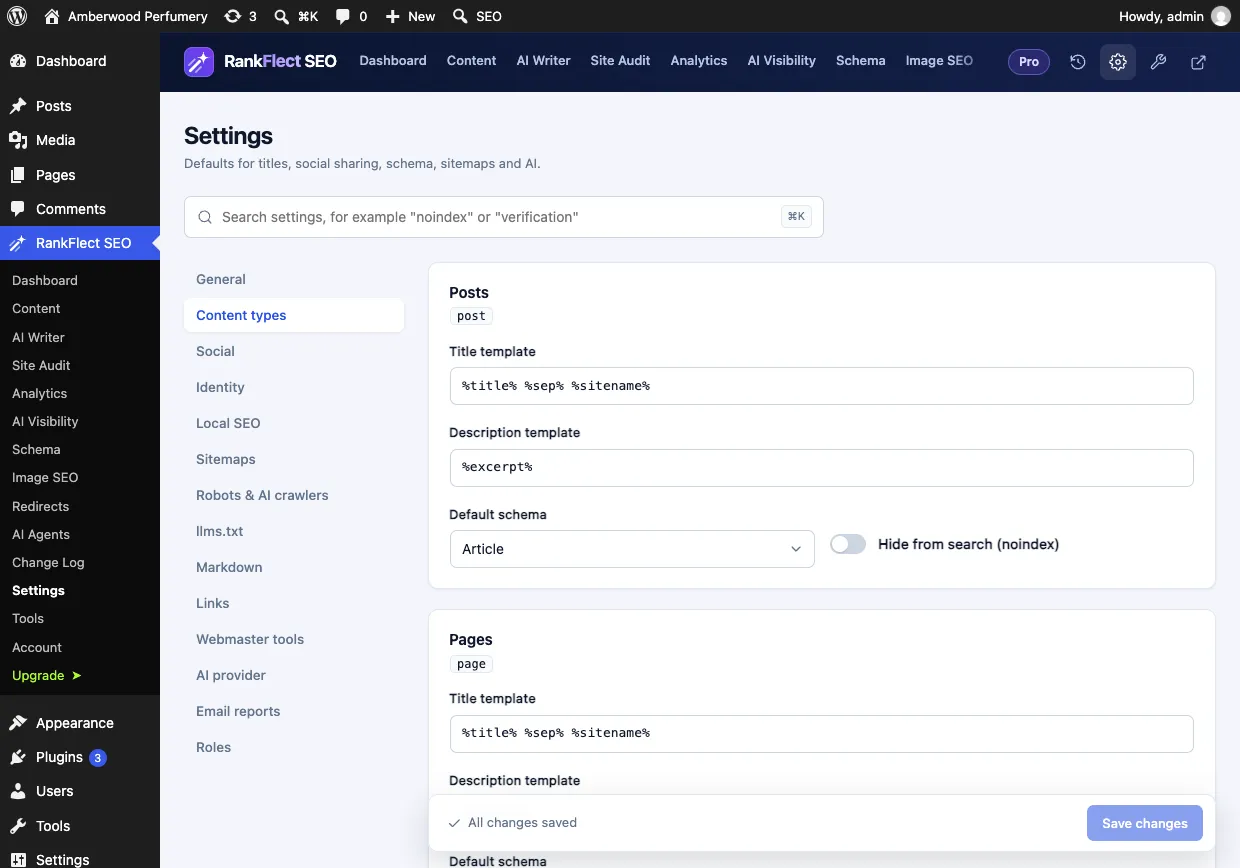
A page is noindex if any of these settings applies. Turning off a single page's override does not undo a content type set to noindex. All the options are described in Settings for posts, pages and custom post types.
On WooCommerce stores, RankFlect SEO already noindexes the cart, checkout and My account pages and keeps them out of the sitemap. See WooCommerce SEO.
Method 3: Noindex a WordPress page with code
Since WordPress 5.7, core builds the robots meta tag through the wp_robots filter. Add this to a small custom plugin or your child theme's functions.php, replacing thank-you with your page's slug:
add_filter( 'wp_robots', function ( $robots ) {
    if ( is_page( 'thank-you' ) ) {
        $robots['noindex'] = true;
        $robots['follow']  = true;
    }
    return $robots;
} );
If you run an SEO plugin, use its setting instead. Two different sources writing robots rules for the same page make it hard to tell which one wins.
Noindex PDFs and other files with X-Robots-Tag
A PDF has no HTML head, so it can't carry a meta tag. Google supports the same rule as an HTTP header. On Apache, this in .htaccess noindexes every PDF:
<Files ~ "\.pdf$">
  Header set X-Robots-Tag "noindex"
</Files>
On Nginx, use add_header X-Robots-Tag "noindex"; inside a location block that matches the files.
The whole-site switch: "Discourage search engines"
Settings → Reading → Search engine visibility in WordPress has a box labelled "Discourage search engines from indexing this site". Ticking it adds a noindex rule to every page. That is useful on a staging site and disastrous on a live one. It is the first thing to check if your whole site vanishes from Google.
RankFlect SEO's Dashboard warns "Search engines are blocked on this site" with a Fix button when this box is ticked, and the admin bar shows a red warning when the current page or the whole site is hidden from search engines.
Don't block a noindexed page in robots.txt
This is the most common reason a noindex "doesn't work." Google's documentation is explicit: for noindex to work, the page "must not be blocked by a robots.txt file." If robots.txt disallows the URL, Googlebot never fetches the page, never sees the tag, and may keep the URL in results based on links alone.
So: noindex first, wait until the page has dropped out of Google, and only then consider a robots.txt rule if you want to save crawling. For most WordPress pages you never need the robots.txt rule at all. See Edit robots.txt for how RankFlect SEO manages the file.
How to check that a page is noindexed
- View the source. Open the page, view source and search for
name='robots'orname="robots". You should seenoindexin the content value. - Check headers for files. Run
curl -Ion a PDF URL and look forX-Robots-Tag: noindex. - Clear caches. A page cache can serve an older version without the tag. Purge it and check again.
- Use URL Inspection. In Google Search Console, inspect the URL and run a live test. It reports whether indexing is allowed. Our Search Console guide for WordPress covers the tool.
How long until the page disappears from Google?
Google removes the page the next time it crawls it. Google warns that for some pages "it may take months for Googlebot to revisit." To speed it up, request indexing for the URL in URL Inspection.
For something urgent, such as a page published by mistake, Search Console's Removals tool hides a URL quickly, but a successful request "lasts only about six months." Keep the noindex tag, a 404 or a password in place so the page stays out after that.
Frequently asked questions
How do I noindex a page in WordPress without a plugin?
Use the wp_robots filter with is_page() to add noindex to the page, as shown above. For files such as PDFs, set an X-Robots-Tag header in your server configuration. The "Discourage search engines" setting is not an option for single pages, because it affects the whole site.
Should I use noindex, follow or noindex, nofollow?
Use noindex, follow in almost every case. It hides the page but lets search engines follow its links to your other pages. Add nofollow only for pages full of links you don't vouch for.
Will noindexing a page hurt the rest of my site?
No. Noindex only affects the page that carries it. Just make sure you don't noindex pages that bring traffic, and that internal links still point to pages that are indexed.
Why is my noindexed page still in Google?
Google hasn't recrawled it yet, robots.txt blocks it so the tag can't be seen, or a cache is serving a version without the tag. Check the live source, remove any robots.txt block and request indexing in URL Inspection.
Does noindex remove the page from my sitemap?
It should, because a sitemap should list only pages you want indexed. RankFlect SEO leaves noindexed posts, content types and taxonomies out of its XML sitemaps automatically. See XML sitemaps.
RankFlect SEO's per-page, bulk and content type noindex settings are all free. If you want them in one place, download RankFlect SEO for free.
- #noindex
- #robots meta tag
- #wordpress seo
- #indexing
- #x-robots-tag
Written by
RankFlect SEO TeamThe people who build RankFlect SEO, the WordPress SEO plugin with a built-in MCP server. We write about what we learn shipping SEO tools for AI search.
All articles →Let AI agents fix your SEO. You keep the undo button.
RankFlect SEO is free for unlimited sites, with a built-in MCP server, approval for every change and no AI credits.