XML Sitemap in WordPress: Find, Clean Up and Submit It the Right Way
Find your WordPress sitemap URL, decide what belongs in it, submit it once to Google and Bing, and fix the errors that keep pages out of the index.
In this article
- Key takeaways
- What an XML sitemap does (and what it doesn't)
- Where to find your WordPress XML sitemap
- WordPress core sitemaps vs an SEO plugin
- What to include in a WordPress sitemap
- Include
- Leave out
- How to set up your XML sitemap with RankFlect SEO
- How to submit your sitemap to Google and Bing
- How to check your sitemap is healthy
- Common WordPress sitemap problems and fixes
- The sitemap returns a 404
- Two different sitemaps exist
- The sitemap looks out of date
- A page is missing from the sitemap
- "Couldn't fetch" in Search Console
- Frequently asked questions
- Does WordPress create an XML sitemap automatically?
- Do I need to resubmit my sitemap every time I publish?
- Should tags and categories be in my sitemap?
- What is the difference between an XML sitemap and an HTML sitemap?
- Why does Search Console show fewer indexed pages than my sitemap lists?
Every WordPress site since version 5.5 already has an XML sitemap at /wp-sitemap.xml, and most SEO plugins either improve that one or replace it with their own. Your job is to find the right sitemap URL, make sure it lists only pages you want in search, and submit it once to Google and Bing. This guide covers all three steps, the mistakes that keep pages out of the index, and how to check that everything works.
Key takeaways
- WordPress core builds a sitemap index at
/wp-sitemap.xml. SEO plugins often use other URLs, such as/sitemap_index.xml. Check your robots.txt to see which one your site really uses. - A sitemap should list only canonical, indexable URLs. Noindexed pages, redirects and thin archives don't belong in it.
- Google ignores
priorityandchangefreq, but it useslastmodwhen the dates are accurate. - Google retired its sitemap "ping" URL. Submit the sitemap once in Search Console and list it in robots.txt; Google re-reads it on its own.
- Run only one sitemap generator. Two plugins producing sitemaps is a common cause of confusing Search Console reports.
What an XML sitemap does (and what it doesn't)
An XML sitemap is a machine-readable list of the URLs you want search engines to crawl, often with the date each one last changed. It helps crawlers discover new pages and notice updated ones, which matters most on large sites, new sites with few backlinks, and sites with pages that are hard to reach through internal links.
A sitemap is a hint, not a command. Google's own sitemap documentation says that submitting one doesn't guarantee Google will download it or use every URL. A page in your sitemap still needs to be worth indexing, reachable and not blocked.
A few rules from Google's documentation are worth knowing before you touch any settings:
- One sitemap file can hold up to 50,000 URLs or 50 MB uncompressed. Larger sites split their URLs across several files and list them in a sitemap index.
- URLs must be absolute (
https://example.com/page/), and they should be the canonical versions you want shown in results. - Google ignores
priorityandchangefreq. It useslastmodonly if the dates are consistently accurate. - The order of URLs doesn't matter.
Where to find your WordPress XML sitemap
Which URL you have depends on what generates the sitemap. Try these in your browser:
https://yoursite.com/wp-sitemap.xml: the WordPress core sitemap index, added in WordPress 5.5. RankFlect SEO builds on this one.https://yoursite.com/sitemap_index.xml: the URL Yoast SEO and Rank Math use for their own sitemaps.https://yoursite.com/sitemap.xml: used by several other plugins, and often redirected to one of the above.
The quickest way to know for sure is to open https://yoursite.com/robots.txt. WordPress and most SEO plugins add a Sitemap: line there that points to the active sitemap index.
A sitemap index is a sitemap of sitemaps. Open it and you'll see one child sitemap per content type and taxonomy, such as /wp-sitemap-posts-post-1.xml for posts and /wp-sitemap-taxonomies-category-1.xml for categories. WordPress splits long lists into numbered files, so a big blog may have -1, -2 and so on.
WordPress core sitemaps vs an SEO plugin
The core sitemap feature, announced on the Make WordPress Core blog, lists public post types, public taxonomies, author archives and the home page. It is fast and needs no setup, but it is deliberately basic:
- It has no settings screen. Excluding a post type or taxonomy needs code (the
wp_sitemaps_post_typesandwp_sitemaps_taxonomiesfilters). - It doesn't know which pages you set to noindex in an SEO plugin, so it can list pages you've asked Google not to index.
- Image, video and news sitemap extensions were left to plugins.
That's why most sites let an SEO plugin manage the sitemap. Some plugins switch off core sitemaps and serve their own; others, like RankFlect SEO, keep the core sitemaps and filter what goes in. Either approach is fine. What matters is that exactly one system generates your sitemap.
What to include in a WordPress sitemap
A clean sitemap lists the pages you'd be happy to see in search results, and nothing else. Use this as a checklist.
Include
- Published posts and pages.
- Public custom post types that have real content: products, recipes, events, courses.
- Category archives and other taxonomy archives you've curated, with useful descriptions.
Leave out
- Noindexed URLs. Listing a page and also telling Google not to index it sends mixed signals.
- Attachment pages. WordPress creates a page for every uploaded image; they're thin and best redirected to the file.
- Thin archives. Tag archives that repeat category content, date archives and, on single-author blogs, author archives.
- Utility pages. Cart, checkout, account, thank-you and login pages.
- Redirected or non-canonical URLs. Only list the final address of each page.
The simplest rule: if you don't want a page indexed, mark it noindex and make sure it drops out of the sitemap at the same time. A good SEO plugin does the second part for you.
How to set up your XML sitemap with RankFlect SEO
RankFlect SEO's sitemaps are free and on by default. They build on the WordPress core sitemaps at /wp-sitemap.xml and automatically remove noindexed content and attachment pages. If you're coming from Yoast SEO or Rank Math, /sitemap.xml and /sitemap_index.xml redirect (301) to /wp-sitemap.xml, so a sitemap you submitted before keeps working.
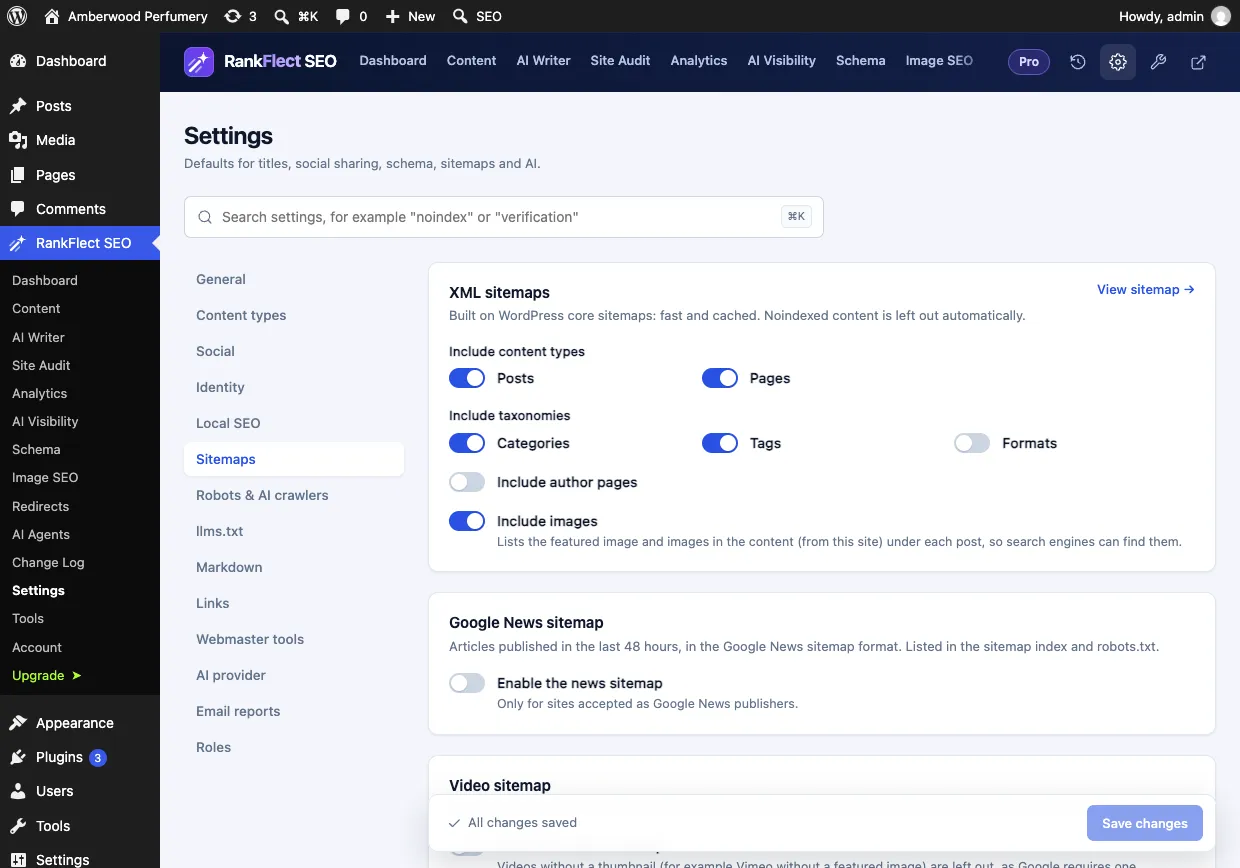
- Go to RankFlect SEO → Settings → Sitemaps.
- Under Include content types, leave on every content type that should appear in search, and switch off any that shouldn't.
- Under Include taxonomies, choose which archives to list. Post formats are off by default.
- Leave Include author pages off on a single-author site, where author pages duplicate the blog.
- Keep Include images on if you want the featured image and in-content images from your own site listed under each post.
- Click Save changes, then View sitemap to check the result.
To remove a single post or page, you don't need a sitemap setting. Open it in the editor and, in the RankFlect SEO panel, go to Advanced → Robots Meta Override → No index. The page is then noindexed and dropped from the sitemap in one step. The full list of rules is in the XML sitemaps documentation, and the noindex options are explained in Noindex, nofollow and canonical URLs.
A whole content type can be hidden the same way: Settings → Content types → Hide from search (noindex) noindexes every item of that type and removes it from the sitemap. See settings for posts, pages and custom post types.
A few extras are handled automatically. With WooCommerce, cart, checkout and My account pages are left out and hidden products are skipped (WooCommerce SEO). On multilingual sites, each URL lists its translations as hreflang alternates (Multilingual SEO). In RankFlect SEO Pro, you can also turn on a Google News sitemap and a video sitemap, described in News and video sitemaps.
How to submit your sitemap to Google and Bing
You only need to submit a sitemap once. After that, search engines come back to it on their own.
- List it in robots.txt. Most plugins do this for you. RankFlect SEO adds
Sitemap: https://example.com/wp-sitemap.xmlto the virtual robots.txt automatically (Edit robots.txt). - Google Search Console. Open Sitemaps, enter
wp-sitemap.xml(or your plugin's sitemap path) and click Submit. Submit the index, not each child sitemap. Our Google Search Console guide covers verification and the reports to watch. - Bing Webmaster Tools. Open Sitemaps and submit the same URL. Bing can also import your sites from Search Console.
Older tutorials tell you to "ping" Google whenever you publish. Google announced in June 2023 that it was deprecating the sitemap ping endpoint, and the same post explains that Google relies on accurate lastmod dates to decide when to recrawl. For faster notice on Bing and other engines, use IndexNow, which RankFlect SEO supports as a free module that's off by default.
How to check your sitemap is healthy
Once a week or two after submitting, open the Sitemaps report in Search Console. You want the status Success and a discovered URL count close to the number of pages you expect. Then work through these checks:
- Spot-check a few URLs. Open three or four entries from a child sitemap. Each should load with a 200 status, be the canonical URL and not be noindexed.
- Compare counts. If the sitemap lists far more URLs than you have real pages, look for tag archives, attachment pages or a content type created by a plugin (portfolio items, form entries, page-builder templates) that shouldn't be public.
- Check the Page indexing report. Filter by your sitemap to see which submitted URLs aren't indexed and why. "Excluded by noindex tag" on a sitemap URL means the sitemap and your robots settings disagree.
- Check dates.
lastmodshould change when the content really changes, not on every page load.
Common WordPress sitemap problems and fixes
The sitemap returns a 404
The most common cause is Settings → Reading → Discourage search engines from indexing this site. WordPress turns sitemaps off while it's ticked, and RankFlect SEO does the same. Untick it when the site goes live. If that's not it, re-save Settings → Permalinks to refresh rewrite rules.
Two different sitemaps exist
Two plugins are generating sitemaps, for example an old sitemap plugin alongside your SEO plugin. Turn off the sitemap feature in one of them and submit only the remaining index in Search Console. Remove the old one there as well.
The sitemap looks out of date
A page cache or CDN is serving an old copy. Clear the cache, and exclude wp-sitemap*.xml (or your plugin's sitemap path) from caching.
A page is missing from the sitemap
Usually it's noindexed, its content type is excluded or noindexed, or it isn't published. Check the page's robots settings first, then the content type settings.
"Couldn't fetch" in Search Console
Open the sitemap URL in a private browser window. If it loads, wait a day and check again; the status often updates on the next fetch. If it doesn't load, check for a security plugin or firewall rule blocking crawlers.
If you'd like a sitemap that leaves out noindexed content without any code, you can download RankFlect SEO for free and check your sitemap in a couple of minutes.
Frequently asked questions
Does WordPress create an XML sitemap automatically?
Yes. Since WordPress 5.5, core generates a sitemap index at /wp-sitemap.xml for public posts, pages, custom post types, taxonomies and authors. It turns off while "Discourage search engines" is ticked, and many SEO plugins either filter it or replace it with their own.
Do I need to resubmit my sitemap every time I publish?
No. Once Google and Bing know your sitemap URL, they re-read it regularly. Accurate lastmod dates help Google decide what to recrawl. IndexNow can tell Bing and other participating engines about a change right away, but Google doesn't use it.
Should tags and categories be in my sitemap?
Include taxonomy archives you want to rank, usually categories with a clear description. Tag archives often repeat category content, so many sites noindex them, which also removes them from the sitemap. RankFlect SEO noindexes tags by default; you can change that under Content types.
What is the difference between an XML sitemap and an HTML sitemap?
An XML sitemap is for search engines: a structured list of URLs with dates. An HTML sitemap is a normal page with links for visitors. They do different jobs, and an XML sitemap is the one you submit in Search Console.
Why does Search Console show fewer indexed pages than my sitemap lists?
A sitemap tells Google which URLs exist, not which ones it must index. Google may skip pages it sees as duplicates, low value or not yet crawled. Use the Page indexing report, filtered by sitemap, to see the reason for each excluded URL.
- #xml sitemap
- #wordpress sitemap
- #technical seo
- #google search console
- #indexing
Written by
RankFlect SEO TeamThe people who build RankFlect SEO, the WordPress SEO plugin with a built-in MCP server. We write about what we learn shipping SEO tools for AI search.
All articles →Let AI agents fix your SEO. You keep the undo button.
RankFlect SEO is free for unlimited sites, with a built-in MCP server, approval for every change and no AI credits.