Google Search Console for WordPress: Setup and Quick SEO Wins
Verify your site, submit your sitemap and use Search Console's reports to find the quick SEO wins hiding in your WordPress data.
In this article
- Key takeaways
- Step 1: Choose a Domain or URL-prefix property
- Step 2: Verify your WordPress site in Google Search Console
- Step 3: Submit your WordPress sitemap
- Which Search Console reports matter first
- Performance
- Pages (indexing)
- Core Web Vitals
- How to find quick SEO wins in Search Console
- 1. Queries at positions 8 to 20
- 2. High impressions, low CTR
- 3. Pages losing clicks
- 4. Inspect important URLs
- How RankFlect SEO connects Google Search Console to WordPress
- Verification
- Your own Google connection
- Reports in your dashboard
- Quick wins, already filtered (Pro)
- Frequently asked questions
- Do I need a plugin to connect Google Search Console to WordPress?
- Which verification method is best for WordPress?
- How long until Search Console shows data?
- What is my WordPress sitemap URL?
- Does requesting indexing guarantee a page will rank?
To connect Google Search Console to WordPress, add your site as a property in Search Console, verify that you own it (with a DNS record, an HTML tag, an HTML file, or your Google Analytics or Tag Manager code), then submit your sitemap. Once data arrives, a few reports show you where the quick SEO wins are. This guide walks through each step and then shows how to find those wins in minutes.
Key takeaways
- A Domain property covers every subdomain and both http and https, but it can only be verified with a DNS record. A URL-prefix property offers more verification methods.
- Keep your verification in place after it succeeds. Google checks again from time to time.
- Submit your sitemap in the Sitemaps report. On a WordPress site it is usually
/wp-sitemap.xmlor the sitemap your SEO plugin creates. - Start with three reports: Performance, Page indexing and Core Web Vitals.
- The fastest wins are queries at positions 8 to 20, page-one results with a low click-through rate, and pages that are losing clicks.
Step 1: Choose a Domain or URL-prefix property
In Google Search Console, click Add property. Google offers two types, as its help page on adding a property explains:
- Domain property (for example
example.com): covers all subdomains, all paths and both http and https. It must be verified with a DNS record. - URL-prefix property (for example
https://www.example.com/): covers only URLs that start with that exact prefix, including the protocol. It can be verified in several ways.
If you can edit your DNS, a Domain property gives you the most complete picture. If you can't, a URL-prefix property for the exact address your site uses (with or without www, always https) works well.
Step 2: Verify your WordPress site in Google Search Console
Google's verification help lists these methods:
- DNS record. Add a TXT record at your domain registrar or DNS host. It is the only method for a Domain property, and verifying it also covers URL-prefix properties on that domain. Don't remove the record after verification succeeds.
- HTML tag. Add a
google-site-verificationmeta tag to your home page's<head>. This is the easiest method on WordPress, because an SEO plugin can output the tag for you. - HTML file. Upload a small file Google gives you to your site's root folder by FTP or your host's file manager.
- Google Analytics. If your site already loads the GA tracking code in the
<head>and you have edit rights on the Analytics property, you can verify with it, using the same Google account. - Google Tag Manager. If your site uses a Tag Manager container and you have Publish or Admin permission on it, you can verify with the container snippet.
The last four methods only work for URL-prefix properties. Google checks verification periodically, so if a theme change removes your tag, you can lose access after a grace period. Google suggests adding more than one method as a backup.
Step 3: Submit your WordPress sitemap
A sitemap tells Google which URLs you want crawled. WordPress has built-in sitemaps at /wp-sitemap.xml, and most SEO plugins either extend that file or create their own.
- Open your sitemap in a browser to check that it loads and lists your posts and pages.
- In Search Console, open Sitemaps.
- Enter the sitemap path (for example
wp-sitemap.xml) under Add a new sitemap and click Submit. - Check that the status shows Success. If it says Couldn't fetch or Has errors, open the row for details.
According to Google's Sitemaps report help, Google recrawls submitted sitemaps on its own schedule, so you only need to resubmit after major changes. Also list your sitemap in robots.txt so other search engines find it.
Which Search Console reports matter first
Data usually starts to appear within a few days of verification. Don't try to read every report. These three cover most of what a WordPress site needs.
Performance
The Performance report shows clicks, impressions, average CTR and average position for Google Search, broken down by query, page, country, device and date. This is where your quick wins live, because it tells you what Google already shows you for.
Pages (indexing)
The Page indexing report shows which URLs are indexed and, for the rest, why not: blocked by robots.txt, marked noindex, duplicates, 404s or server errors. Google is clear that not every page needs to be indexed, but your key pages, especially the home page, should be. Check this report after a redesign, a migration or a plugin change.
Core Web Vitals
The Core Web Vitals report uses real-user data from the Chrome UX Report to rate URL groups as Good, Need improvement or Poor on loading (LCP), responsiveness (INP) and visual stability (CLS). Small sites may not have enough traffic to show data here. If they do, fix Poor groups first, since one template fix often covers many pages.
How to find quick SEO wins in Search Console
Set the Performance report to the last 3 months and turn on all four metrics. Then work through these checks.
1. Queries at positions 8 to 20
Open the Queries tab and sort by position. Queries ranking around the bottom of page one or on page two, with a decent number of impressions, are close to earning real clicks. Click a query, switch to Pages to see which URL ranks, then improve that page: use the query in the title and a subheading, answer it clearly near the top, and add internal links from related posts.
2. High impressions, low CTR
Look for pages on page one with many impressions but a click-through rate well below their neighbours. They rank, but searchers choose other results. Usually the SEO title or meta description doesn't match what the searcher wants. Rewrite them to promise exactly what the page delivers, then compare the CTR a few weeks later.
3. Pages losing clicks
Use Date → Compare to compare the last 3 months with the previous period, open the Pages tab and sort by the change in clicks. Pages that are slipping often have out-of-date facts, thin sections or a competitor that answers the question better. Refreshing a page that already ranks is often quicker than ranking a new one.
4. Inspect important URLs
The URL Inspection tool shows whether a page is on Google, the canonical Google chose, and whether crawling and indexing are allowed. After you fix a page, run the live test and click Request indexing. A request doesn't guarantee indexing, and Google suggests a sitemap rather than requests when you have many pages.
How RankFlect SEO connects Google Search Console to WordPress
Everything above works with Search Console alone. RankFlect SEO brings the same data into WordPress so you can act on it next to your content.
Verification
Paste the content value of Google's HTML tag into RankFlect SEO → Settings → Webmaster tools, save, and click Verify in Search Console. The tag is added to your home page and stays there when you change themes. Bing, Yandex, Pinterest and Baidu codes work the same way. See verify your site with Google, Bing and others. RankFlect SEO also adds your sitemap (/wp-sitemap.xml) to robots.txt automatically.
Your own Google connection
In RankFlect SEO → Analytics you connect with your own Google Cloud OAuth client, or with a service account that suits agencies and many sites. Access is read-only, and your data goes straight from Google to your site: there is no RankFlect SEO account or server in between. If Site Kit by Google is already set up, RankFlect SEO can use Site Kit's connection instead. Full steps are in connect Google Search Console and GA4. Connecting is free.
Reports in your dashboard
The free Search performance tab shows clicks, impressions, average CTR and average position against the previous period, with your top 25 queries and pages. Page rows link to the post editor. The Traffic & AI referrals tab adds GA4 sessions and visits from AI assistants. See search and traffic reports.
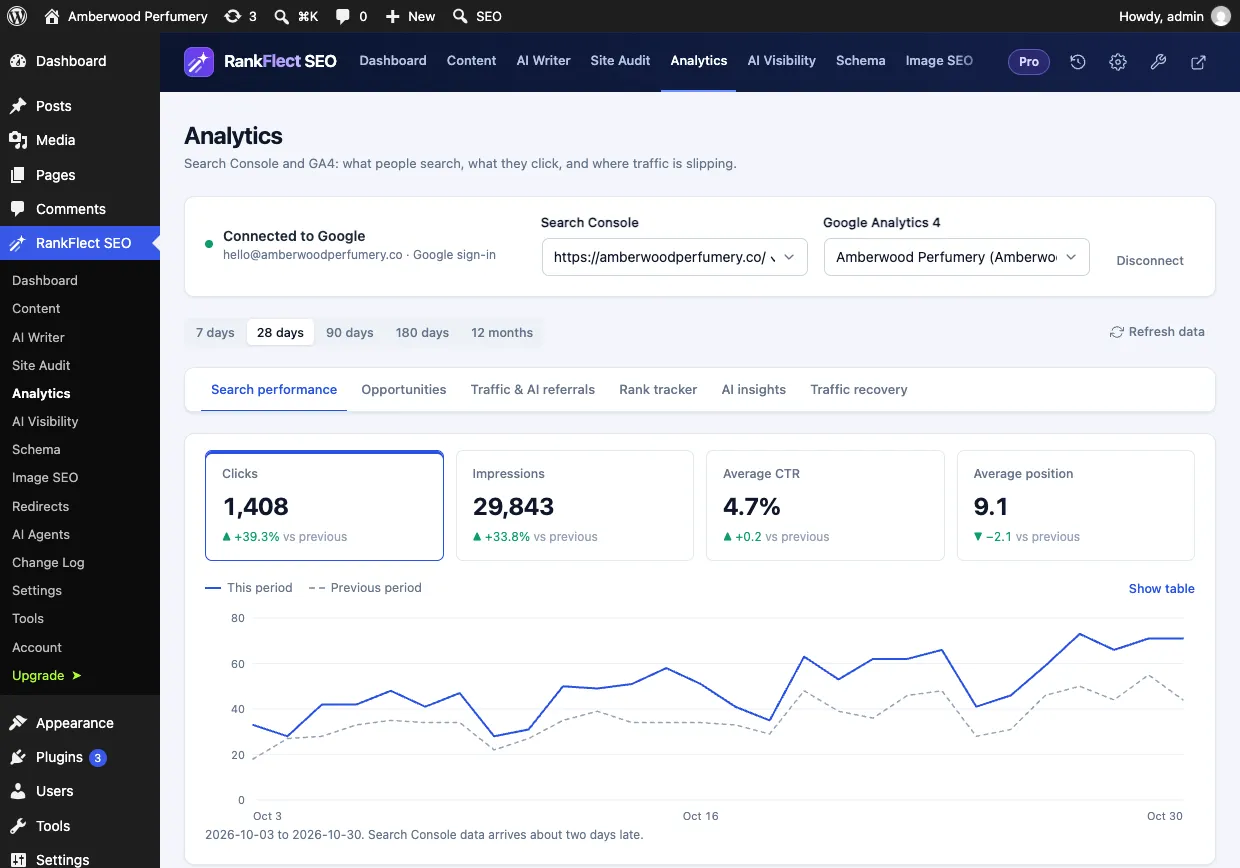
Quick wins, already filtered (Pro)
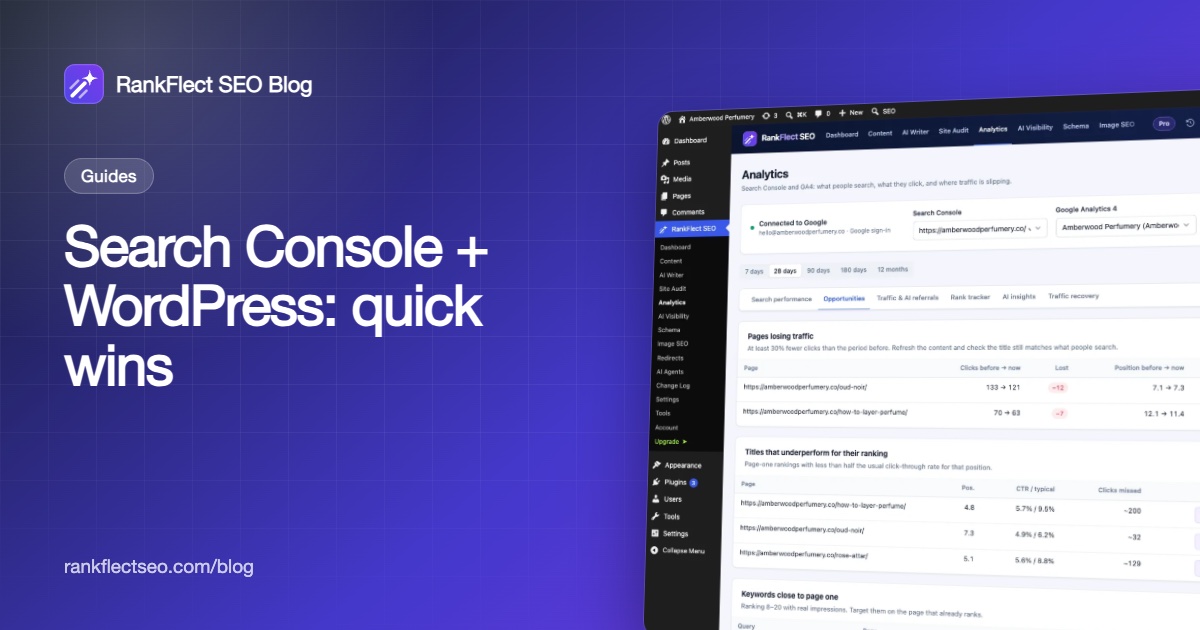
With RankFlect SEO Pro, the Search Console opportunities tab runs the three quick-win checks for you:
- Pages losing traffic: at least 30% fewer clicks than the previous period, with a link to refresh the post.
- Titles that underperform: page-one results with less than half the typical CTR for their position, with an AI Rewrite title button. The change is logged and can be undone.
- Keywords close to page one: queries at positions 8 to 20, with Make focus keyword to set the query as the page's focus keyword.
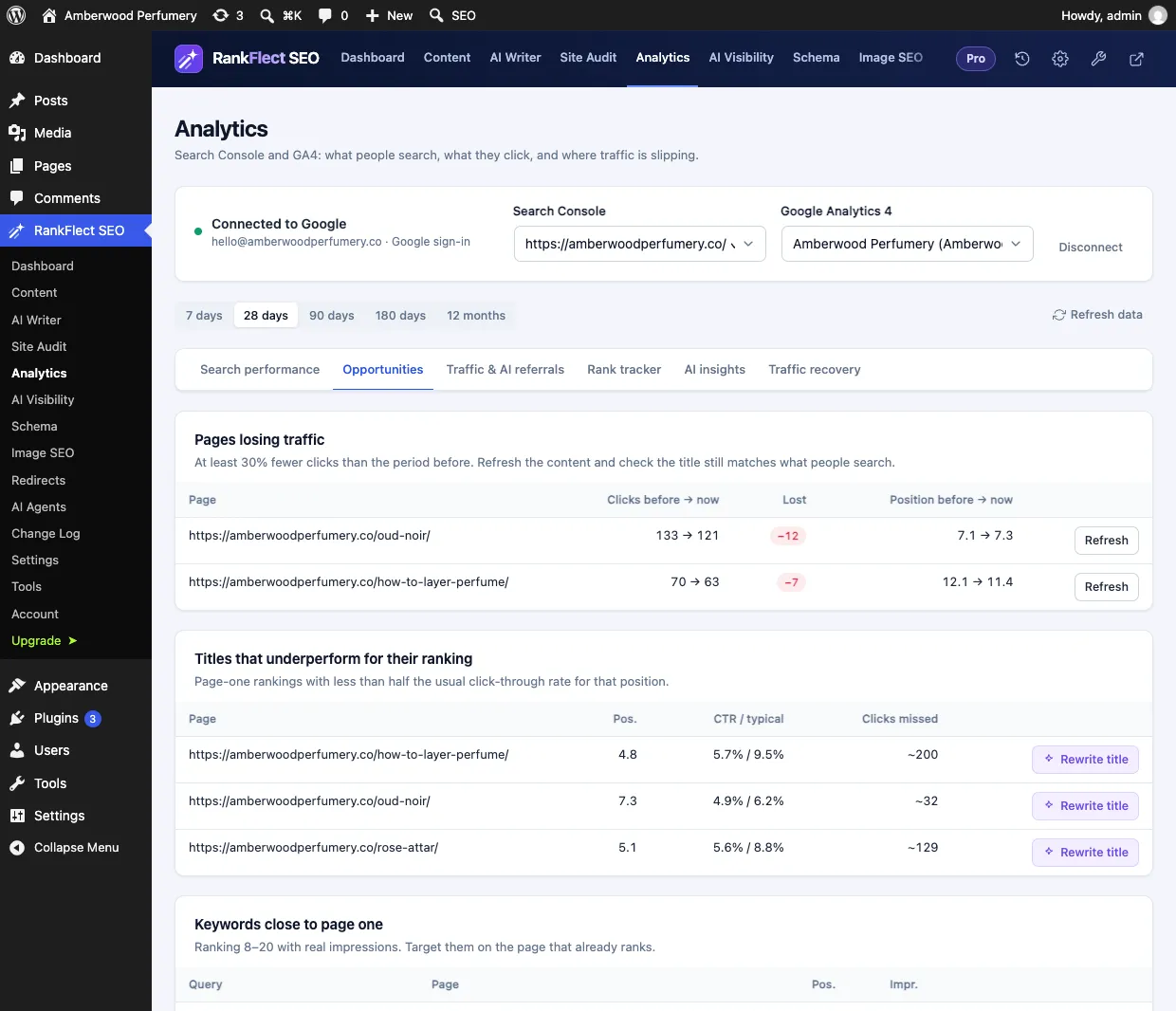
Pro also adds index status from the URL Inspection API with a Google index column on every posts list, Traffic Recovery refresh briefs for decaying pages, and a rank tracker that stores daily positions for up to 100 keywords beyond Search Console's 16 months. If you want to try the free reports first, download RankFlect SEO free.
Frequently asked questions
Do I need a plugin to connect Google Search Console to WordPress?
No. You can verify with a DNS record or an HTML file and submit your sitemap without any plugin. A plugin makes the HTML tag method easier and can bring Search Console data into your WordPress dashboard.
Which verification method is best for WordPress?
DNS verification is the most robust, because it doesn't depend on your theme and it is the only way to verify a Domain property. The HTML tag through an SEO plugin is the easiest. Adding a second method gives you a backup if one breaks.
How long until Search Console shows data?
Google says data usually appears within a few days of adding a property. Performance data also runs a little behind real time, so the most recent days may be incomplete or change.
What is my WordPress sitemap URL?
WordPress core serves a sitemap at /wp-sitemap.xml. Some SEO plugins use a different address, such as /sitemap_index.xml, so open it in your browser before you submit it. In RankFlect SEO, /sitemap.xml and /sitemap_index.xml redirect to /wp-sitemap.xml.
Does requesting indexing guarantee a page will rank?
No. Requesting indexing asks Google to crawl the page, but Google says it does not guarantee inclusion in the index, let alone a ranking. Improving the content and internal links matters more.
- #google search console
- #wordpress seo
- #sitemaps
- #quick wins
- #analytics
Written by
RankFlect SEO TeamThe people who build RankFlect SEO, the WordPress SEO plugin with a built-in MCP server. We write about what we learn shipping SEO tools for AI search.
All articles →Let AI agents fix your SEO. You keep the undo button.
RankFlect SEO is free for unlimited sites, with a built-in MCP server, approval for every change and no AI credits.