WooCommerce Product Schema: Get Price, Stock and Reviews in Google
What Google needs in Product structured data, what WooCommerce outputs by default, the common gaps (brand, GTIN, variations) and how to test your markup.
In this article
- Key takeaways
- What is WooCommerce product schema?
- What Google requires for product rich results
- Product snippets
- Merchant listings
- What WooCommerce outputs by default
- Common gaps in WooCommerce product schema
- How to test your product schema
- Mistakes to avoid
- How RankFlect SEO handles WooCommerce product schema
- Validate before Google sees it
- What RankFlect SEO Pro adds
- Frequently asked questions
- Does WooCommerce add product schema automatically?
- Why don't my WooCommerce products show star ratings in Google?
- Is a GTIN required for product rich results?
- Should I add Product schema to category pages?
- Can two plugins output product schema at the same time?
WooCommerce product schema is the Product structured data on your product pages that tells Google the name, price, currency, stock status and reviews of what you sell. With complete, accurate markup, a product becomes eligible for rich results with price, availability and star ratings. WooCommerce outputs a basic version on its own, but it leaves gaps that are worth closing.
This guide explains what Google asks for, what WooCommerce prints by default, the most common gaps and how to test your pages.
Key takeaways
- Google has two kinds of product results: product snippets and merchant listings. Shops that sell directly should aim for merchant listings.
- Merchant listings require
name,imageand anoffersobject with a price above zero and a currency. - WooCommerce core outputs Product JSON-LD with price, stock, SKU and reviews, but no
brand. - Markup must match what shoppers see on the page, and it belongs on product pages, not category pages.
- Valid schema makes a product eligible for rich results. Google decides whether to show them.
What is WooCommerce product schema?
Product schema is a block of JSON-LD code, using the schema.org Product type, that describes one product in a format machines read reliably. It sits in the page's HTML, invisible to shoppers. Google reads it to understand that the page sells a specific item, at a specific price, in a specific condition.
A typical Product node contains a nested Offer (price, currency, availability) and, when the product has reviews, an AggregateRating and individual Review items.
What Google requires for product rich results
Google documents two separate experiences, each with its own rules.
Product snippets
Product snippets are for pages about a product where people cannot necessarily buy it, such as review sites. The only required properties are name and one of review, aggregateRating or offers. Google recommends adding ratings and reviews, and an Offer with price, priceCurrency and availability.
Merchant listings
Merchant listings are for pages where customers can buy from you, which is what a WooCommerce store is. They are stricter:
- Required on Product:
name,imageandoffers. - Required on Offer:
price(greater than zero) andpriceCurrency, either directly or insidepriceSpecification. - Recommended on Product:
brand.name, a GTIN (gtin,gtin8,gtin12,gtin13,gtin14orisbn),mpn,sku,description,aggregateRatingandreview, pluscolor,sizeandmaterialwhere they apply. - Recommended on Offer:
availability,itemCondition,priceValidUntil,url,shippingDetailsandhasMerchantReturnPolicy.
Google also notes that merchant listings expect an Offer from you as the seller, not an AggregateOffer. A page that meets the merchant listing requirements can also qualify for product snippets.
What WooCommerce outputs by default
WooCommerce has a built-in structured data class that prints Product JSON-LD on single product pages. Based on its current source code, the default markup includes:
name,url,description(the short description, or the full one as a fallback) andimage.sku, which falls back to the product ID when no SKU is set.gtinfrom WooCommerce's own GTIN, UPC, EAN or ISBN field, when the value is a valid 8, 12, 13 or 14-digit number, andmpnwhen set.- An offer with price,
priceCurrency,priceValidUntil,availability(in stock, backorder or out of stock) and the store asseller. aggregateRatingand up to five recent reviews, when the product has rated reviews and reviews are enabled.
That is a solid base. It is not the whole picture, though.
Common gaps in WooCommerce product schema
- No brand. WooCommerce has had a built-in Brands taxonomy since version 9.6, but the default structured data does not output
brand. Google recommends it for merchant listings. - Missing identifiers. Many stores never fill in the GTIN field, or put a GTIN in the SKU field. Google uses GTINs to match your product with the same item elsewhere, so a correct one is worth adding for any product that has one.
- Variable products. When variations have different prices, WooCommerce outputs an
AggregateOfferwith the lowest and highest price. That suits product snippets, but merchant listings ask for anOffer. Google also has separate guidance for product variants, usingProductGroup,isVariantOfand a distinct URL per variant. - No reviews in the markup. Ratings only appear when a product has approved reviews with a star rating. No reviews means no stars, whatever your schema says.
- Shipping and returns. Default markup does not describe shipping costs or return policies. Google lists both as recommended for merchant listings, and recommends defining return policies at the Organization level.
- Duplicate Product nodes. When a theme or SEO plugin adds its own Product schema on top of WooCommerce's, Google sees two products on one page. Keep one source.
How to test your product schema
- Run the Rich Results Test. Paste a live product URL into Google's Rich Results Test. It shows which rich results the page is eligible for, such as merchant listings and product snippets, with errors and warnings.
- Check the raw markup. Use the Schema Markup Validator to see every schema.org node on the page. This is the quickest way to spot duplicate Product nodes.
- Test each product type. Check one simple product, one variable product, one on sale and one out of stock. Each follows a different code path.
- Monitor Search Console. After Google recrawls, open the Merchant listings report under Shopping. It also covers product snippets on pages that include offer data. The Product snippets report covers non-merchant pages.
- Re-test after changes. Re-run the checks after theme updates, plugin changes or new product templates. Clear your page cache first, or you may test an old version.
Mistakes to avoid
- Markup that does not match the page. Google's structured data guidelines say not to mark up content that is not visible to readers. The price, stock status and rating in the schema must match what shoppers see.
- Product schema on category pages. Google says product rich results support pages that focus on a single product, and that category and listing pages are not supported. Mark up the product pages themselves.
- Fake or imported reviews. Only mark up genuine reviews shown on the page. Google's guidelines treat fake reviews as misleading content.
- Expired dates. Google says a
priceValidUntildate in the past may stop the snippet from showing. Check sale end dates. - Schema added only by JavaScript. Google asks merchants to put Product markup in the initial HTML, because JavaScript-generated markup can make Shopping crawls less frequent and reliable.
- Expecting guaranteed stars. Valid markup makes a page eligible. Google decides what to show.
How RankFlect SEO handles WooCommerce product schema
When WooCommerce is active, RankFlect SEO builds a Product node from your store data as part of its single JSON-LD graph. It includes price, sale end date, stock status, SKU, GTIN, brand, images, star rating and reviews. It turns off WooCommerce's own product schema, so Google sees one product, not two. See WooCommerce SEO for every setting.
- Brand: by default it uses your Brands taxonomy if the store has one, otherwise a product attribute named Brand. You can pick a specific taxonomy or attribute instead.
- Offer: an Offer for the price (the lowest price for a variable product), with availability from the stock status.
- Connected graph: the Product node sits in the same graph as your Organization, WebPage and BreadcrumbList nodes. See how RankFlect SEO's schema works.
- Your own overrides: a Product item in the Schema manager merges into the automatic node, so fields you fill in replace the generated ones.
It also keeps cart, checkout and My account pages out of search and the sitemap, and adds product variables such as %wc_price% and %wc_brand% for SEO titles and descriptions.
Validate before Google sees it
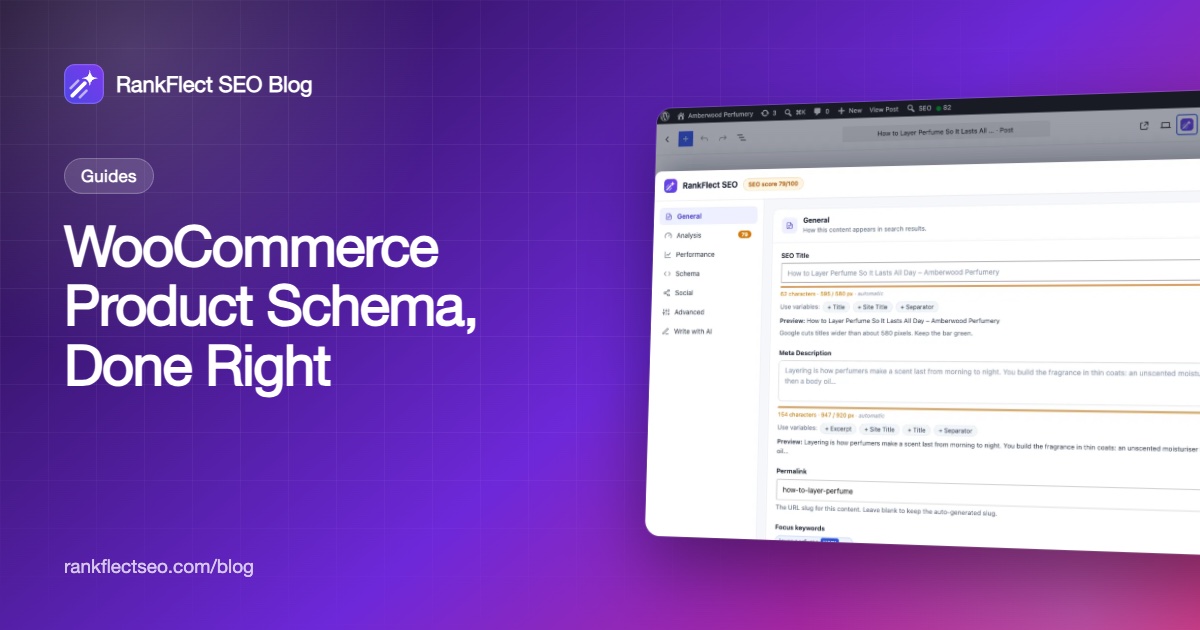
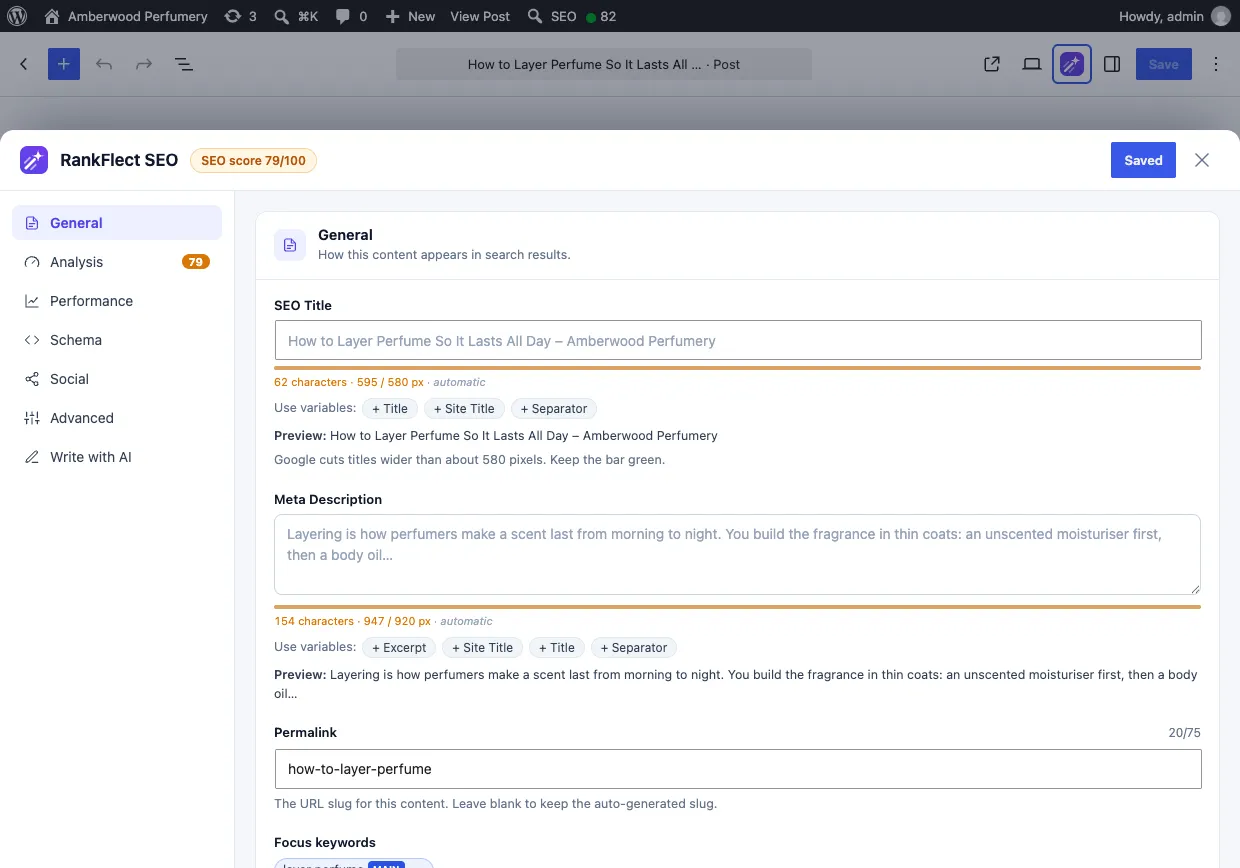
The schema validator checks the final JSON-LD of any page against the required and recommended properties from Google's documentation. In the block editor, open the RankFlect SEO panel, choose Schema and click Validate Current. Show final JSON-LD shows the exact output, and a link opens Google's Rich Results Test for the published page. Schema items with errors are never output, so a broken item cannot put invalid markup on your site.
What RankFlect SEO Pro adds
RankFlect SEO Pro adds GTIN, MPN, ISBN and brand fields on each product and each variation, an AggregateOffer that lists every variation with its own price, stock, SKU and GTIN, Open Graph product tags, and noindex for filtered and sorted shop pages. The free plugin's Product schema works without it.
To see what your own products output, download RankFlect SEO free, open a product and run the validator.
Frequently asked questions
Does WooCommerce add product schema automatically?
Yes. WooCommerce prints Product JSON-LD on single product pages with name, description, image, SKU, price, availability and reviews. It does not output brand, shipping details or return policies, which Google recommends for merchant listings.
Why don't my WooCommerce products show star ratings in Google?
Ratings only appear in the schema when the product has approved reviews with a star rating. Even with valid markup, Google decides whether to show stars. Test the page with the Rich Results Test and check the Merchant listings report in Search Console for errors.
Is a GTIN required for product rich results?
No. Google lists GTIN as recommended, not required, for merchant listings. If your product has a real GTIN, such as a UPC, EAN or ISBN, add it, because it helps Google identify the exact item. Do not invent one for handmade or custom products.
Should I add Product schema to category pages?
No. Google says product rich results only support pages that focus on a single product, and category or listing pages are not supported. Mark up each product page instead.
Can two plugins output product schema at the same time?
They can, but they should not. Two Product nodes for the same item confuse search engines. Use one source of product schema and check the page in the Schema Markup Validator to confirm only one Product node remains.
- #woocommerce
- #schema
- #structured data
- #rich results
- #ecommerce seo
Written by
RankFlect SEO TeamThe people who build RankFlect SEO, the WordPress SEO plugin with a built-in MCP server. We write about what we learn shipping SEO tools for AI search.
All articles →Let AI agents fix your SEO. You keep the undo button.
RankFlect SEO is free for unlimited sites, with a built-in MCP server, approval for every change and no AI credits.