How to Add a Meta Description in WordPress (With and Without a Plugin)
WordPress has no meta description field by default. Here is how to add one with a plugin or a code snippet, for posts, the home page, categories and products.
In this article
- Key takeaways
- Does WordPress add a meta description by default?
- Method 1: How to add a meta description in WordPress with an SEO plugin
- If you use the Classic Editor
- Method 2: Add a meta description in WordPress without a plugin
- Add meta descriptions to the home page, categories and products
- Home page
- Categories and tags
- Every post you never touch: templates
- How to write a meta description that earns the click
- Check that your meta description works
- Why Google ignores your meta description sometimes
- Frequently asked questions
- How long should a meta description be in WordPress?
- Can I add a meta description without a plugin?
- Is the meta description a ranking factor?
- Why is my new meta description not showing in Google?
- What happens if I leave the meta description empty?
If you want to know how to add a meta description in WordPress, the short answer is: WordPress itself has no field for it, so you either use an SEO plugin (the easiest and safest way) or add a few lines of code to your theme. This guide shows both methods step by step, plus how to cover your home page, categories and products, and how to write a description people actually click.
A meta description is the short summary in the <meta name="description"> tag of a page. Google may show it as the snippet under your title in search results, so it works like a small ad for the page.
Key takeaways
- WordPress core does not print a meta description tag. You need an SEO plugin or custom code.
- An SEO plugin is the recommended route: you get a field in the editor, templates for pages you never touch, and a preview.
- Google does not always use your description. It shows it when it describes the page better than text taken from the page.
- Write a unique, specific summary for each important page. Google sets no length limit, but long text is cut to fit the screen.
- Check your work by viewing the page source and searching for
name="description".
Does WordPress add a meta description by default?
No. A fresh WordPress install outputs a <title> tag (when the theme supports it) but no meta description. Some themes add one, often built from the excerpt, but most leave it out.
Without a description tag, search engines build the snippet from your page text. That is not a disaster. Google's own guidance says snippets are usually created from page content, and it uses the meta description only when it gives a more accurate description of the page than the on-page text. But a good description gives you a say in the first impression, especially on pages where the opening text is a cookie notice, a menu or a long story.
Before you add one, check what your site outputs today. Open any post, right-click, choose View Page Source and search for description. If you already see a tag, your theme or another plugin is adding it, and you should manage it in one place only to avoid two tags on the same page.
Method 1: How to add a meta description in WordPress with an SEO plugin
This is the method most site owners should use. Every major SEO plugin, including Yoast SEO, Rank Math, All in One SEO and RankFlect SEO, adds a meta description field to the post editor. The steps below use RankFlect SEO, which is free on WordPress.org, but the flow is very similar in the others.
- Install the plugin. Go to Plugins → Add New, search for RankFlect SEO, click Install Now and then Activate. The Titles & meta module that writes the description tag is on by default.
- Open a post or page in the block editor.
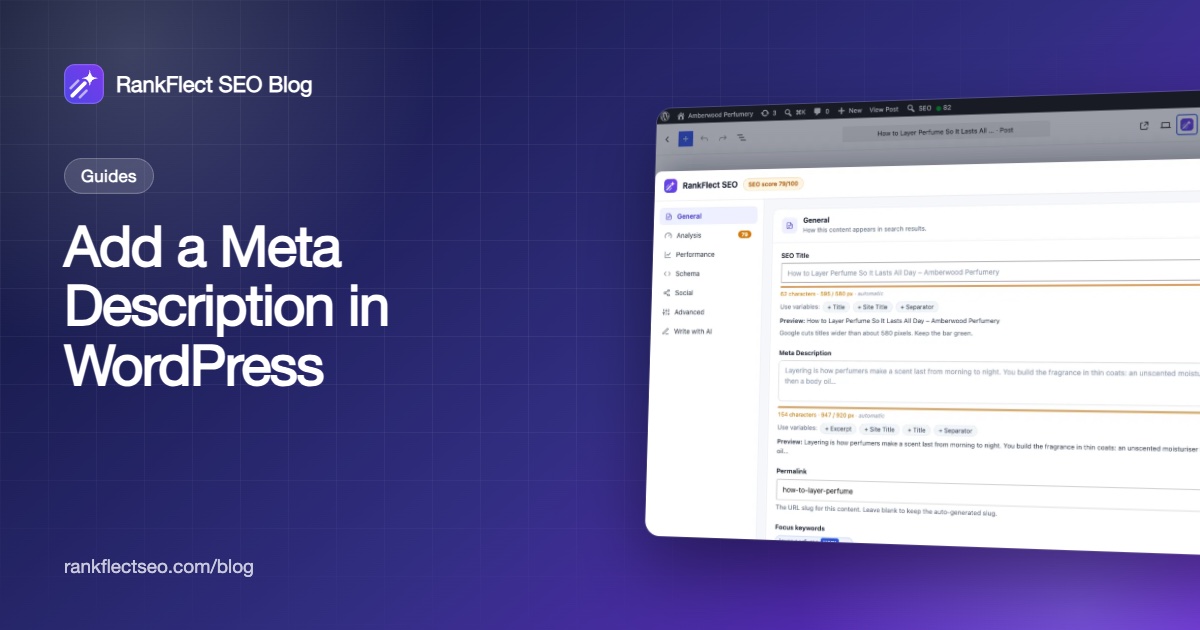
- Click the RankFlect SEO button in the editor toolbar, top right. You can also open the ⋮ options menu and choose RankFlect SEO. The panel slides up over the editor.
- Stay in the General section and type your text into Meta Description. The grey placeholder shows what the page outputs today if you leave the field empty.
- Watch the length bar. It shows the character count and the width in pixels, so you can see when Google is likely to cut the text.
- Click Save in the panel header, or Update in the editor.
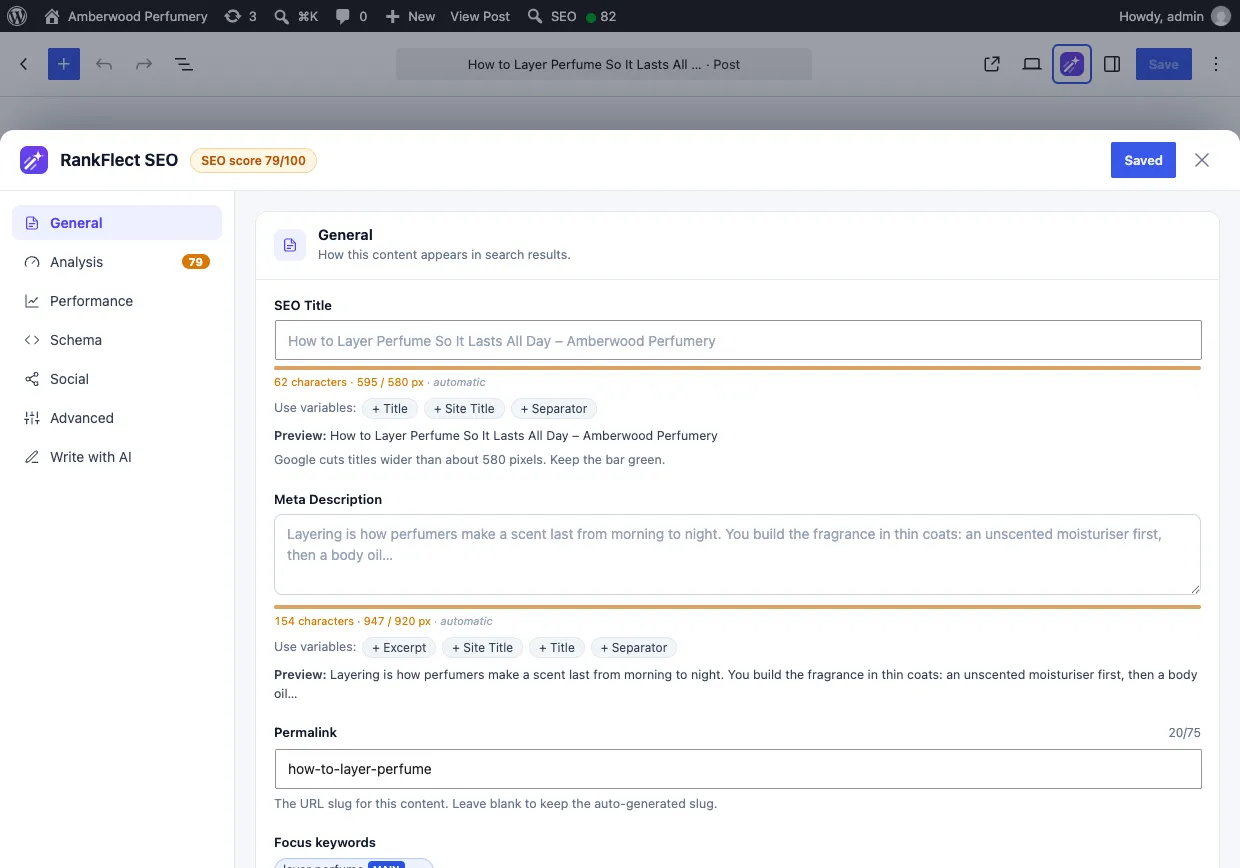
The panel also shows a Search preview card further down, so you can read the title and description the way a searcher would. Under the field, Use variables chips insert placeholders such as %excerpt% or %title%, and a Preview line shows the result with the values filled in. The full tour is in Edit SEO in the block editor.
If you set up an AI provider with your own API key, Suggest with AI under the description offers options you can pick from and then edit. Treat these as a first draft, not the final word.
If you use the Classic Editor
With the Classic Editor plugin, RankFlect SEO adds a RankFlect SEO box below the content. The General tab has the same Meta description field with a length meter, and it saves when you click Save Draft, Publish or Update. If the box is hidden, tick it under Screen Options. See SEO in the Classic Editor for details.
Method 2: Add a meta description in WordPress without a plugin
If you only need a basic tag and do not want a plugin, you can print one from the post excerpt with a small snippet. Add it to a child theme's functions.php or a code snippets plugin, never to a parent theme that will be overwritten by updates.
add_action( 'wp_head', function () {
    if ( ! is_singular() ) {
        return;
    }
    $description = wp_strip_all_tags( get_the_excerpt( get_queried_object_id() ) );
    if ( $description ) {
        echo '<meta name="description" content="' . esc_attr( $description ) . '">' . "\n";
    }
} );
Then write each post's description in the Excerpt box of the editor (in the block editor it is in the post settings sidebar). If a post has no hand-written excerpt, WordPress generates one from the content.
This works, but it has clear limits:
- It covers single posts and pages only, not the home page, categories or archives.
- You get no length check and no preview.
- The excerpt is also shown by many themes on blog listing pages, so your "description" doubles as visible text.
- If you later install an SEO plugin, you must remove the snippet, or the page will have two description tags.
For most sites, the plugin route is less work and less risk.
Add meta descriptions to the home page, categories and products
Posts are only part of the job. These page types are easy to forget.
Home page
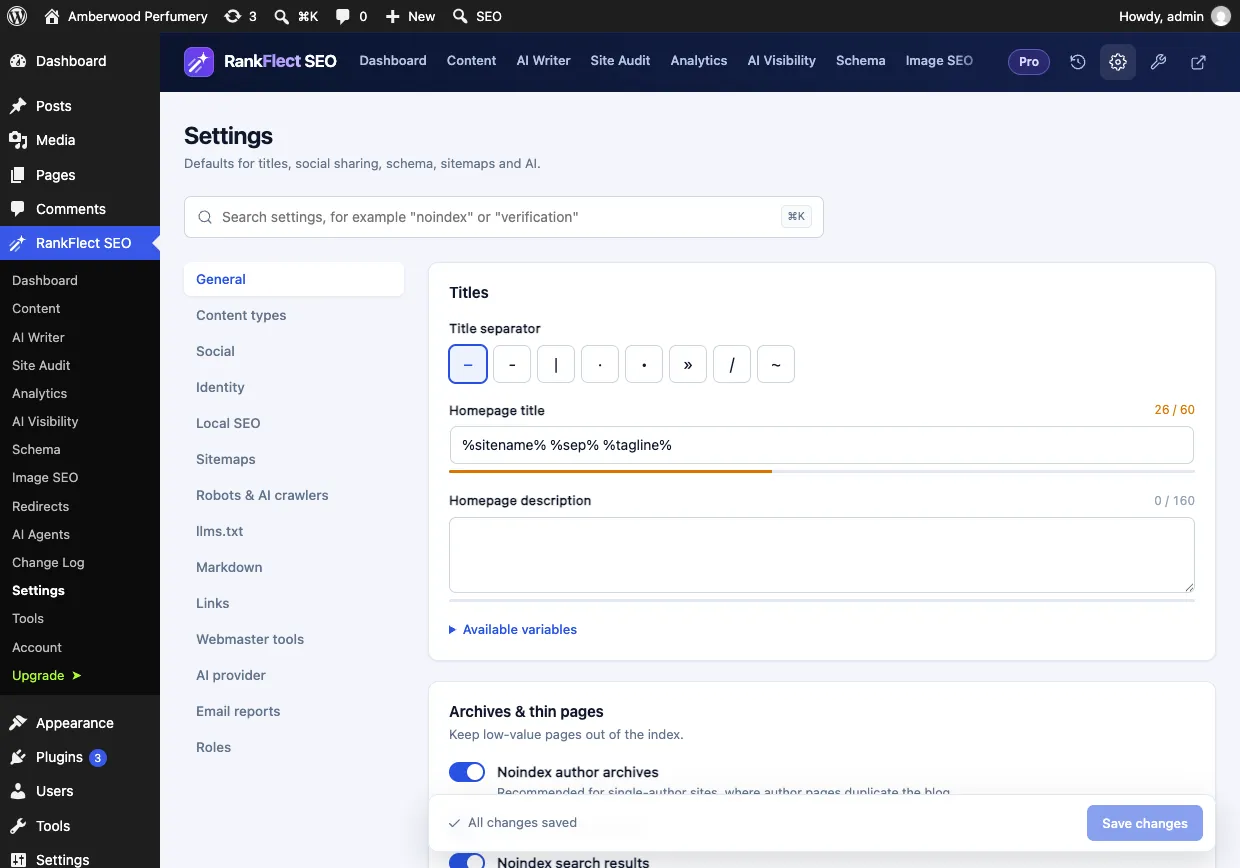
In RankFlect SEO, go to RankFlect SEO → Settings → General and fill in Homepage description. It is empty by default, and the counter suggests 120–160 characters. If your home page is a static page, this setting is used unless that page has its own description in the editor. See Set up titles and meta descriptions.
Categories and tags
Go to Posts → Categories, open a category and scroll to the RankFlect SEO section. Fill in Meta description and click Update. If you leave it empty, the category's own description is used, so writing a helpful category description covers both.
Every post you never touch: templates
Large sites cannot hand-write every description. Templates fill the gap. In RankFlect SEO → Settings → Content types, each post type has a Description template. The default is %excerpt%, which outputs the excerpt or the first 155 characters of the content, cut at a word boundary. Products in a WooCommerce shop can use variables such as %wc_short_desc% or %wc_price%. The full list is in Title and description variables.
Google is fine with this approach for big sites. Its snippet guidance says database-driven sites can generate descriptions programmatically, as long as the result is human-readable and specific to each page.
How to write a meta description that earns the click
Adding the tag is the easy part. Writing a good one takes a minute of thought per page. These rules come from Google's guidance and from what tends to work in practice.
- Summarize the whole page, specifically. Say what the reader gets: the answer, the steps, the product details. "Learn everything about perfume" is vague; "Layer a body oil, scent and mist so your perfume lasts all day, with a five-step routine" is specific.
- Make it unique. Google says identical descriptions across many pages are not helpful. Each page deserves its own.
- Use the words people search. Include the main keyword naturally. Google often bolds words that match the query, which draws the eye.
- Add useful facts. For a product: price, size, material. For an article: who it is for, what is covered, the year if it matters.
- Skip keyword lists. Google notes that strings of keywords do not give users a clear idea of the page.
- Front-load the important part. Google has no length limit, but it cuts snippets to fit the device width. Around 120–160 characters is a practical range, and the first half should make sense alone.
- Match the page. A description that promises something the page does not deliver costs you trust and is more likely to be replaced by Google.
Prioritize. If you have hundreds of posts, start with your top pages by search impressions, then pages that rank on page one but get few clicks. A Search Console setup in WordPress shows you which pages those are.
Check that your meta description works
- View the source. Open the live page, choose View Page Source and search for
name="description". There should be exactly one. RankFlect SEO prints its tags between<!-- RankFlect SEO … -->and<!-- / RankFlect SEO -->comments, so you can see where the tag comes from. - Look for duplicates. Two description tags usually mean a theme or second plugin is also printing one. Turn one off.
- Find pages without one. In RankFlect SEO → Content, the bulk SEO editor has a Missing description filter, and the site audit flags pages without a written meta description. See The bulk SEO editor.
- Give Google time. Search results update after Google recrawls the page, which can take days or weeks. Requesting indexing for an important page in Search Console can speed this up.
Why Google ignores your meta description sometimes
It is normal to see a different snippet in Google than the one you wrote. Google picks snippet text per query, so the same page can show different snippets for different searches. It rewrites more often when the description is vague, stuffed with keywords, outdated or does not match the page.
You cannot force Google to use your text. What you can do is make the description the best summary available: accurate, specific and written for the searcher. That is also the description most likely to win the click when it does appear.
If you want a simple way to manage descriptions for every page, templates included, you can download RankFlect SEO free and set it up in a few minutes.
Frequently asked questions
How long should a meta description be in WordPress?
Google sets no length limit, but it shortens snippets to fit the screen. A range of about 120–160 characters works well for most pages. Put the key point in the first part, so it still reads well if the end is cut.
Can I add a meta description without a plugin?
Yes. A small wp_head snippet in a child theme can print the post excerpt as a description tag. It only covers single posts and pages, has no preview or length check, and must be removed if you later add an SEO plugin.
Is the meta description a ranking factor?
Google does not use it as a direct ranking signal. It matters because it can be your snippet in search results, and a clear, relevant snippet can win more clicks than a vague one.
Why is my new meta description not showing in Google?
Google needs to recrawl the page first, which can take days or weeks. Even then, it may choose page text instead if it decides that matches the search better. Check the page source to confirm your tag is actually there.
What happens if I leave the meta description empty?
With RankFlect SEO, the page falls back to its content type template, which by default uses the excerpt or the start of the content. Without any plugin or theme tag, Google builds the snippet from the page text.
- #meta description
- #wordpress seo
- #seo plugin
- #on-page seo
Written by
RankFlect SEO TeamThe people who build RankFlect SEO, the WordPress SEO plugin with a built-in MCP server. We write about what we learn shipping SEO tools for AI search.
All articles →Let AI agents fix your SEO. You keep the undo button.
RankFlect SEO is free for unlimited sites, with a built-in MCP server, approval for every change and no AI credits.