Schema Markup in WordPress: How to Add, Test and Fix It (2026)
What schema every WordPress page needs, which rich results Google still shows in 2026, and how to add, validate and fix JSON-LD step by step.
In this article
- Key takeaways
- What schema markup does for a WordPress site
- The schema every WordPress page should have
- Which schema types still earn rich results
- How to add schema markup in WordPress
- Option 1: Hand-written JSON-LD
- Option 2: A dedicated schema plugin
- Option 3: Your SEO plugin's automatic graph plus per-page items
- Step by step: schema markup in WordPress with RankFlect SEO
- Copying schema from another page
- Schema at scale: templates and custom fields
- How to test and fix schema markup
- Schema markup best practices
- Frequently asked questions
- Does schema markup improve rankings?
- Can I add schema markup in WordPress without a plugin?
- Which schema type should a normal blog post use?
- Why doesn't Google show my rich result even though the schema is valid?
- Is JSON-LD better than Microdata?
Schema markup in WordPress is structured data, usually a block of JSON-LD code in the page head, that tells search engines and AI assistants what a page is: an article, a product, a recipe, a business. You can add it by hand, but most sites get it from an SEO plugin that builds it from the content you already have. This guide shows what good schema looks like in 2026, which types still earn rich results in Google, and how to add, check and fix it on a WordPress site.
Key takeaways
- Google recommends JSON-LD, and every page should carry a small connected graph: who runs the site, the website, the page and its breadcrumb trail.
- Add rich-result types (Recipe, Event, Product, Job posting, Video and others) only where the page really shows that content.
- Google has retired several rich results, including FAQ (no longer shown since May 7, 2026) and How-to, so check the current list before you spend time on a type.
- Valid markup makes a page eligible for rich results. It never guarantees them.
- Test twice: once before publishing, and once on the live URL with Google's Rich Results Test.
What schema markup does for a WordPress site
Search engines read your HTML and guess. Schema removes the guessing. It states, in the shared schema.org vocabulary, that this page is a BlogPosting written by a named person, published by an Organization with a specific logo, and sitting under a category in your site.
Google uses this for two things. First, understanding: which entity runs the site, how pages relate, what a page is mainly about. Second, rich results: the star ratings, prices, event dates and recipe cards that appear in search. Google's introduction to structured data says it recommends JSON-LD where your setup allows it, and that pages must meet each feature's required properties and guidelines to be eligible.
AI assistants and other crawlers read the same markup. Clear, consistent schema makes it easier for any machine to connect your brand, your authors and your content.
The schema every WordPress page should have
You don't need a different hand-made block on every post. A sound setup prints one JSON-LD script per page, with an @graph of nodes that point at each other by @id:
- Organization or Person: who runs the site, with name, logo and social profiles.
- WebSite: the site's name and URL.
- WebPage: the page itself, or a subtype such as
CollectionPageon archives. - BreadcrumbList: where the page sits in the site.
- Article or BlogPosting on posts, linked to the author and to the publisher.
Because each node references the others, Google sees one coherent picture instead of five unrelated scraps. That matters most for the Organization node: if it says one name and logo on every page, your identity stays consistent.
Which schema types still earn rich results
This is where many older guides go wrong. Google has been simplifying its results pages, and its Search Central changelog records the retirements. How-to rich results went away in 2023. In June 2025 Google announced it was phasing out several more features. In May 2026 it deprecated FAQ rich results, which stopped appearing in Google Search on May 7, 2026; the FAQ documentation was removed on June 15, 2026.
At the time of writing, Google's search gallery still lists features such as Article, Breadcrumb, Event, Job posting, Local business, Organization, Product, Profile page, Q&A, Recipe, Review snippet, Software app and Video. Use it as your checklist. If a type is not there, the markup can still describe your content, but don't expect a visual result in Google.
How to add schema markup in WordPress
You have three practical routes. Pick the one that fits how many pages need it and who maintains the site.
Option 1: Hand-written JSON-LD
You can print JSON-LD from a child theme's functions.php with the wp_head hook, wrapped in conditions such as is_single(). A minimal Article block looks like this:
<script type="application/ld+json">
{
  "@context": "https://schema.org",
  "@type": "BlogPosting",
  "headline": "How to layer perfume so it lasts all day",
  "datePublished": "2026-10-12T09:00:00+00:00",
  "author": { "@type": "Person", "name": "Alex Morgan" },
  "image": "https://example.com/wp-content/uploads/layering.jpg"
}
</script>
This works for a handful of pages. It breaks down fast: values must be kept in sync with the content, nodes don't link to each other, and a theme switch can wipe it out. If you also run an SEO plugin, you risk printing two competing Article nodes for the same page.
Option 2: A dedicated schema plugin
Standalone schema plugins give you forms per type. They are fine if your SEO plugin has no schema, but you then have two plugins printing structured data, and you must make sure they don't overlap.
Option 3: Your SEO plugin's automatic graph plus per-page items
Most WordPress sites are best served by letting the SEO plugin build the base graph from settings and post data, then adding rich-result items only on the pages that need them. This is how RankFlect SEO works, and the steps below use it as the example.
Step by step: schema markup in WordPress with RankFlect SEO
RankFlect SEO, free on WordPress.org, outputs a connected JSON-LD graph on every page without setup. You shape it in four places. The schema overview lists every node and where its data comes from.
- Set your identity. Go to RankFlect SEO → Settings → Identity, choose Organization or Person, and add the name, a square logo and your social profiles. This feeds the publisher of every page. See site identity.
- Pick default types. Under Settings → Content types, each content type has a Default schema. Out of the box, posts use Article, WooCommerce products use Product and everything else uses Web page.
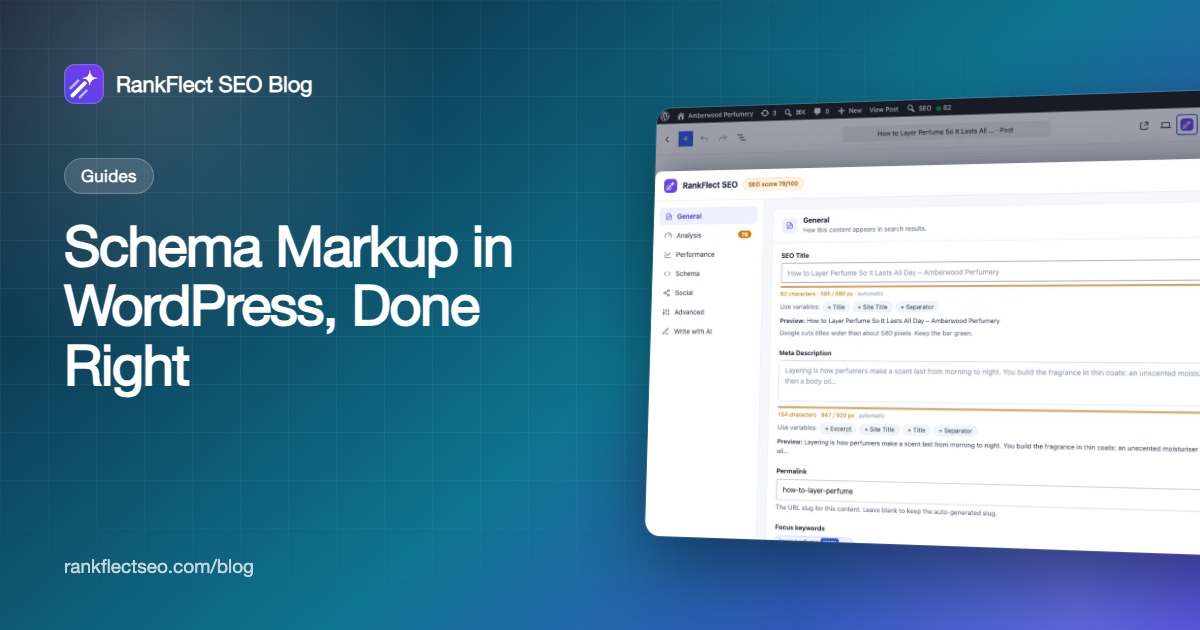
- Adjust a single page. In the block editor, click the RankFlect SEO button in the toolbar and choose Schema. In the Schema Type card, pick a page type (for example About page or Contact page) and click Generate Schema.
- Add a rich-result item. In the same select, pick a type under Rich result, such as Recipe, Event, Job posting, Video or Review, and click Generate Schema. The item is added pre-filled with variables like
%title%and%featured_image%; fill in the rest. The Schema manager guide lists every type's required and recommended fields. - Validate before publishing. Save the post, then click Validate Current in the Schema Actions card. Items with a missing required property show errors and are not output at all.
- Test the live page. After publishing, open the Google Rich Results Test link in the same card.
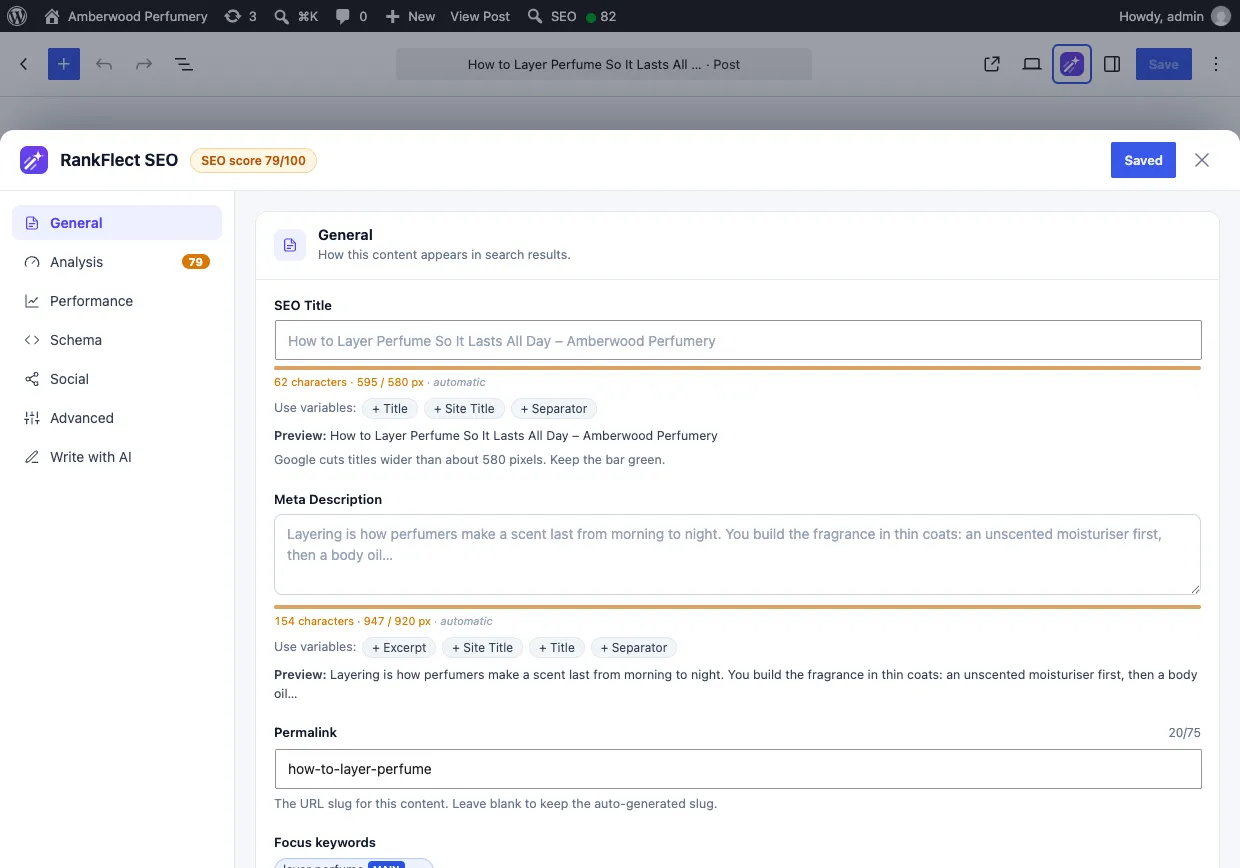
The panel opens over the editor, and Schema sits in its left-hand menu next to General, Analysis and Social. Rich-result items are added on top of the page type; they don't replace it. One exception: an Article item you add replaces the automatic Article node instead of creating a second one.
On WooCommerce products you don't need a manual Product item, because the plugin builds Product schema from the product data. Our guide to WooCommerce product schema covers that case in depth.
Copying schema from another page
Sometimes a page elsewhere already has the markup you want, for example a schema generator's example. In the Schema section's Import Schema card, choose URL / Online page, paste the address and fetch it. RankFlect SEO fetches the page once, from your server, lists its JSON-LD nodes and remaps the title, URL, image, dates and author to your page. References to the other site's organization are dropped.
Importing from pasted JSON-LD code or a .json file is available in RankFlect SEO Pro.
Schema at scale: templates and custom fields
If you publish hundreds of recipes, events or listings, adding an item to each post by hand is slow. In RankFlect SEO Pro, schema templates let you write the schema once and apply it to every post that matches conditions such as a post type, a category or a URL pattern like /recipes/*. Fields can read values from ACF, Meta Box, Pods or ACPT with %cf:field_name% variables, so the ingredients or the event date come straight from your custom fields.
Without Pro, the per-page Schema manager covers every type, just one post at a time.
How to test and fix schema markup
Use two tools, because they answer different questions.
- Before publishing, run the plugin's validator. In RankFlect SEO, the schema validator on RankFlect SEO → Schema checks any page's final graph against Google's required and recommended properties, and Show final JSON-LD displays the exact output.
- After publishing, run Google's Rich Results Test on the live URL. It tells you which rich results the page is eligible for, as Google sees it.
- Over time, watch the rich result reports in Search Console. Template or caching problems can break markup across many pages at once. Our Google Search Console guide shows where to find them.
Common problems and fixes:
- Duplicate nodes. Two plugins, or a plugin and the theme, both print Article or Organization schema. Keep one source and switch the other off.
- Markup that doesn't match the page. Google's structured data guidelines say not to mark up content readers can't see. Ratings, prices and FAQs must be visible on the page.
- Missing required properties. An event without a start date or a recipe without an image is not eligible. Fill the fields the validator flags.
- Old results in Google's test. A page cache is still serving the previous version. Clear it and test again.
Schema markup best practices
- Use the most specific type that fits:
BlogPostingorNewsArticlerather than a bareCreativeWork,ContactPagerather thanWebPage. - Keep one source of truth for each entity. Your organization's name and logo should be identical everywhere.
- Mark up only what is on the page, and keep it current. Variables help here, because they update when the post changes.
- Don't chase retired rich results. Check the search gallery before investing in a type.
- Add schema to the pages that matter first: the home page, key service or product pages, and your best content.
For the wider picture, our WordPress SEO checklist shows where schema fits among the other on-page tasks.
If you want the connected graph, the Schema manager and the validator without writing code, you can download RankFlect SEO free and have schema on every page within a few minutes.
Frequently asked questions
Does schema markup improve rankings?
Google doesn't describe structured data as a ranking boost. It helps Google understand your pages and makes them eligible for rich results, which can make your listing more useful to searchers. Treat it as a clarity and presentation tool, not a ranking trick.
Can I add schema markup in WordPress without a plugin?
Yes. You can print JSON-LD from a child theme with the wp_head hook or paste it into a custom HTML area. It works for a few static pages, but you must keep the values in sync by hand and avoid duplicating what your theme or SEO plugin already prints.
Which schema type should a normal blog post use?
Article or BlogPosting, linked to the author and to your Organization or Person as publisher. Add a rich-result type such as Recipe or Video only when the post really contains that content.
Why doesn't Google show my rich result even though the schema is valid?
Valid markup only makes a page eligible. Google decides whether to show a rich result based on the query, the page's quality and its own guidelines. Also check that the feature is still supported: FAQ and How-to rich results are no longer shown.
Is JSON-LD better than Microdata?
Google recommends JSON-LD when your setup allows it, and accepts Microdata and RDFa if they are valid. JSON-LD is easier to maintain in WordPress because it sits in one script block instead of being woven through the theme's HTML.
- #schema markup
- #structured data
- #json-ld
- #rich results
- #wordpress seo
Written by
RankFlect SEO TeamThe people who build RankFlect SEO, the WordPress SEO plugin with a built-in MCP server. We write about what we learn shipping SEO tools for AI search.
All articles →Let AI agents fix your SEO. You keep the undo button.
RankFlect SEO is free for unlimited sites, with a built-in MCP server, approval for every change and no AI credits.