WordPress 301 Redirect: 4 Ways to Set One Up Without Losing Rankings
Four ways to add a WordPress 301 redirect, how to choose between 301, 302 and 410, how to test it, and the mistakes that cost rankings.
In this article
- Key takeaways
- What a 301 redirect does (and when to use one)
- 301 vs 302, 307, 308 and 410
- Before you add a WordPress 301 redirect
- Method 1: Add a 301 redirect with a plugin (easiest)
- Redirect a single post from the editor
- Redirects WordPress plugins can create for you
- Method 2: Add a 301 redirect in .htaccess (Apache and LiteSpeed)
- Method 3: Add a 301 redirect on Nginx
- Method 4: Add a 301 redirect with PHP
- Avoid meta refresh and JavaScript redirects
- Redirecting many URLs at once
- How to test a 301 redirect
- Common WordPress redirect mistakes
- Redirect chains
- Redirect loops
- Everything to the home page
- Cached old responses
- How long should you keep 301 redirects?
- Frequently asked questions
- Does a 301 redirect pass link equity in WordPress?
- How do I redirect an old domain to a new one in WordPress?
- Can I add a 301 redirect without a plugin?
- Why is my WordPress 301 redirect not working?
- Should I use 301 or 302 when I change a slug?
A WordPress 301 redirect tells browsers and search engines that a page has moved for good, so visitors land on the new URL and Google moves the old page's signals to it. You can set one up with a redirect plugin, in your server configuration (.htaccess on Apache, a return 301 on Nginx) or in PHP. For most sites a plugin is the safest choice, because it needs no server access and you can see, edit and undo every rule.
Below: when a 301 is the right answer, four ways to add one, how to test it, and the mistakes that quietly cost rankings.
Key takeaways
- Use a 301 when a URL has changed permanently. Use 302 or 307 only when the old URL will come back.
- Google treats a permanent redirect as a signal that the target should be the canonical URL. A temporary one usually keeps the old URL in search.
- Server-side redirects are the most reliable kind. Meta refresh and JavaScript redirects are fallbacks.
- Point each old URL at the closest matching page, directly, with no chain. Keep the redirects for at least a year, and ideally for good.
- Test every redirect in a private window or with
curl -I, and update your own internal links to the new URL.
What a 301 redirect does (and when to use one)
When a browser requests the old URL, the server answers with the status code 301 Moved Permanently and a Location header that holds the new address. The browser follows it at once. Search engines follow it too, and Google's documentation on redirects and Google Search says a permanent redirect is used "as a signal that the redirect target should be canonical."
Typical reasons to add a WordPress 301 redirect:
- You changed a post's slug, for example from
/best-running-shoes-2025/to/best-running-shoes/. - You merged two thin articles into one stronger guide.
- You deleted a product or page and a close replacement exists.
- You moved a page under a different parent page, which changes its URL.
- You changed your permalink structure, moved a blog folder or switched domains.
301 vs 302, 307, 308 and 410
Pick the status code by asking one question: will the old URL ever come back?
- 301 Moved Permanently: the move is final. This is the right choice almost every time.
- 302 Found and 307 Temporary Redirect: the page is away for a while, such as during a seasonal campaign. Google usually keeps the old URL in its results. A 307 also tells the browser to keep the request method, which matters for form posts.
- 308 Permanent Redirect: like a 301, but the request method must be kept. Useful for endpoints that receive POST requests.
- 410 Gone: not a redirect at all. Use it when a page was removed on purpose and nothing relevant replaces it.
If you are unsure, use a 301. Google states that you should use permanent redirects "when you're sure that the redirect won't be reverted", and that describes most URL changes on a WordPress site.
Before you add a WordPress 301 redirect
A few minutes of planning prevents most redirect problems.
- List the old and new URLs. Write each pair down, as paths (
/old-page) or full URLs. For a big change, export your current URLs from your XML sitemap or Search Console first. - Choose the closest match. Send a deleted product to its replacement or its category, not to the home page. Google's site move guide warns against redirecting many old URLs to "one irrelevant single URL destination, such as the home page", which can be treated as a soft 404.
- Use one place for redirects. Two plugins, or a plugin plus server rules, handling the same URL make problems hard to trace.
- Take a backup if you are going to edit server files.
Method 1: Add a 301 redirect with a plugin (easiest)
A redirect plugin stores rules in the database and answers matching requests before WordPress loads the page. You don't touch server files, rules work on any host, and you can usually see how often each one is used. The steps are similar in every redirect plugin: enter the old path, the new URL and the type, then save.
In RankFlect SEO the redirect manager is part of the free plugin:
- Go to RankFlect SEO → Redirects and click Add redirect.
- In From, enter the old path on your site, such as
/old-page. If you paste a full URL, it is trimmed to the path. - In To, enter the new path or a full URL. The target can be on another domain.
- Leave Type on 301 Moved permanently, the default, and Match on Exact path.
- Click Save redirect. The rule works immediately.
Matching ignores letter case and a trailing slash, query strings are carried over to the target, and a rule that points at itself is rejected. The list shows Hits and Last hit for each rule, so you can see which redirects are still in use. The full walkthrough is in Create and manage redirects.
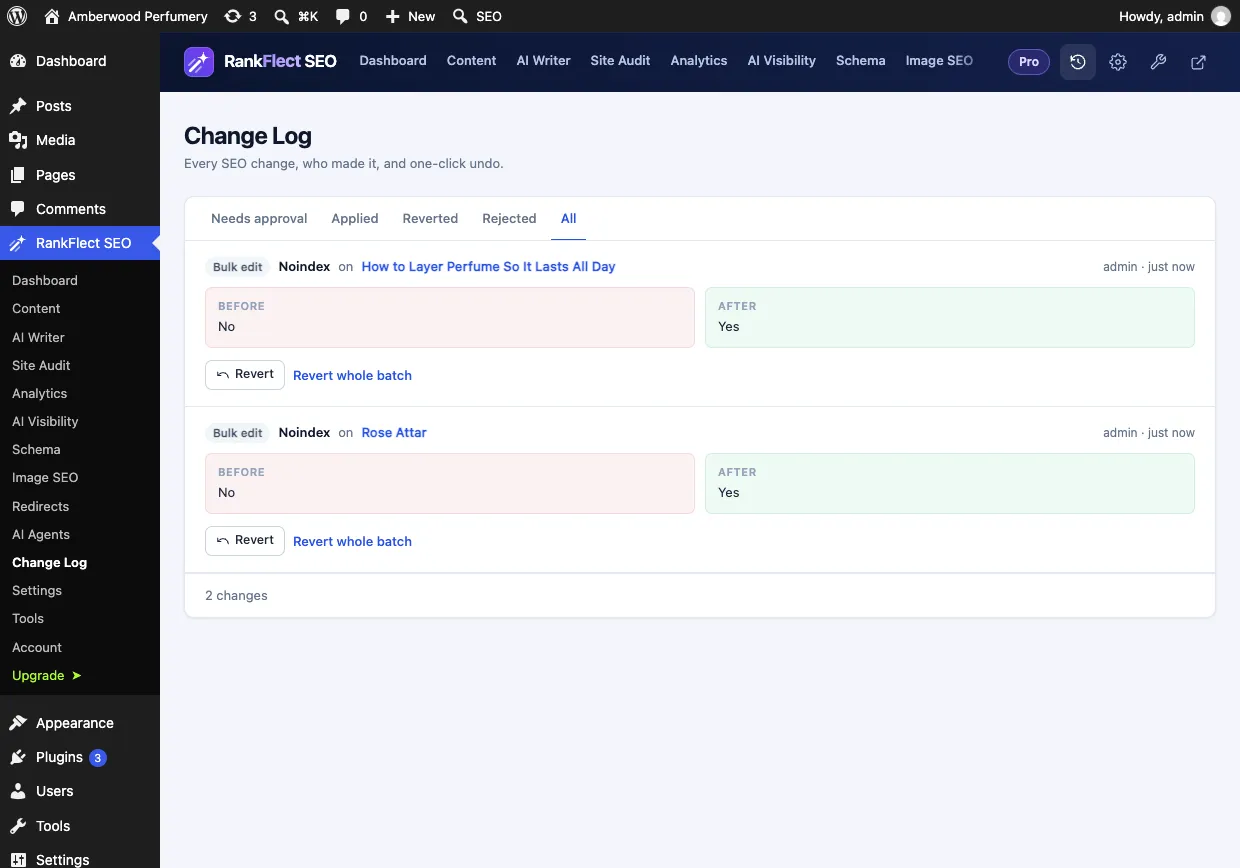
Every redirect you add, edit or delete is recorded in the Change Log, where you can revert it in one click.
Redirect a single post from the editor
If you are already editing the post you want to retire, open the RankFlect SEO panel in the block editor, choose Advanced and enter the new address in Redirect this post to. Click Save redirect and a 301 is created from the post's path. The post stays published in WordPress, but visitors land on the new address. See Advanced post settings.
Redirects WordPress plugins can create for you
WordPress core already remembers the old slugs of posts and redirects them, but not for pages. RankFlect SEO goes further: when the slug of a published post, page or product changes, it adds a visible 301 rule from the old path to the new one, which you can edit or delete. This is described in Automatic redirects when a slug changes. When you trash or delete published content, it also shows a notice that offers to redirect the old URL, pre-filled with the parent category or the home page, so you can pick a better target before the URL turns into a 404.
Method 2: Add a 301 redirect in .htaccess (Apache and LiteSpeed)
On Apache or LiteSpeed hosting, the .htaccess file in your WordPress root can redirect a URL before PHP runs. Add your rules above the # BEGIN WordPress block, because WordPress rewrites that block when you save permalinks.
For a single page, the simplest form is:
Redirect 301 /old-page/ https://example.com/new-page/For a pattern, such as moving everything from /blog/ to /articles/, use mod_rewrite:
RewriteEngine On
RewriteRule ^blog/(.*)$ /articles/$1 [R=301,L]
A typing error in .htaccess can take the whole site down with a 500 error, so keep a copy of the original file and test straight after saving. Nginx ignores .htaccess completely.
Method 3: Add a 301 redirect on Nginx
Nginx redirects live in your site's server block, which usually means asking your host or editing the config over SSH:
location = /old-page/ {
    return 301 https://example.com/new-page/;
}
Reload Nginx after the change. Many managed hosts offer a redirects screen that writes these rules for you. Server rules are fast but invisible inside WordPress, so document them for your team.
Method 4: Add a 301 redirect with PHP
Developers can redirect from a theme or a small plugin with wp_safe_redirect() on the template_redirect hook:
add_action( 'template_redirect', function () {
    if ( is_page( 'old-page' ) ) {
        wp_safe_redirect( home_url( '/new-page/' ), 301 );
        exit;
    }
} );
This suits a rule tied to logic. For anything an editor might change, a redirect manager is easier to maintain.
Avoid meta refresh and JavaScript redirects
Google says a server-side redirect "has the highest chance of being interpreted correctly." An instant meta refresh is treated as permanent and is acceptable when you can't do anything else. A JavaScript redirect is the last resort, because Google may not render the page and so may never see it.
Redirecting many URLs at once
Site restructures, permalink changes and migrations involve hundreds of URLs. Typing each rule is slow and error-prone, so use one of these approaches:
- Pattern rules. One prefix or regex rule can redirect a whole folder. In RankFlect SEO Pro, Starts with and Regular expression matching handle this, for example
^/blog/(\d+)/(.*)$to/articles/$2. See Regex, prefix, 410 and 451 redirects. - CSV import. Recent versions of RankFlect SEO have Export CSV and Import CSV buttons on the Redirects screen, with a preview of new, updated and skipped rows before anything is saved.
- Import from another plugin. Rules from Redirection, Rank Math, Yoast SEO Premium and Squirrly SEO can be imported with a backup first and undone as one batch. See Import redirects from Redirection and other plugins.
- An AI agent. Connected agents can create up to 50 redirects in one call. Site-wide changes like these wait in the Change Log until an administrator approves them.
If you are switching SEO plugins at the same time, our guide to switching SEO plugins without losing rankings covers the rest of the move.
How to test a 301 redirect
Never assume a redirect works. Check three things:
- It fires. Open the old URL in a private browser window. Browsers cache 301s aggressively, so a normal window can show an old result.
- It returns 301. Run
curl -I https://example.com/old-page/in a terminal. You should seeHTTP/1.1 301(orHTTP/2 301) and alocation:line with the new URL. Browser developer tools show the same on the Network tab. - It ends in one hop at a 200 page. Follow the target and make sure it loads normally and doesn't redirect again.
After a large change, use the URL Inspection tool in Google Search Console on a few old URLs, and watch the Page indexing report over the following weeks. Our Google Search Console guide for WordPress explains both reports.
Common WordPress redirect mistakes
Redirect chains
A chain happens when A redirects to B and B redirects to C, often after several slug changes. Google can follow a few hops, but its site move guide recommends redirecting "directly to the final destination." Edit older rules so each one points straight at the final URL.
Redirect loops
Two rules pointing at each other cause a "too many redirects" error. It can also happen when a plugin rule fights a server or CDN rule, such as an HTTPS or www redirect. Search your rules for both URLs and remove one.
Everything to the home page
It is tempting to send every deleted URL to the home page. Google may treat that as a soft 404, so the old URL's value is not passed on anyway. Redirect to a relevant page, or let the URL return 404 or 410.
Cached old responses
If a new redirect doesn't fire, a page cache or CDN may still be serving the old page before WordPress runs. Purge the cache for the old URL.
How long should you keep 301 redirects?
Google's site move guide says to keep redirects "for as long as possible, generally at least 1 year." In practice, keep them indefinitely. A rule with no hits for months costs almost nothing, and old links in emails, forums and other sites can resurface years later.
Frequently asked questions
Does a 301 redirect pass link equity in WordPress?
Google uses a permanent redirect as a strong signal that the target is the canonical URL, so the old page's signals are consolidated on the new one. This works the same on WordPress as on any other platform. Redirecting to an unrelated page weakens that, so keep targets relevant.
How do I redirect an old domain to a new one in WordPress?
Redirect every path on the old domain to the same path on the new domain at server level, usually in .htaccess or your host's settings on the old domain. Then follow Google's site move guide, including the Change of Address tool in Search Console. A redirect plugin on the new site can only handle paths that reach the new site.
Can I add a 301 redirect without a plugin?
Yes. Use .htaccess on Apache or LiteSpeed, a return 301 in Nginx, your host's redirect tool, or PHP with wp_safe_redirect(). A plugin is simply easier to manage when you have many rules or several people editing them.
Why is my WordPress 301 redirect not working?
The usual causes are a page cache or CDN serving the old URL, a browser that cached an older redirect, a conflicting rule in another plugin or on the server, or a redirect module that is switched off. Test in a private window with caches purged, then check each layer.
Should I use 301 or 302 when I change a slug?
Use a 301. A slug change is permanent, and a 302 tells Google to keep the old URL in its index. Use 302 or 307 only for genuinely temporary moves.
If you want a redirect manager with automatic slug-change redirects, hit counts and one-click undo, you can download RankFlect SEO for free and set up your first 301 in a minute.
- #301 redirect
- #wordpress redirects
- #htaccess
- #url changes
- #technical seo
Written by
RankFlect SEO TeamThe people who build RankFlect SEO, the WordPress SEO plugin with a built-in MCP server. We write about what we learn shipping SEO tools for AI search.
All articles →Let AI agents fix your SEO. You keep the undo button.
RankFlect SEO is free for unlimited sites, with a built-in MCP server, approval for every change and no AI credits.