Local SEO for WordPress: 10 Steps to Rank in Maps and Local Search
Rank in Maps and local results with a complete Google Business Profile, matching NAP details, LocalBusiness schema and genuinely local pages on your WordPress site.
In this article
- Key takeaways
- How Google ranks local results
- Step 1: Claim and complete your Google Business Profile
- Step 2: Make your NAP consistent everywhere
- Step 3: Tell Google who runs the site
- Step 4: Add LocalBusiness schema to your WordPress site
- Step 5: Show the same details to visitors
- Step 6: Build location and service pages
- Step 7: Optimize titles, descriptions and content for local searches
- Step 8: Earn and answer reviews
- Step 9: Help search engines find every page
- Step 10: Measure local results
- Common local SEO mistakes on WordPress
- Frequently asked questions
- Do I need a plugin for local SEO on WordPress?
- Does LocalBusiness schema replace my Google Business Profile?
- How do service-area businesses handle their address?
- How long does local SEO take to work?
- Should I create a page for every city I serve?
Local SEO on WordPress comes down to three jobs: a complete Google Business Profile, a website that states the same name, address and phone number in a form Google can read (LocalBusiness schema), and real local content and reviews. This guide walks through each step in order, with what to do in WordPress and what to do outside it.
It is written for shops, clinics, restaurants, trades and service-area businesses that run their site on WordPress. You do not need to write code for any of it.
Key takeaways
- Your Google Business Profile drives the map pack. Your website supports it by confirming the same details.
- Google ranks local results on relevance, distance and prominence. You can influence relevance and prominence, not distance.
- Write your name, address and phone number (NAP) identically on your profile, your site and directories.
- Add LocalBusiness schema with the most specific business type, your address, coordinates and opening hours.
- Give every real location or service its own useful page, and ask happy customers for reviews.
How Google ranks local results
Google explains its local ranking in its Business Profile help on local ranking. Results are based mainly on three factors: relevance (how well a profile matches the search), distance (how far the business is from the searcher or the place named in the search) and prominence (how well known the business is, including links and reviews).
Google also states plainly that there is no way to request or pay for a better local ranking. That rules out shortcuts. What you can do is make your information complete and consistent, and give Google enough evidence that you are a real, trusted business in your area.
Your WordPress site matters for two of the three factors. It adds relevance (pages about your services and your area) and prominence (links, mentions and a site that confirms your profile details).
Step 1: Claim and complete your Google Business Profile
Start outside WordPress. The Google Business Profile is what appears in Maps and the local pack, so it comes first.
- Go to Google Business Profile and search for your business. Claim it if it exists, or create it.
- Verify the business. Google offers the methods available for your category and region.
- Pick the most specific primary category (for example "Dentist" rather than "Health"). Add secondary categories only when they truly apply.
- Fill in hours, phone, website, services or products, attributes and photos.
- If you travel to customers and don't serve them at your address, set a service area and hide the address.
Read Google's guidelines for representing your business before you publish. They ask you to use your real-world business name (no added keywords), a precise address, and no P.O. boxes. Breaking these rules can get a profile suspended, which costs far more than any ranking gain.
Step 2: Make your NAP consistent everywhere
NAP means name, address and phone number. Google compares what your profile says with what your website and other sites say. Matching details make it easier for Google to trust that all of them describe the same business.
Pick one exact format and use it everywhere: "Suite 4" or "Ste. 4", not both. Use one main phone number. Put the NAP in your site's footer or contact page as plain text, not only inside an image.
Then check the places that list you: Apple Maps, Bing Places, Facebook, Yelp and the directories for your country and trade. Fix old addresses and phone numbers, especially after a move.
Step 3: Tell Google who runs the site
Before you add local details, tell search engines that a business runs your site, not a person. In structured data this is the Organization node, and LocalBusiness is a more specific type of Organization.
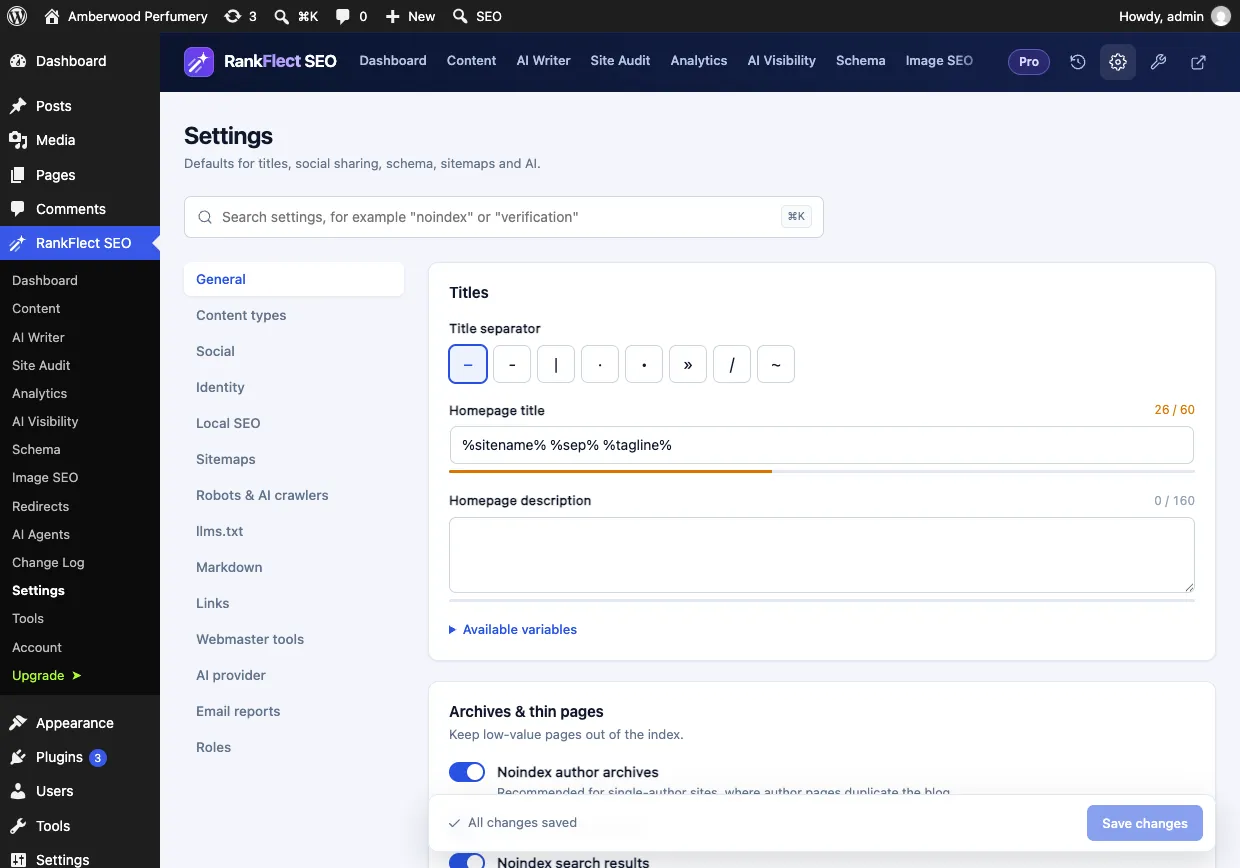
Most WordPress SEO plugins have a setting for this. In RankFlect SEO it is under RankFlect SEO → Settings → Identity: set Who runs this site to Organization, then add the name, a square logo and your social profiles. The site identity guide covers each field.
Step 4: Add LocalBusiness schema to your WordPress site
Schema markup is the machine-readable version of your business details. Google's LocalBusiness structured data documentation lists name and address as required. It recommends geo coordinates (at least five decimal places), openingHoursSpecification, telephone with country and area code, url and priceRange.
Google also asks you to use the most specific LocalBusiness subtype you can, such as Restaurant, Dentist or Plumber, rather than the generic type.
You can write this JSON-LD by hand, but it is easy to get out of sync with your real hours. A plugin that builds it from settings is safer. Here is how it works in RankFlect SEO, where Local SEO for one business is free:
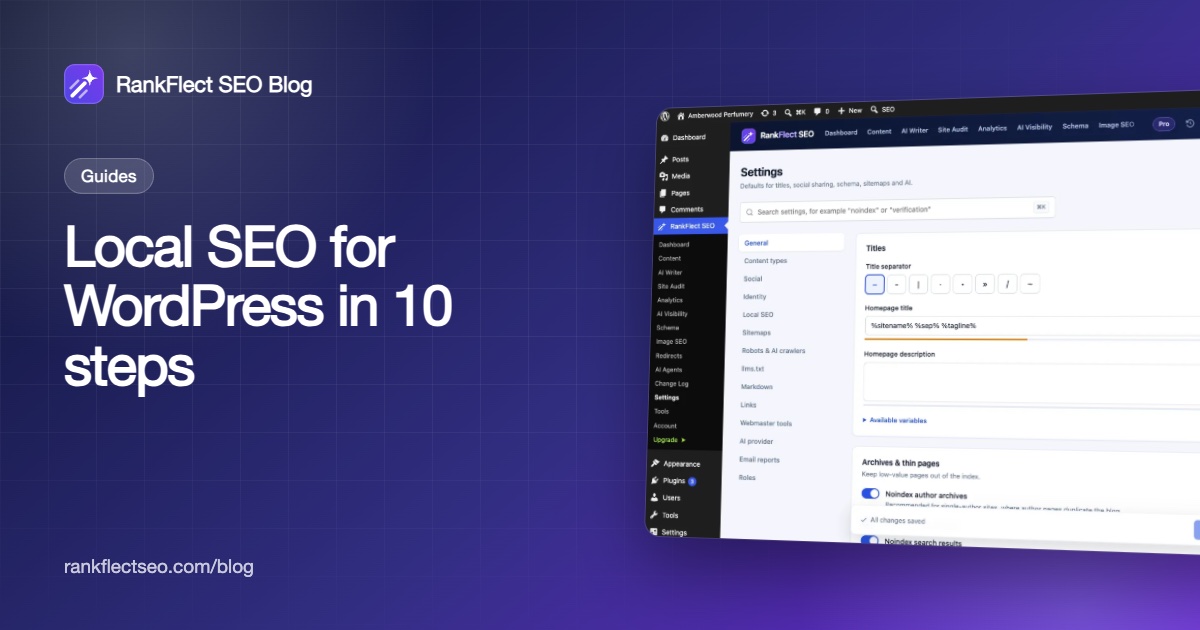
- Go to RankFlect SEO → Settings → Local SEO and turn on Enable in the Your business card.
- Enter the Business name exactly as on your profile, and start typing in Business type to pick the most specific type.
- Fill in the street address, city, region, postcode and two-letter Country code, written the same way as on your Google Business Profile.
- Add Latitude and Longitude. In Google Maps, right-click your door and click the numbers to copy them.
- Add phone, email, Price range and, for service-area businesses, Area served.
- Set opening hours. You can mark days closed, add split hours for a lunch break, use 24-hour days, or choose Open 24/7.
- Optionally paste your Google Business Profile link into Map link, then click Save changes.
Your Organization schema then takes the LocalBusiness type you chose, with address, coordinates, opening hours and price range, on every page. The Local SEO setup guide lists every field, and the schema overview explains how this node connects to the rest of your structured data.
Check the output with Google's Rich Results Test or the built-in schema validator. Fix any errors before moving on.
Step 5: Show the same details to visitors
Schema should describe what visitors can already see. Put your address, phone, hours and a directions link on your contact page and in your footer.
Many sites embed a Google Map on the contact page. That is useful for visitors who want directions, but it is not a ranking shortcut. A plain-text address and a working "Get directions" link do the job.
RankFlect SEO includes a Business info (RankFlect SEO) block and a shortcode that print the details from your Local SEO settings, so the visible text and the schema never drift apart. You choose which parts to show: name, address, phone, email, hours and directions link. A service-area business can leave its address out.
Step 6: Build location and service pages
Relevance comes from content. Give each core service its own page, and if you have more than one branch, give each branch its own page with its address, hours, phone, staff, photos and directions.
Avoid "city pages" that swap only the town name in otherwise identical text. They add nothing for visitors. A good location page answers the questions a local customer would ask: parking, nearby landmarks, which services that branch offers, and how to book.
For several branches, RankFlect SEO Pro adds multiple locations. Each location gets its own page under /locations/, its own LocalBusiness schema and opening hours, and a place in a store list that you can filter by city. With one location, the free plugin is enough.
Step 7: Optimize titles, descriptions and content for local searches
People search with a service and a place ("emergency plumber in Leeds") or with "near me". Put the service and the area naturally in your page titles, H1s and meta descriptions. One clear title per page beats a list of town names.
Local content also earns links and mentions. Useful ideas include guides to local regulations, seasonal advice for your area, case studies of local projects and pages about local events you sponsor. These give local news sites and partners a reason to link to you, which helps prominence.
If you want a broader on-page checklist, our WordPress SEO checklist covers titles, sitemaps and technical basics that local sites need too.
Step 8: Earn and answer reviews
Google's local ranking help notes that more reviews and positive ratings can help your local ranking. Ask every satisfied customer, ideally with a direct review link from your Business Profile. Make it easy: a link in the receipt email, a QR code at the counter.
Reply to every review, good and bad, politely and quickly. Do not offer incentives for reviews and do not post fake ones. Both break Google's policies.
One caution on schema: Google's LocalBusiness documentation says review markup is for sites that review other local businesses. Don't mark up your own Google reviews as ratings for your own business on your site.
Step 9: Help search engines find every page
Make sure your location and service pages are indexable and listed in your XML sitemap. In RankFlect SEO, sitemaps are on by default at /wp-sitemap.xml, and the XML sitemaps guide shows how to submit them.
With Local SEO on, RankFlect SEO also publishes a locations.kml map file and lists it in the sitemap index. It is optional; it simply gives Google one more machine-readable source for where you are.
Step 10: Measure local results
Your Business Profile has its own performance view showing searches, calls, direction requests and website clicks. Use it to see whether profile changes help.
On the website side, Google Search Console shows which queries bring you clicks, including local ones like "near me" and town names. Our guide to Google Search Console for WordPress covers setup. RankFlect SEO can show these numbers inside WordPress once you connect Google; the search and traffic reports list top queries and pages for free.
Tag the website link in your Business Profile with UTM parameters if you want to separate profile visits from organic visits in Google Analytics.
Common local SEO mistakes on WordPress
- Two sets of LocalBusiness schema. A theme or a second plugin may already print business schema. Keep one source.
- Hours that don't match. Update holiday hours on your profile and your site at the same time.
- A virtual office or P.O. box as your address. Google's guidelines don't allow it.
- Keyword-stuffed business names. Use your real name on the profile and in schema.
- Noindexed location pages. Check that the pages you want found are indexable.
If you want to handle the website side without code, you can download RankFlect SEO free and set up Identity and Local SEO in a few minutes.
Frequently asked questions
Do I need a plugin for local SEO on WordPress?
No, but it helps. You can paste LocalBusiness JSON-LD into your theme by hand. A plugin keeps the schema, the visible business details and your sitemap in sync from one set of fields, which avoids mismatched hours and addresses.
Does LocalBusiness schema replace my Google Business Profile?
No. The Business Profile is the main source for Maps and the local pack. Schema on your site confirms the same details, so keep the name, address and phone identical in both.
How do service-area businesses handle their address?
Google's guidelines say to hide the address on your profile if you don't serve customers there, and set a service area instead. On your site, describe the area you serve and leave the street address off public pages if you prefer.
How long does local SEO take to work?
There is no fixed timeline. Profile changes such as categories and hours can show quickly, while reviews, links and content build prominence over months. Track calls, direction requests and local queries to see the trend.
Should I create a page for every city I serve?
Only if each page has something real to say about that area. Thin pages that just swap the town name rarely help and can look like doorway pages. Start with your main service areas and write genuinely local content for each.
- #local seo
- #wordpress seo
- #google business profile
- #local business schema
- #small business seo
Written by
RankFlect SEO TeamThe people who build RankFlect SEO, the WordPress SEO plugin with a built-in MCP server. We write about what we learn shipping SEO tools for AI search.
All articles →Let AI agents fix your SEO. You keep the undo button.
RankFlect SEO is free for unlimited sites, with a built-in MCP server, approval for every change and no AI credits.