Category Page SEO: 7 Steps to Make WordPress Category Pages Rank
How to make WordPress and WooCommerce category pages rank: which archives to index, how to write their titles and intros, and how to handle pagination.
In this article
- Key takeaways
- Why category pages matter for SEO
- Step 1: Decide which category pages to index
- Step 2: Write a unique title and meta description
- Step 3: Add a short introduction to the category page
- Step 4: Strengthen internal links to and from categories
- Step 5: Handle pagination correctly
- Step 6: Keep filters and sort orders out of the index
- Step 7: Check the technical basics
- Category page SEO in WordPress with RankFlect SEO
- Frequently asked questions
- Should I noindex category pages in WordPress?
- Should tag pages be indexed?
- Does the category description help SEO?
- Should paginated category pages canonicalize to page 1?
- Should I remove /category/ from my WordPress URLs?
Category page SEO is the work of turning your category archives into pages that deserve to rank: a clear title and meta description, a short, useful introduction, strong internal links, sensible pagination and a clear decision about which archives belong in Google at all. Done right, a category page can rank for broad topics that no single post can, such as "vegan dessert recipes" or "men's trail running shoes". This guide covers the decisions and the steps, for WordPress blogs and WooCommerce shops alike.
Key takeaways
- Category pages are hub pages. They can rank for broad, high-volume topics and pass link value down to the posts or products they list.
- Index categories that group real topics. Keep thin, empty or duplicate archives (often tags) out of search.
- Give each indexed category its own SEO title, meta description and a short introduction that helps visitors choose.
- Google advises against pointing every paginated page's canonical to page 1. Each page should have its own canonical URL.
- Link to important categories from menus and content, and make sure each category links to everything you want indexed.
Why category pages matter for SEO
Searchers often use broad queries before they know which exact article or product they want. A post answers one question; a category page answers "show me the options". That makes category pages a natural fit for broad, commercial and comparison searches.
They also shape your site structure. Google's guidance on ecommerce site structure recommends linking from menus to category pages and from there to sub-categories and products, and notes that the more internal links point to a page, the more important it looks. Categories are where that link path runs through.
The flip side: WordPress creates an archive for every category and tag automatically. Many of them are thin, list the same posts as each other, or have only one post. Those add noise to the index without helping anyone.
Step 1: Decide which category pages to index
Start with an inventory. Open Posts → Categories (and Products → Categories on WooCommerce) and look at the post count for each term.
- Index categories that group a real topic with several useful posts or products, and that someone might search for.
- Merge categories that overlap heavily, such as "Recipes" and "Food recipes". Redirect the old archive URL to the one you keep.
- Noindex archives that are nearly empty, temporary or duplicate another archive.
- Tags usually overlap with categories and with each other. Most sites keep tag archives out of the index unless a tag page is curated like a category.
Also check that no category competes with a post for the same keyword. If you have a post titled "Best trail running shoes" and a category called "Trail running shoes", decide which page should rank for which query and make their titles reflect that.
Step 2: Write a unique title and meta description
By default, many setups give category pages a title like "Pickles – Your Site Name" and no description at all. That is a weak result in search. For each indexed category:
- Write a title that matches how people search, for example "Homemade Pickle Recipes – Easy and Traditional" rather than just "Pickles".
- Write a meta description that says what the visitor will find and why the collection is worth a click: how many recipes, what range of products, who it is for.
- Keep titles roughly 30–60 characters and descriptions roughly 120–160 characters so they display in full more often.
Step 3: Add a short introduction to the category page
A category page that is only a list of post excerpts gives Google little to understand and visitors little help. Add a short introduction at the top, usually through the category's Description field, which many themes display above the list.
Keep it short and useful: what the category covers, who it is for, and links to the two or three most important posts or sub-categories. A longer guide can sit below the list if your theme supports it, but do not push the products or posts far down the page with a wall of text. Visitors came to browse.
Step 4: Strengthen internal links to and from categories
- Navigation: put your main categories in the menu or sidebar so they are linked from every page.
- Breadcrumbs: show a trail such as Home › Recipes › Pickles on posts, and add BreadcrumbList schema. Google can show the trail in search results instead of the bare URL.
- Contextual links: link to the category from relevant posts, using descriptive anchor text.
- Complete listings: make sure each category links, across its pages, to every post or product you want indexed. Google's guidance says it strongly recommends linking to all products you want indexed, because otherwise Googlebot might not find them all.
Use normal <a href> links. Google's crawler does not click "Load more" buttons or trigger JavaScript that needs user action.
Step 5: Handle pagination correctly
Large categories are split into page 2, page 3 and so on. Google's pagination guidance is clear on the main points:
- Give each page its own URL, such as
/category/pickles/page/2/. - Do not use the first page as the canonical for the whole series. Each page should have its own canonical.
- Link from each page to the next with a normal link so the whole series can be crawled.
- Google no longer uses
rel="next"andrel="prev", although other search engines may.
Some sites also noindex page 2 and later to keep the index lean. That can be reasonable for blogs with long archives, but if the deeper pages are the only path to older posts or products, make sure those items are still linked from somewhere else and listed in your sitemap.
Step 6: Keep filters and sort orders out of the index
On shops, filters and sorting create endless URL variations of the same category: ?orderby=price, ?filter_color=red and so on. Google's pagination guide suggests keeping these out of search with a noindex robots meta tag or discouraging their crawling in robots.txt. Keep the plain category URL as the version you want indexed.
Step 7: Check the technical basics
- Schema: category archives are usually marked up as a
CollectionPage, with breadcrumbs. - Sitemap: indexed categories should be in your XML sitemap; noindexed ones should not.
- Speed: category pages often load many thumbnails. Compress them and lazy-load images below the fold.
- Empty categories: remove or noindex categories with no posts or products.
Category page SEO in WordPress with RankFlect SEO
RankFlect SEO handles category and tag SEO for free, with defaults for each taxonomy and overrides for single terms. The full reference is in SEO for categories, tags and taxonomies.
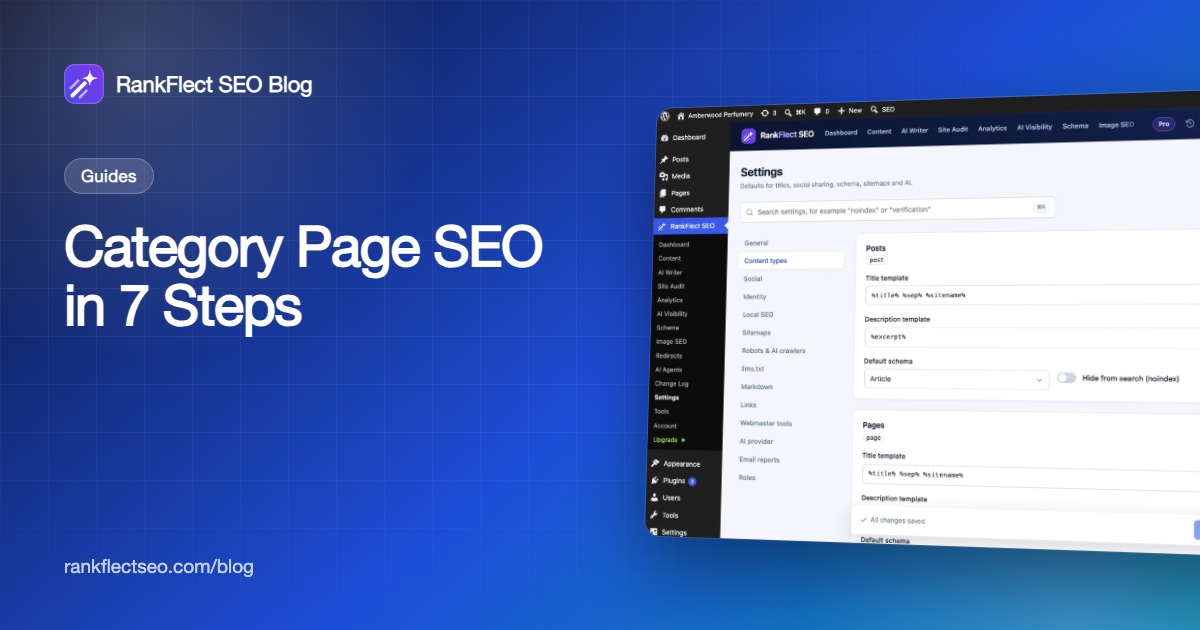
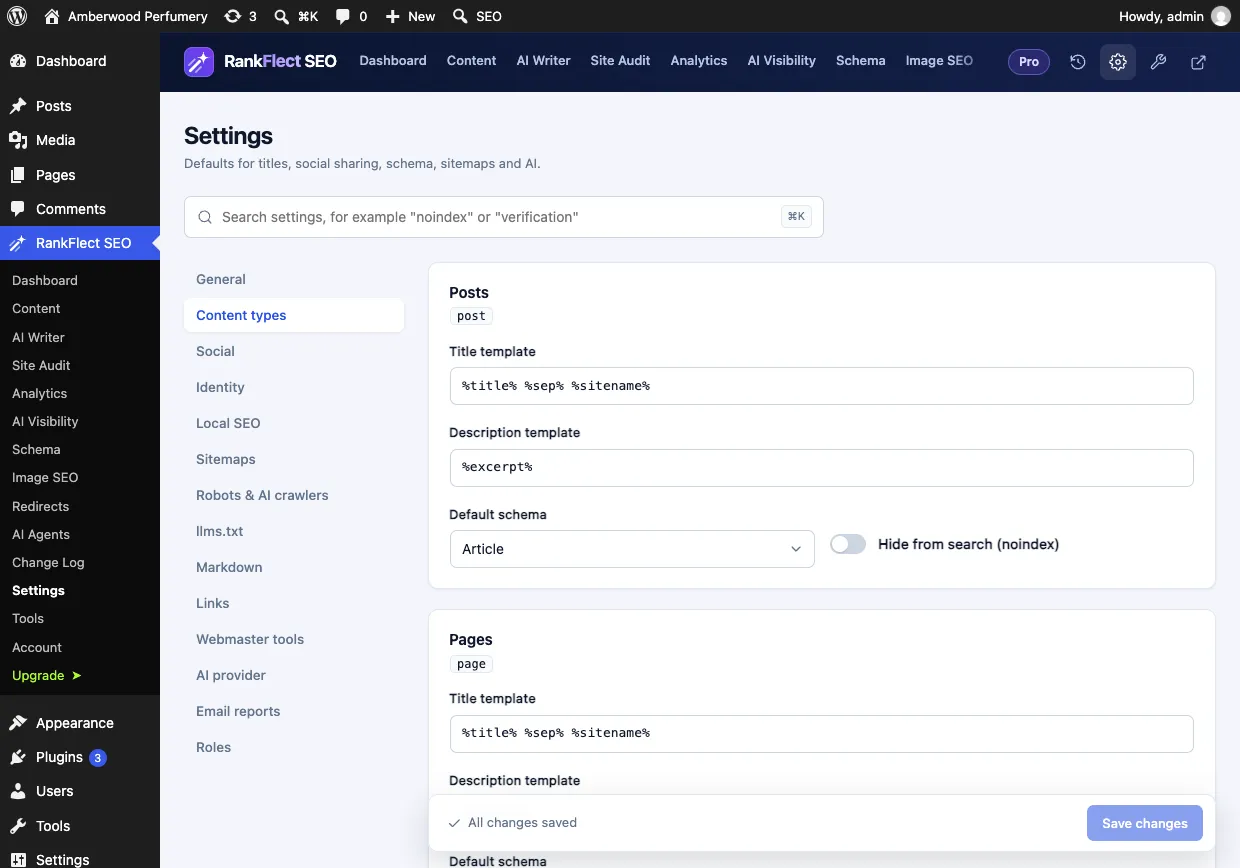
Set defaults for each taxonomy. Go to RankFlect SEO → Settings → Content types. The page has a card for each content type and, further down, a Taxonomies card where each public taxonomy (Categories, Tags, product categories and custom taxonomies) has a title template and a Noindex switch. The default title template is %term% %sep% %sitename%, and Tags and Formats are noindex by default, while categories stay indexable. The archive's meta description defaults to the term's own description. The variables you can use are listed in title and description variables.
Override one category. Open Posts → Categories, click a category to open its edit screen and scroll to the RankFlect SEO section. There you can set an SEO title, a Meta description (empty uses the term description) and tick Hide this archive from search engines for a single archive. The section is on the edit screen only, not the quick "Add New" form. Changes are recorded in the Change Log.
What archive pages output. Each archive gets its title and description, a canonical pointing to the archive URL (on page 2 and later, to that page's own URL, in line with Google's guidance), noindex when the term or taxonomy is set to noindex, and CollectionPage schema. Noindexed archives are left out of the XML sitemap. On page 2 and later, the title gets the page number, such as "Pickles – Page 2 of 3". If you want to keep deeper pages out of the index, turn on Noindex page 2+ of archives in Settings → General; it is off by default. See set up titles and meta descriptions and noindex, nofollow and canonical URLs for how these settings combine.
Breadcrumbs. RankFlect SEO adds BreadcrumbList schema automatically, and you can show a visible trail with a shortcode or template tag. Posts use their primary category in the trail. See breadcrumbs.
WooCommerce. Product categories get the same title, description and noindex controls. In RankFlect SEO Pro, the WooCommerce settings add Noindex filtered and sorted shop pages (on by default) and Noindex empty product categories and tags (off by default).
Coming from Yoast SEO, Rank Math or SEOPress? The importer copies category titles and descriptions, plus noindex from Yoast SEO, so you do not start over. You can download RankFlect SEO for free and set up your category pages in a few minutes.
Frequently asked questions
Should I noindex category pages in WordPress?
Usually not. Categories group your content by topic and often deserve to rank. Noindex only the categories that are nearly empty or duplicate another archive.
Should tag pages be indexed?
Most sites are better off keeping tag archives out of search, because tags tend to overlap with categories and each other and produce thin lists. Index a tag only if you curate it like a real topic page, with a description and enough posts.
Does the category description help SEO?
Yes, when it is useful. Many themes show it at the top of the archive, giving Google text to understand the page, and SEO plugins often use it as the meta description. Keep it short and written for visitors.
Should paginated category pages canonicalize to page 1?
No. Google says not to use the first page as the canonical for the whole series. Each page should point to itself, and pages should link to each other with normal links.
Should I remove /category/ from my WordPress URLs?
It is optional and has little SEO effect on its own. Changing it on an established site changes every category URL, so only do it with 301 redirects in place, and only if you have a clear reason.
- #category pages
- #wordpress categories
- #ecommerce seo
- #pagination
- #taxonomy seo
Written by
RankFlect SEO TeamThe people who build RankFlect SEO, the WordPress SEO plugin with a built-in MCP server. We write about what we learn shipping SEO tools for AI search.
All articles →Let AI agents fix your SEO. You keep the undo button.
RankFlect SEO is free for unlimited sites, with a built-in MCP server, approval for every change and no AI credits.