Elementor SEO: How to Optimize Elementor Pages for Google
Elementor isn't bad for SEO, but it makes some mistakes easy. Here is how to fix headings, metadata, speed and schema on every Elementor page.
In this article
- Key takeaways
- Is Elementor bad for SEO?
- Step 1: Set the right heading tags
- Step 2: Write an SEO title and meta description for every page
- Step 3: Optimise images, alt text and the hero
- Step 4: Turn on Elementor's performance features
- Step 5: Add FAQ, how-to and table of contents content with schema
- Step 6: Link pages together
- How to do Elementor SEO inside the editor with RankFlect SEO
- An Elementor SEO checklist before you publish
- Frequently asked questions
- Does Elementor slow down my website?
- Do I need Elementor Pro for SEO?
- Why doesn't my new SEO title show after I changed it in Elementor?
- How many H1 tags should an Elementor page have?
Elementor SEO comes down to two things: the page Elementor outputs must be fast and well structured, and every page needs the same basics as any other WordPress page, such as a unique SEO title, a meta description, one clear H1, descriptive alt text and the right schema. Elementor is not bad for SEO on its own, but its flexibility makes it easy to ship heavy pages, wrong heading levels and missing metadata. This guide covers each fix in order, with the Elementor settings to use and how to handle the SEO fields without leaving the editor.
Key takeaways
- Elementor's heading tag and its visual size are separate settings. Set the HTML tag for structure and style the text however you like.
- Use exactly one H1 per page, usually the page title or hero heading, and keep H2 and H3 in order.
- Turn on Elementor's performance features, and never lazy-load the main hero image.
- Elementor doesn't write SEO titles, meta descriptions or schema for you. You need an SEO plugin for that.
- Check the page as visitors see it: what Elementor renders is what search engines index.
Is Elementor bad for SEO?
No. Google indexes the HTML your page outputs, and an Elementor page is ordinary HTML, CSS and JavaScript. What matters is what you build with it. The common problems on Elementor sites are the same ones you can create with any builder:
- Heavy pages. Many widgets, sliders, animations, large background images and several font families add weight and slow the first paint.
- Headings chosen for looks. A big line of text set as H1 because it looks right, or every section title set as H2 regardless of hierarchy.
- Text inside images. Headlines baked into a background image can't be read as text.
- Missing metadata. Elementor focuses on design. Titles, descriptions, canonical URLs and schema come from your SEO plugin.
Fix those and an Elementor page can rank as well as any other page.
Step 1: Set the right heading tags
Elementor's Heading widget lets you choose the HTML tag separately from the size. According to Elementor's Heading widget documentation, the choices are H1 to H6, Div, Span or Paragraph, and changing the tag does not affect the size or style of the text unless your theme or Site Settings style that tag.
- Give each page one H1 that says what the page is about. On many themes the page title is already an H1, so check before you add another one in the hero.
- Use H2 for main sections and H3 for subsections inside them. Don't skip from H2 to H4.
- Use Div, Span or Paragraph for decorative text, taglines and button-like labels that aren't real headings.
- Put your main keyword or a close variant in the H1 and in at least one H2, where it reads naturally.
A quick test: read only your headings from top to bottom. They should work as a table of contents for the page.
Step 2: Write an SEO title and meta description for every page
Elementor builds the page body. The title tag and meta description in the page head come from WordPress and your SEO plugin. Without one, many themes output only the page name, and Google writes its own snippet from your page text.
- SEO title: lead with the topic or keyword, keep it under about 60 characters so it isn't cut off, and make every page's title unique.
- Meta description: one or two sentences that summarise the page and give a reason to click. Google's snippet guidance says descriptions should be unique per page and not a list of keywords.
- Slug: short, readable and descriptive, such as
/elementor-landing-page-seo/rather than/page-2-copy/.
This matters most on landing pages built from templates. Duplicating a page also duplicates its intent, so update the title, description and slug every time you clone one.
Step 3: Optimise images, alt text and the hero
Images are usually the heaviest part of an Elementor page.
- Resize before upload. Don't upload a 4000-pixel photo for a 600-pixel column. Use WebP or AVIF where your setup supports it.
- Add alt text in the Media Library or the Image widget. Describe what the image shows in plain words. Leave alt text empty only for purely decorative images.
- Don't lazy-load the hero. The largest image above the fold is often your Largest Contentful Paint element. It should load immediately.
- Prefer real text over text in images. Put headlines in a Heading widget over the image, not inside the image file.
Step 4: Turn on Elementor's performance features
Elementor has built-in settings that reduce page weight. Its help article on performance features lists them under Elementor → Settings:
- Optimized Image Loading (Performance tab): gives high fetch priority to the largest image above the fold and lazy-loads images below it.
- Lazy Load Background Images (Performance tab): delays background images, except the first, until they are needed.
- Optimized Gutenberg Loading (Performance tab): removes unused block editor scripts and styles.
- Inline Font Icons (Features tab): renders icons as inline SVG instead of loading the full icon font libraries.
- Element Caching (an experimental feature at the time of writing): serves a stored copy of an element instead of rendering it on every load.
Beyond those, the usual WordPress advice applies: use page caching, limit the number of font families and weights, remove widgets and add-ons you don't use, and replace heavy sliders with a single strong hero. Test with PageSpeed Insights on mobile after each change.
Step 5: Add FAQ, how-to and table of contents content with schema
Structured data helps search engines and AI assistants understand what a page contains. Elementor's own accordion and toggle widgets produce the visible content, but schema depends on how your setup outputs it. Whatever tool you use, make sure the questions in the schema match the questions on the page.
A few rules that apply to any builder:
- Write FAQ answers of one to three sentences that stand on their own.
- Use how-to markup only for real step-by-step instructions.
- Don't output the same FAQ schema twice, for example from a widget and again from a schema plugin.
- Google currently shows FAQ rich results only for a small set of authoritative government and health sites, so treat FAQ schema as a way to describe your content, not a guaranteed rich result.
Validate the page with Google's Rich Results Test after you publish.
Step 6: Link pages together
Elementor makes it easy to build landing pages that nothing else on the site links to. Search engines find and value pages through links.
- Link each landing page from at least one relevant menu item, category page or blog post.
- Use descriptive anchor text in Text Editor and Button widgets, not "click here".
- Avoid hiding important links inside tabs or popups that only appear after interaction.
- Check that buttons are real links with an
href, not elements that only respond to JavaScript clicks.
How to do Elementor SEO inside the editor with RankFlect SEO
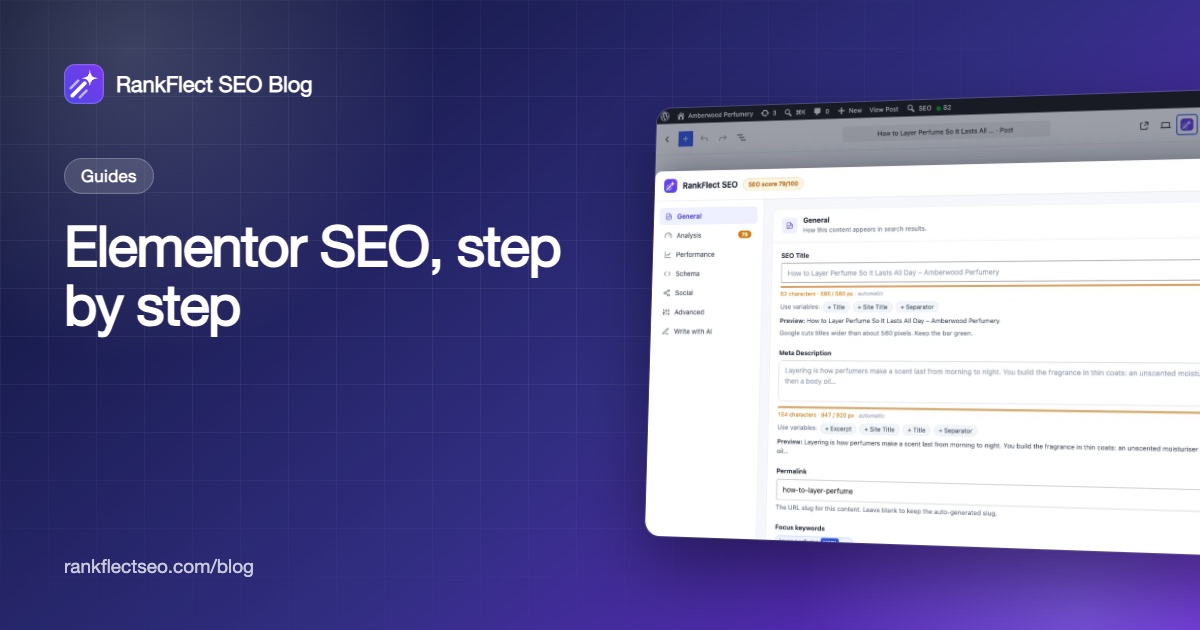
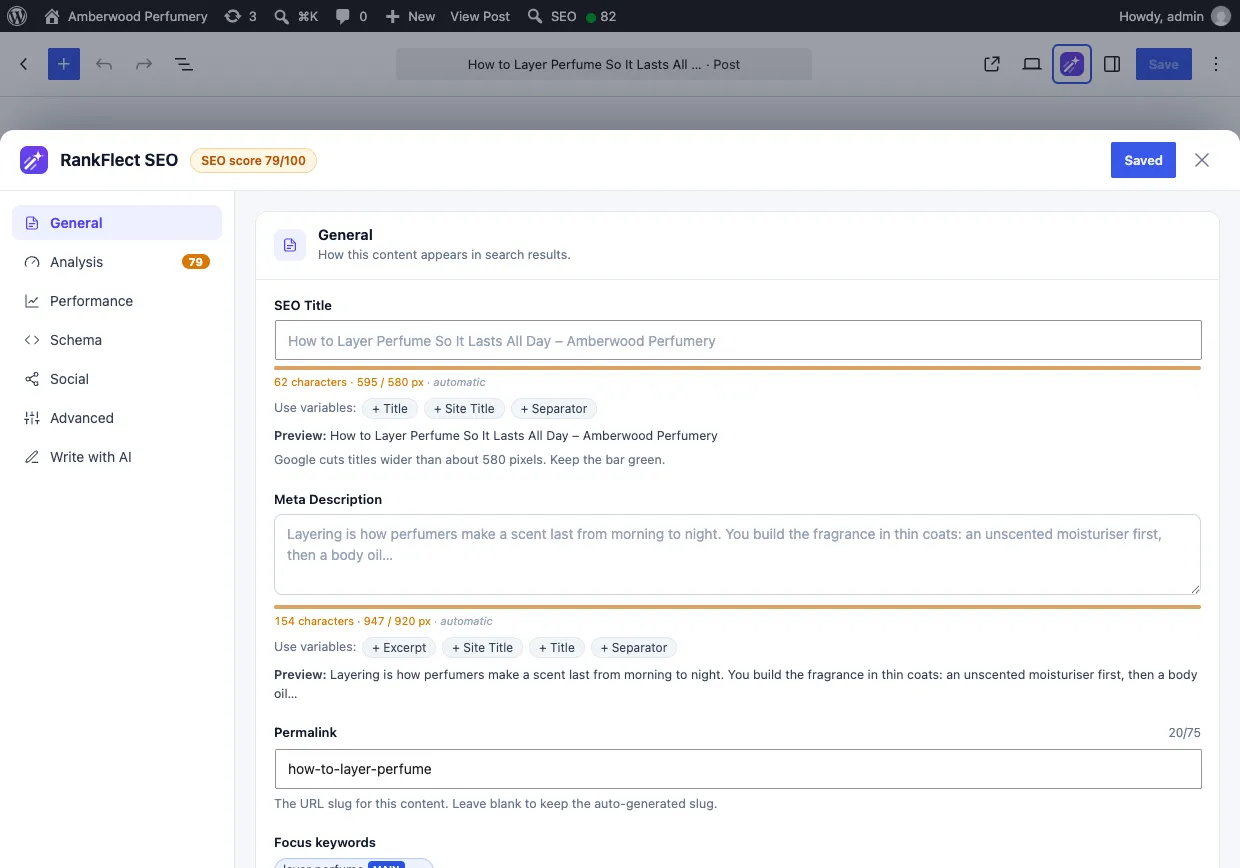
Switching between Elementor and the WordPress editor to set SEO fields slows you down. RankFlect SEO adds an SEO drawer to the Elementor editor, so you can work on the page and its metadata in one place. Everything below is in the free version and works with the free Elementor plugin.
- Edit the page with Elementor and click the SEO button. The RankFlect SEO drawer opens with the SEO score for your focus keyword.
- In General, set the SEO title, Meta description and Focus keywords, and check the search preview and the analysis checklist.
- In Advanced, set noindex, nofollow, cornerstone content, the canonical URL and the schema type when needed.
- In Social, set the social title, description and image for shares.
- Click Update in Elementor or Save SEO in the drawer. Elementor's autosave doesn't save the SEO fields, so save before you leave.
The content analysis reads the page as Elementor renders it in the preview, so word count, headings, links and images match what visitors see. The full list of settings is in the Elementor integration guide, and each check is explained in content analysis checks.
For schema, RankFlect SEO adds a RankFlect SEO category to the Elementor widget panel with three widgets: FAQ, How-to and Table of contents. They output FAQPage, HowTo and table-of-contents schema, use no JavaScript and load a small stylesheet only on pages that use them. They work the same way as the FAQ, How-to and Table of contents blocks for the block editor.
A few options live only in the WordPress editor: the Schema manager for items such as Recipe or Event, the AI features and some advanced settings. Open the page with Edit (not Edit with Elementor) and click the RankFlect SEO button in the toolbar to reach the RankFlect SEO panel.
Built with Divi, Oxygen, Breakdance or Bricks instead? Those builders don't get a drawer, but RankFlect SEO still reads their content for the analysis and site audit; you edit the SEO fields in the WordPress editor screen.
An Elementor SEO checklist before you publish
- One H1, with H2 and H3 in order.
- A unique SEO title and meta description.
- A short, descriptive slug.
- Compressed images with alt text; hero image not lazy-loaded.
- Elementor performance features turned on; unused add-ons removed.
- FAQ or how-to content with matching schema, output once.
- At least one internal link pointing to the page.
- The page saved with Update, and your page cache cleared.
For site-wide basics such as sitemaps and indexing, our WordPress SEO checklist covers the rest. If you want the SEO drawer and widgets in your own Elementor editor, download RankFlect SEO free.
Frequently asked questions
Does Elementor slow down my website?
It can, depending on how you build. Pages with many widgets, animations, large background images and several fonts load more slowly. Turning on Elementor's performance features, compressing images and using page caching keeps most Elementor sites fast.
Do I need Elementor Pro for SEO?
No. SEO titles, descriptions and schema come from your SEO plugin, not from Elementor Pro. RankFlect SEO's Elementor drawer and widgets work with the free Elementor plugin.
Why doesn't my new SEO title show after I changed it in Elementor?
Usually the change wasn't saved, or a page cache is serving the old version. Save the page with Update (autosave isn't enough for SEO fields in RankFlect SEO), then clear your cache and check the page source.
How many H1 tags should an Elementor page have?
One. Check whether your theme already prints the page title as an H1 before adding an H1 Heading widget in the hero. If it does, either hide the theme title or set your hero heading to H2.
- #elementor seo
- #elementor
- #page builder seo
- #wordpress seo
- #schema
Written by
RankFlect SEO TeamThe people who build RankFlect SEO, the WordPress SEO plugin with a built-in MCP server. We write about what we learn shipping SEO tools for AI search.
All articles →Let AI agents fix your SEO. You keep the undo button.
RankFlect SEO is free for unlimited sites, with a built-in MCP server, approval for every change and no AI credits.