How to Bulk Edit Meta Descriptions in WordPress: 4 Safe Methods
WordPress can't bulk edit SEO fields on its own. Here are four ways to update meta descriptions across your site, and a safe order to do it in.
In this article
- Key takeaways
- Four ways to bulk edit meta descriptions in WordPress
- Method 1: Fix the template before you edit anything
- Method 2: Bulk edit meta descriptions in a table
- Quick Edit for a few posts
- Method 3: Write meta descriptions in bulk with AI
- From the site audit
- Method 4: Export and import
- Bonus: let an AI agent do the bulk work
- A safe workflow for bulk editing meta descriptions in WordPress
- Frequently asked questions
- Can I bulk edit meta descriptions in WordPress without a plugin?
- Will bulk editing overwrite descriptions I already wrote?
- How many meta descriptions should I write by hand?
- Can I undo a bulk change?
To bulk edit meta descriptions in WordPress, you need an SEO plugin with a bulk editor: WordPress's own Bulk actions → Edit cannot touch SEO fields. The fastest workflow is to fix the template that covers most pages, then filter a table for pages missing a description and edit them row by row, using AI only where it saves real time. This guide compares the main methods and walks through each, with the checks that keep a bulk change from going wrong.
Key takeaways
- WordPress core has no meta description field, so bulk editing happens in your SEO plugin, not in the standard posts list.
- Change the description template first. One edit can fix thousands of pages that have no custom description.
- Use a filtered table (for example "Missing description") to work through the pages that need hand-written text.
- AI bulk generation is fast but overwrites existing text. Filter first, back up, and read the results.
- Always have an undo path: a backup, a change log, or an export you can restore.
Four ways to bulk edit meta descriptions in WordPress
Each method fits a different job. Most sites end up using two or three of them.
- Change the template. Best when many pages have no custom description and a pattern would do. One setting, every matching page.
- Edit in a bulk table. Best for writing unique descriptions for tens or hundreds of important pages without opening each post.
- Generate with AI in bulk. Best for filling gaps on long-tail pages after a migration, where a decent description beats none.
- Export, edit in a spreadsheet, import. Best when a team or client reviews the text in a spreadsheet. Support for this varies a lot by plugin.
Most major SEO plugins cover at least some of these. At the time of writing, Yoast SEO offers a bulk editor opened from the posts list through the bulk actions menu, and Rank Math documents a bulk edit mode in the posts list plus CSV import and export (the CSV route is in its Pro plan). The steps below use RankFlect SEO, but the order of work applies to any plugin.
Method 1: Fix the template before you edit anything
Before you touch individual pages, check what the pages without a custom description output today. If that default is good, you have far fewer pages to edit.
- Go to RankFlect SEO → Settings → Content types.
- Find the card for the content type, such as Posts or Products, and look at Description template. The default is
%excerpt%: the excerpt, or the first 155 characters of the content, cut at a word boundary. - Adjust it if needed. A shop could use
%wc_short_desc%so product descriptions come from the product short description. Avoid fixed sentences that would be identical on every page. - Click Save changes. Every item of that type without a custom description now uses the new template.
The variables are listed with examples in Title and description variables, and the content type settings are in Settings for posts, pages and custom post types. For the home page, set Homepage description under Settings → General.
Google is comfortable with this approach. Its snippet guidelines say large sites can generate descriptions programmatically, as long as they are human-readable and use page-specific information.
Method 2: Bulk edit meta descriptions in a table
For pages that deserve their own text, a table is much faster than opening each post. In RankFlect SEO, the bulk SEO editor is free.
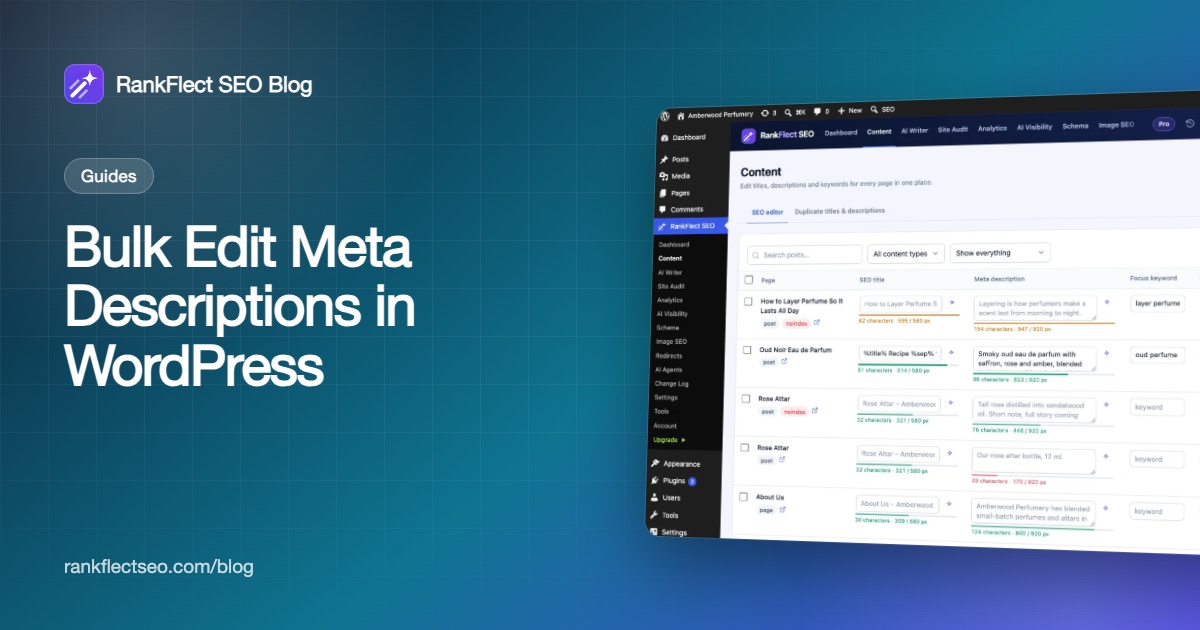
- Go to RankFlect SEO → Content and stay on the SEO editor tab.
- Pick a content type from the All content types filter, if you want to work on one type at a time.
- In the status filter, choose Missing description. The list now shows only pages that rely on the template.
- Click into the Meta description field of a row and type the new text. An empty field shows the description the page outputs today as a grey placeholder, which is a useful starting point.
- Watch the bar under the field. It shows the character count and the width in pixels.
- Click Save on that row, then move to the next.
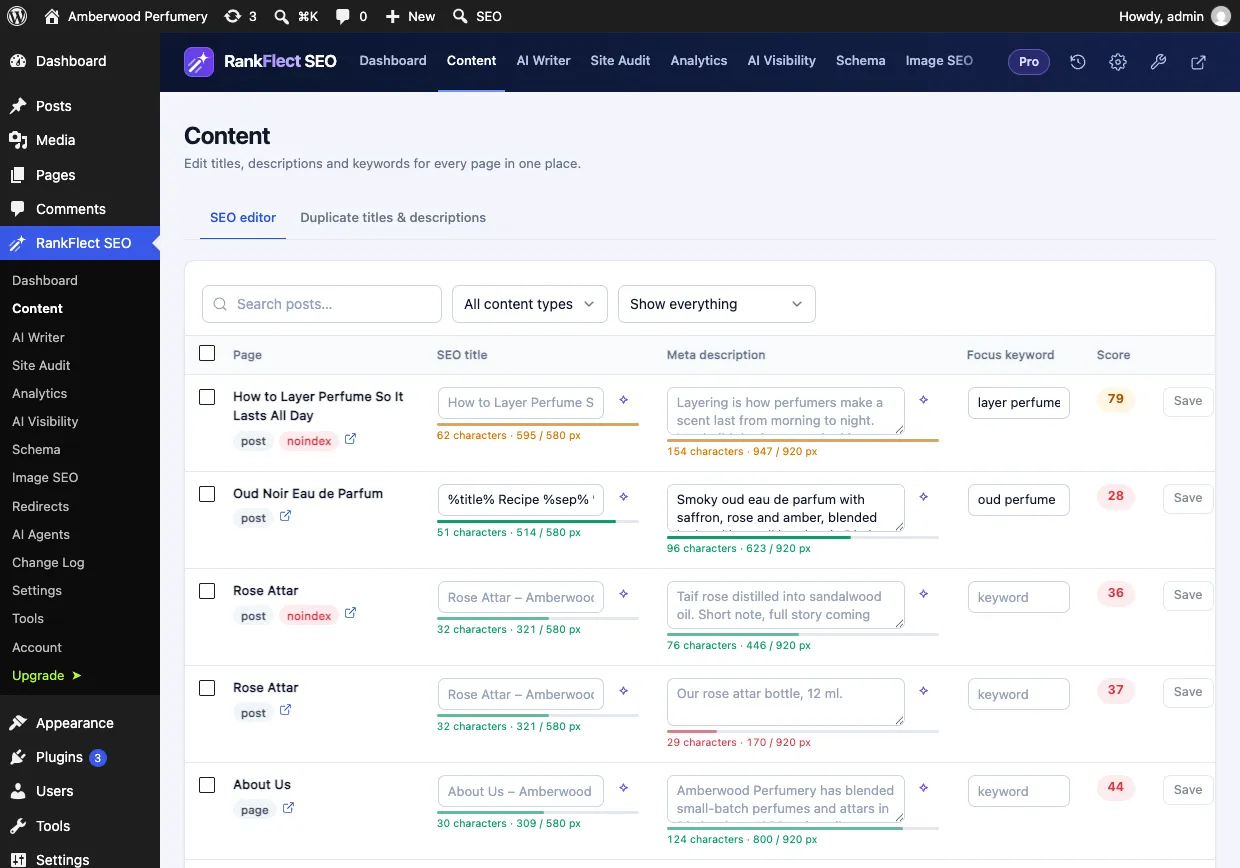
The same table also edits SEO titles and focus keywords, and shows each page's SEO score, so you can fix a page completely in one pass. If you have added your own AI provider key, the sparkle icon next to a description opens AI description suggestions with three options for that post; pick one, adjust it and click Save.
Two details matter when you work in bulk:
- "Leave a field empty to keep the default template." Clearing a field and saving sends the page back to the template.
- Every save from the table is recorded in the Change Log and can be undone.
More filters and options are in The bulk SEO editor.
Quick Edit for a few posts
Since version 1.3.0, RankFlect SEO also adds the SEO title, meta description, focus keywords and noindex to Quick Edit in the standard posts and pages lists. It is handy when you are already in Posts → All Posts and want to fix one or two descriptions without leaving the list.
Method 3: Write meta descriptions in bulk with AI
AI makes sense for the long tail: hundreds of older posts, imported products or archive pages where nobody will hand-write a description. It does not replace careful writing on your top pages.
In RankFlect SEO Pro, bulk AI works from the same table, with your own AI provider:
- In RankFlect SEO → Content, filter by Missing description.
- Tick the rows you want, or use Select all.
- Click AI descriptions. A run handles up to 50 items.
- When it finishes, you see "AI updated %d posts. Undo from the Change Log." The table reloads with the new text.
For each post, the AI reads the title and content and writes a description of 130–155 characters, with the main focus keyword near the start when one is set. RankFlect SEO takes a backup before the run and records it as a single batch, so Revert whole batch in the Change Log undoes everything at once. On the free plugin the button shows as a locked Bulk AI titles & descriptions. See Bulk AI titles and descriptions for limits and costs.
Bulk AI replaces any description already saved on the selected posts. That is why the filter step matters: select only pages without a description, and the text you wrote by hand stays untouched.
From the site audit
The site audit flags pages without a written meta description, duplicate descriptions, and descriptions longer than 160 or shorter than 70 characters. In Pro, each of these has a Fix with AI button that rewrites up to 20 affected items per click and re-runs the audit.
Method 4: Export and import
Some teams prefer to review descriptions in a spreadsheet. Whether you can do that depends on your plugin: some offer CSV export and import, others only a full export for moving data between sites.
RankFlect SEO's Tools → Export & import exports the SEO fields of every post and term as a JSON file, not a spreadsheet. It is designed for moving RankFlect SEO data to another site or keeping a copy, and an import shows a preview before anything changes. See Backups, export and import settings. For spreadsheet-style editing, the bulk table above is the intended tool.
Bonus: let an AI agent do the bulk work
If you connect an AI assistant such as Claude or ChatGPT to your site through RankFlect SEO's MCP server, you can ask it to find posts missing a description and write them. Reading tools such as list_posts_missing_meta and setting one post at a time with update_post_seo are free; bulk_update_post_seo and ai_bulk_generate, which change many posts in one call with a backup first, are in RankFlect SEO Pro. With approval mode on, the agent's changes wait in the Change Log until you approve them. Setup is in Connect an AI agent to WordPress over MCP, and the safety options are in Approval mode, dry runs and undo, and our guide to connecting Claude to WordPress shows the whole flow.
A safe workflow for bulk editing meta descriptions in WordPress
- Back up first. Take a site backup, or at least an export of your SEO data, before a large change.
- Fix the template. Make the default good, so every untouched page is covered.
- Prioritize by traffic. Hand-write descriptions for the pages with the most search impressions or sales first. Our Search Console guide shows how to find them.
- Filter, then select. Work from Missing description so you never overwrite good text by accident.
- Use AI for the rest, and spot-check. Read a sample of every AI run. Look for generic phrases, wrong facts and repeated openings.
- Check for duplicates. The Duplicate titles & descriptions tab in RankFlect SEO → Content finds pages that now share text.
- Verify on the live site. Open a few pages, view the source and confirm one
name="description"tag with your new text. Google updates its results as it recrawls, which can take days or weeks.
If you want to try the bulk table on your own site, you can download RankFlect SEO free; the bulk editor, Quick Edit and duplicates report are all in the free plugin.
Frequently asked questions
Can I bulk edit meta descriptions in WordPress without a plugin?
Not with core WordPress. Its bulk edit covers fields like categories, author and status, and it has no meta description field at all. You need an SEO plugin, or custom code that writes descriptions from excerpts.
Will bulk editing overwrite descriptions I already wrote?
Editing a row in a table only changes that row. Bulk AI tools usually replace whatever is saved on the selected posts, so filter for pages missing a description before you select them.
How many meta descriptions should I write by hand?
Start with the pages that bring the most traffic, sales or leads, and pages that rank well but get few clicks. A good template can cover the rest, and Google accepts generated descriptions when they are readable and page-specific.
Can I undo a bulk change?
In RankFlect SEO, yes. Each table save is a Change Log entry you can revert, and a bulk AI run is one batch with a Revert whole batch button and a backup taken before it started. In other tools, take a backup or export first.
- #meta description
- #bulk edit
- #wordpress seo
- #seo plugin
- #ai seo
Written by
RankFlect SEO TeamThe people who build RankFlect SEO, the WordPress SEO plugin with a built-in MCP server. We write about what we learn shipping SEO tools for AI search.
All articles →Let AI agents fix your SEO. You keep the undo button.
RankFlect SEO is free for unlimited sites, with a built-in MCP server, approval for every change and no AI credits.