Connect Claude to WordPress with MCP: A Safe Setup Guide
How to connect Claude to WordPress over MCP: what MCP is, your connection options, the security questions to ask, and a step-by-step setup.
In this article
- Key takeaways
- What MCP is, in plain words
- Ways to connect Claude to WordPress
- WordPress.com's built-in MCP server
- A plugin on a self-hosted site
- Application Passwords and the REST API
- Security questions to ask before you connect
- How to connect Claude to WordPress with RankFlect SEO
- Step 1: Turn on agent access
- Step 2a: Connect claude.ai with a URL
- Step 2b: Connect Claude Desktop or Claude Code with a token
- Step 3: Test the connection
- Step 4: Run a safe first task
- Common problems when you connect Claude to WordPress
- Good habits for working with Claude on your site
- Frequently asked questions
- Can Claude edit my WordPress site directly?
- Do I need a paid Claude plan to connect WordPress?
- Is it safe to give Claude access to WordPress?
- Can I connect Claude to a local WordPress site?
- Do I need RankFlect SEO Pro to connect Claude?
To connect Claude to WordPress, you give Claude an MCP server for your site: a web address Claude can call to read your content and make changes. On claude.ai you add that address as a custom connector and sign in; in Claude Desktop or Claude Code you add it to the app's configuration with a token. The hard part isn't the setup. It's choosing a connection that only lets Claude do what you want, and lets you undo it when it gets something wrong.
This guide explains MCP in plain words, compares the main ways to connect, lists the security questions to ask first, and then walks through a full setup step by step.
Key takeaways
- MCP (Model Context Protocol) is an open standard that lets AI apps such as Claude call tools on other systems, including a WordPress site.
- You can connect through WordPress.com's own MCP server, through a plugin on a self-hosted site, or with WordPress Application Passwords.
- Before you connect, check four things: scoped access, approval before changes go live, an undo log, and whether the agent can reach admin-level settings.
- claude.ai needs a public HTTPS site. Claude Desktop and Claude Code run on your computer, so they can also reach a local or staging site.
- Start with read-only or limited access, preview changes first, and widen access only when you trust the workflow.
What MCP is, in plain words
The Model Context Protocol is an open-source standard for connecting AI applications to outside systems. Its own docs compare it to a USB-C port: one standard plug that many devices can use.
In practice, an MCP server publishes a list of tools, such as "list posts without a meta description" or "update this post's title". Claude sees the list, decides which tool fits your request and calls it. The server runs the tool on your site and sends back the result.
That means the server, not Claude, decides what is possible. If a tool doesn't exist on the server, Claude can't do it. This is why the choice of server matters more than anything you type into the chat.
Ways to connect Claude to WordPress
WordPress.com's built-in MCP server
If your site is hosted on WordPress.com, you can turn on MCP access in your account. WordPress.com's MCP support page explains how to enable it for all sites or for single sites, and the connection signs in with OAuth in your browser. At the time of writing, WordPress.com is also listed in Claude's connector directory. Check WordPress.com's own pages for which plans include it.
A plugin on a self-hosted site
On a self-hosted WordPress site, a plugin provides the MCP server. Some are general-purpose and expose posts, pages, users and settings. Others focus on one job. WordPress also has an official MCP Adapter that turns abilities registered through the WordPress Abilities API into MCP tools.
Plugins differ a lot in what they expose and how they control access, so read each one's documentation before you install it.
Application Passwords and the REST API
Some setups connect Claude to the WordPress REST API with an Application Password. This is quick, but an Application Password acts as the user who created it. WordPress's own integration guide notes that scoping a password to limited access was left for future versions. If that user is an administrator, the agent can do whatever an administrator can.
Security questions to ask before you connect
An AI agent with write access can make many changes quickly. Ask these questions about any connection method.
- Can I limit what it can touch? Look for scopes or access levels, for example read-only, content only, or full. One broad password for everything is the riskiest option.
- Can I approve changes before they go live? An approval queue lets you read each proposed change before your visitors see it.
- Can I preview a change? A dry run shows the old and new value without saving anything.
- Can I undo it? Every applied change should be logged with its old value and a way to revert it.
- Can it change admin-level settings? Check whether the agent can switch plugins, change users, read API keys or turn off its own limits.
- Does access expire, and can I revoke it? Tokens and sign-ins should expire and be easy to cut off.
Anthropic's help article on custom connectors adds one more point: custom connectors aren't verified by Anthropic, so only connect to servers you trust.
How to connect Claude to WordPress with RankFlect SEO
RankFlect SEO is a WordPress SEO plugin with a built-in MCP server. It is focused on SEO work: audits, titles and meta descriptions, focus keywords, alt text, redirects, schema, sitemaps and similar tasks. It doesn't publish posts. The server, agent tokens and the claude.ai connector are free on every site.
It answers the questions above in this way:
- Agent access is off until you turn it on.
- Each connection gets an access level: Read only, Content editor or Full, and never more than its WordPress user can do.
- Every write tool supports a dry run, and edits wait for your approval by default.
- Site-wide changes such as settings, redirects and robots.txt always wait for an administrator, even with approval mode off.
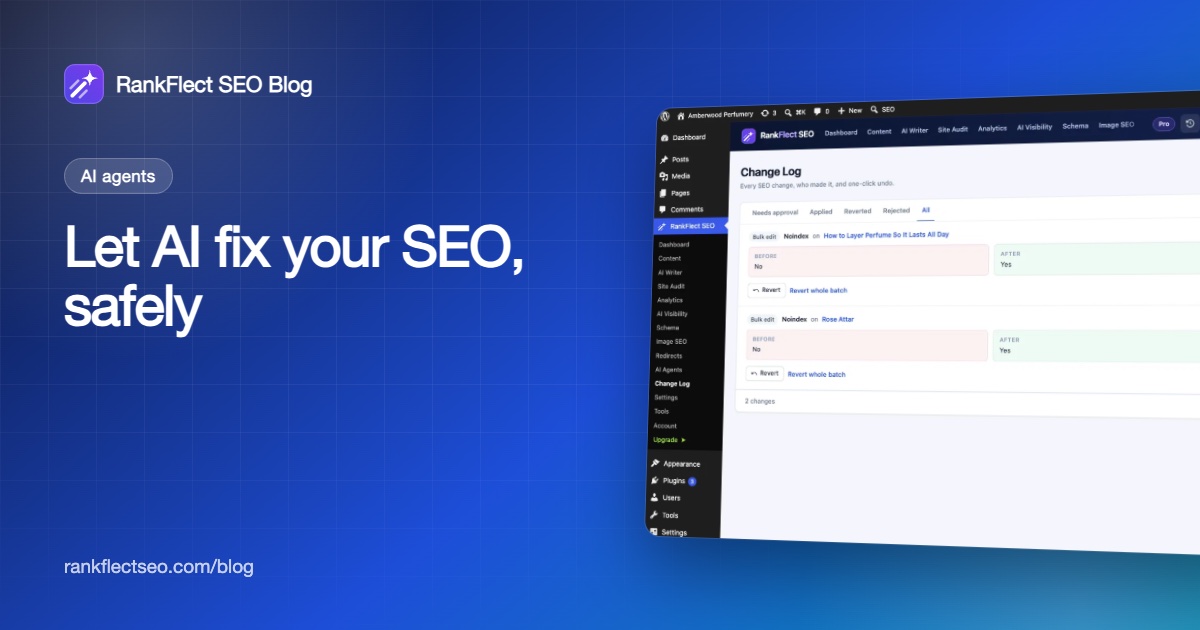
- Every applied change is in the Change Log with its old value and can be reverted.
- Agents can't read API keys or change agent, AI and tracking settings.
The details are in approval mode, dry runs and undo.
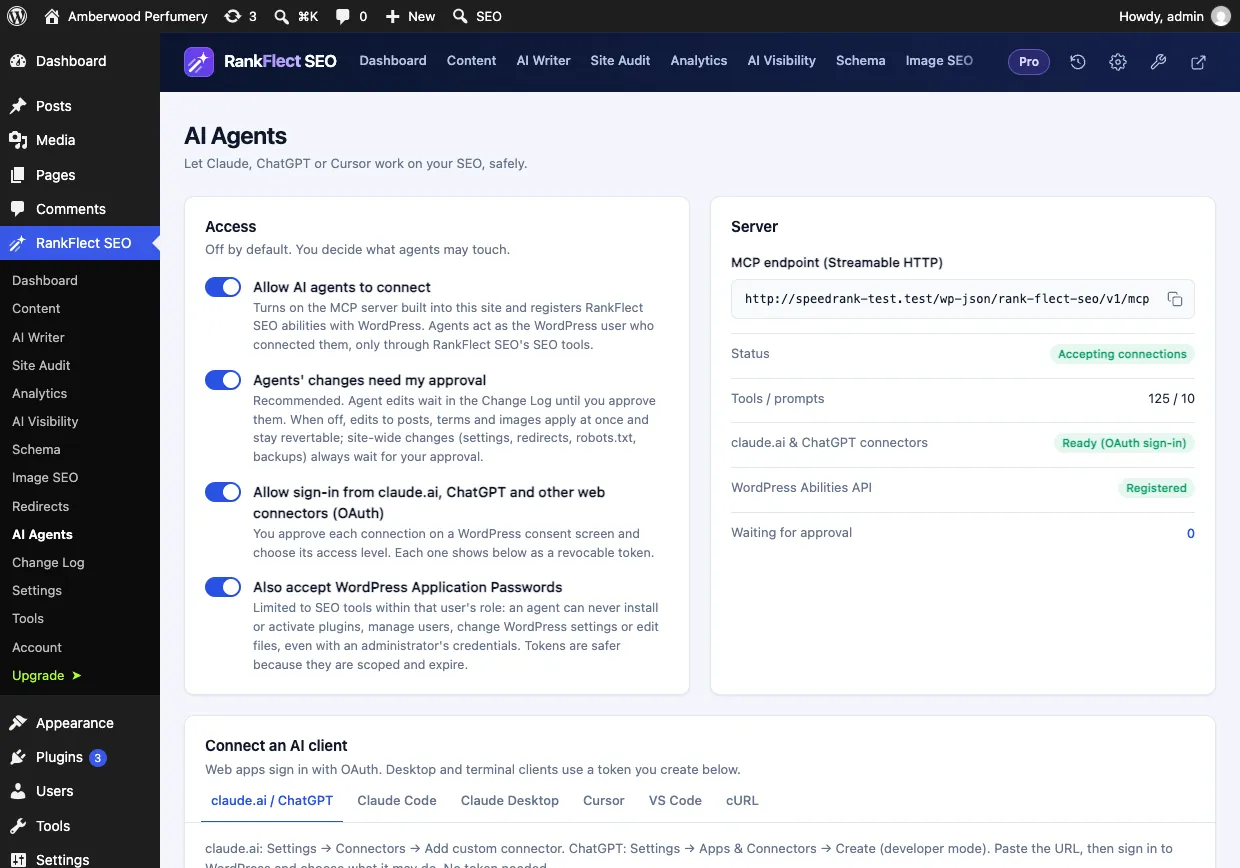
Step 1: Turn on agent access
- Install RankFlect SEO from WordPress.org or the free download page, and activate it.
- Go to RankFlect SEO → AI Agents.
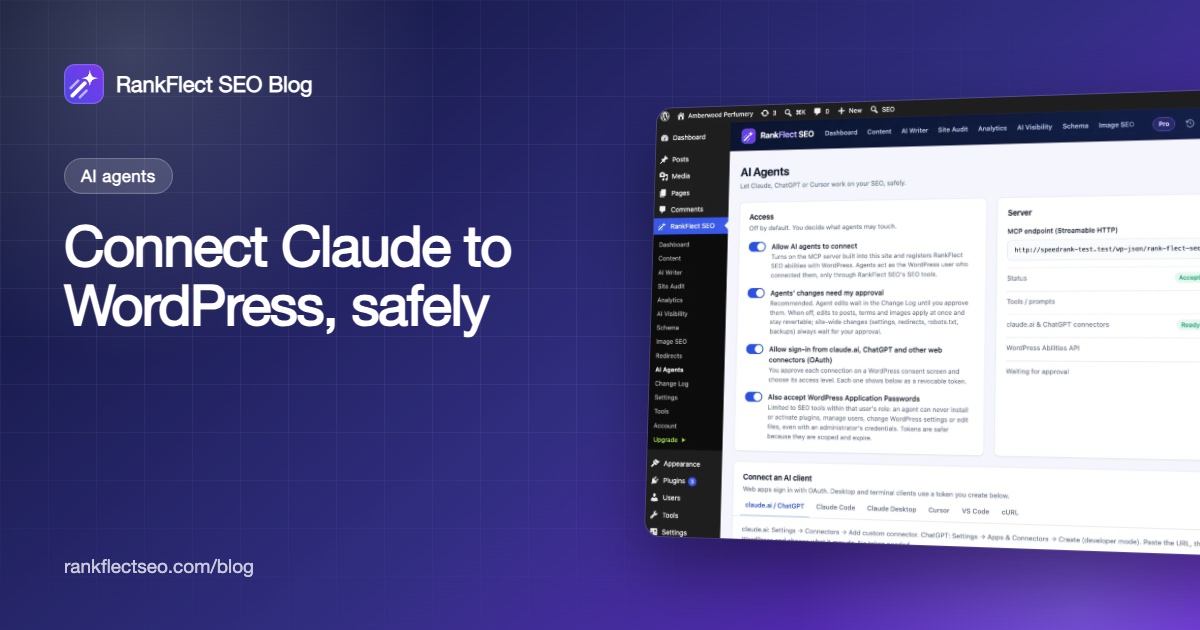
- In the Access card, turn on Allow AI agents to connect.
- Leave Agents' changes need my approval on.
The Server card now shows your MCP endpoint, which looks like https://example.com/wp-json/rank-flect-seo/v1/mcp. The full walkthrough is in connect an AI agent to WordPress over MCP.
Step 2a: Connect claude.ai with a URL
claude.ai connects from Anthropic's servers, so your site must be public, use HTTPS and have pretty permalinks turned on. You need to be a site administrator.
- In RankFlect SEO → AI Agents, open the claude.ai / ChatGPT tab in the Connect an AI client card and copy the Connector URL.
- In claude.ai, open the connector settings and choose Add custom connector. Paste the URL.
- claude.ai opens your site. Sign in to WordPress as an administrator.
- On the Connect an AI assistant screen, choose what Claude may do: Read only, Content editor (the default) or Full.
- Click Allow access. You return to claude.ai and the connector is ready.
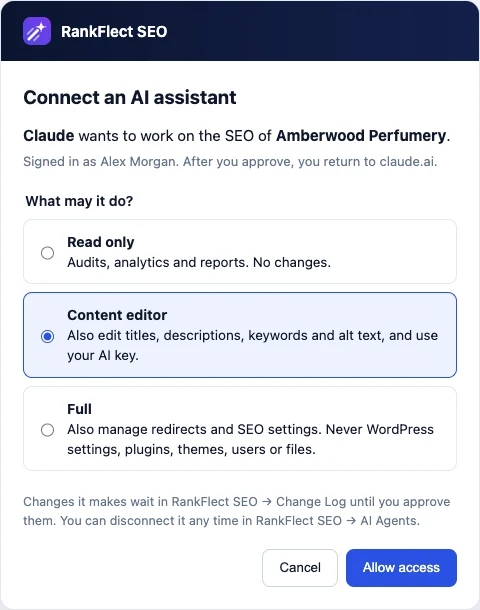
There is no token to copy. The sign-in uses OAuth 2.1, and the connection lasts 90 days before Claude asks you to sign in again. To disconnect, click Revoke on its row in the Agent tokens card. See connect claude.ai or ChatGPT by URL.
Step 2b: Connect Claude Desktop or Claude Code with a token
Desktop and terminal clients sign in with an agent token. Because they run on your computer, they can also reach a local or staging site.
- In the Agent tokens card, click Create token.
- Give it a clear name, such as "Claude Code on my laptop". The name appears in the Change Log next to every edit.
- Pick an expiry (the default is 90 days) and a Permissions preset, then click Create token.
- Copy the token now. It starts with
sr_and is shown only once.
You can fine-tune each area, such as content, redirects or settings, to None, Read or Write. See agent tokens, scopes and access levels.
Claude Code: open the Claude Code tab and run the command it shows. It looks like this:
claude mcp add --transport http rankflect https://example.com/wp-json/rank-flect-seo/v1/mcp \
  --header "Authorization: Bearer sr_your_token_here"
More in connect Claude Code.
Claude Desktop: open Settings → Developer → Edit config in Claude Desktop, paste the snippet from the Claude Desktop tab into claude_desktop_config.json, save, and restart Claude Desktop. The snippet runs a small bridge called mcp-remote with npx, so Node.js must be installed. See connect Claude Desktop.
Step 3: Test the connection
Start a new chat and ask:
Use RankFlect SEO to run site_overview and summarise my site's SEO.
Claude should answer with your site's name, enabled modules, content counts and latest audit score. In wp-admin, the token's Last used column and the Activity card show the call.
Step 4: Run a safe first task
RankFlect SEO ships ready-made workflows that Claude Code shows as slash commands. A good first one is SEO health check: it audits the site and proposes the five highest-impact fixes without changing anything.
When you are ready for edits, ask Claude to preview with a dry run first. With approval mode on, confirmed edits wait in RankFlect SEO → Change Log, where you click Approve or Reject. Anything applied can be reverted from the same screen.
Common problems when you connect Claude to WordPress
- claude.ai can't find the server: pretty permalinks are off, so the
/.well-known/addresses return 404. Choose Post name in Settings → Permalinks. - claude.ai can't reach the site: the site is local, behind a login wall or not on HTTPS. Use Claude Code or Claude Desktop instead.
- "Invalid or expired RankFlect SEO agent token": the token was mistyped, revoked or expired. Create a new one.
- "Authentication required": some servers strip the
Authorizationheader. Send the token in anX-RankFlect-Tokenheader instead. - Claude Desktop doesn't show the server: the JSON has a missing comma or bracket, Node.js isn't installed, or the app wasn't restarted.
- A tool is missing: the token's permissions hide it, or it needs Pro, a Google connection or WooCommerce.
Every error message is listed in fix MCP connection problems.
Good habits for working with Claude on your site
- Create one token per client or person, so you can see who did what and revoke one without breaking the others.
- Start with Read only for audits and reports. Move to Content editor when you want edits.
- Choose Full only when Claude needs to manage redirects or SEO settings.
- Keep approval mode on until you have watched a workflow run several times.
- Set an expiry on tokens, and revoke any token on a shared or lost computer.
- Check facts in anything Claude writes before you approve it.
If you want Claude to work on your SEO with these safety nets in place, download RankFlect SEO for free and turn on agent access in a few minutes.
Frequently asked questions
Can Claude edit my WordPress site directly?
Yes, if you connect it to an MCP server that offers write tools. What it can change depends entirely on that server and the access you grant. With RankFlect SEO, Claude works on SEO fields and settings, and its edits wait for your approval by default.
Do I need a paid Claude plan to connect WordPress?
Anthropic's help center says custom connectors are available on the Free plan as well as paid plans, with Free accounts limited to one custom connector at the time of writing. Claude Code and Claude Desktop also support MCP servers. Check Anthropic's current plan pages before you decide.
Is it safe to give Claude access to WordPress?
It can be, if you limit access and keep a way to review and undo changes. Avoid sharing an administrator's Application Password with broad access. Prefer scoped tokens, approval before changes go live, a dry-run preview and a change log with revert.
Can I connect Claude to a local WordPress site?
Yes, with Claude Code or Claude Desktop, because they call the site from your computer. claude.ai connects from Anthropic's cloud, so it needs a site that is public and on HTTPS.
Do I need RankFlect SEO Pro to connect Claude?
No. The MCP server, agent tokens, the claude.ai connector and the ready-made workflows are free. Pro adds more tools, such as bulk edits, the 404 log and Search Console reports.
- #claude
- #mcp
- #ai agents
- #wordpress
- #claude code
Written by
RankFlect SEO TeamThe people who build RankFlect SEO, the WordPress SEO plugin with a built-in MCP server. We write about what we learn shipping SEO tools for AI search.
All articles →Let AI agents fix your SEO. You keep the undo button.
RankFlect SEO is free for unlimited sites, with a built-in MCP server, approval for every change and no AI credits.