WordPress SEO Audit: A 9-Step Process You Can Finish Today
A practical 9-step WordPress SEO audit: what to check, which free tools to use and how to prioritize fixes so the most important problems get solved first.
In this article
- Key takeaways
- What you need before you start
- The WordPress SEO audit in 9 steps
- 1. Confirm search engines are allowed in
- 2. Compare what you published with what Google indexed
- 3. Check your XML sitemap
- 4. Audit titles and meta descriptions
- 5. Review content quality and structure
- 6. Check technical foundations
- 7. Measure speed and Core Web Vitals
- 8. Check structured data and social tags
- 9. Review security, updates and AI search access
- How to prioritize what you find
- Running a WordPress SEO audit with RankFlect SEO
- How often to audit a WordPress site
- Frequently asked questions
- How long does a WordPress SEO audit take?
- Can I do a WordPress SEO audit for free?
- What is the difference between a site audit and a crawl?
- Will fixing audit issues improve my rankings?
- What should I fix first after a WordPress SEO audit?
A WordPress SEO audit is a structured check of everything that affects how your site appears in search: whether Google can index it, whether each page has a clear title and description, whether the content is strong enough to rank, and whether the site is fast and secure. Done well, it ends with a short, prioritized fix list rather than a 200-row spreadsheet. This guide gives you a 9-step process you can run in an afternoon, with the tools you need and the order to fix things in.
Key takeaways
- Audit in order of impact: indexing first, then metadata and content, then speed, security and extras.
- Use two kinds of data: what your site says about itself (settings, content, plugins) and what Google reports (Search Console).
- Prioritize by severity and by how many pages an issue affects. One critical setting beats fifty notices.
- Re-run the audit after every batch of fixes and after big changes such as a theme switch or plugin migration.
- An audit finds problems. It does not guarantee rankings; content quality and relevance still decide most results.
What you need before you start
- Google Search Console, verified for your domain. Its Page indexing report shows which pages Google indexed and why others were left out. If it is not set up yet, start with our Google Search Console guide for WordPress.
- PageSpeed Insights, to measure Core Web Vitals for real visitors.
- An on-site audit tool: either an SEO plugin's audit or a desktop crawler. A plugin can read WordPress settings directly; a crawler sees the site the way a bot does. Each catches things the other misses.
- Admin access to WordPress, so you can check settings and fix what you find.
Write down your current numbers before you change anything: indexed pages, clicks over the last three months and your audit score. That baseline is how you will know the work paid off.
The WordPress SEO audit in 9 steps
1. Confirm search engines are allowed in
Start with the checks that can hide an entire site:
- In Settings → Reading, make sure Discourage search engines from indexing this site is unticked. It is often left on after a launch.
- Open
yoursite.com/robots.txtand look for a strayDisallow: /or rules that block important folders. - View the source of your home page and a typical post. Look for
noindexin the robots meta tag where it should not be.
Remember that robots.txt controls crawling, not indexing. To remove a page from search, Google's advice is to use noindex and leave the page crawlable.
2. Compare what you published with what Google indexed
Open the Page indexing report in Search Console. Compare the number of indexed pages with the number of posts, pages and products you actually want in search.
- Far fewer indexed than published: look at the reasons listed, such as "Crawled, currently not indexed" (often thin or duplicate content) or "Duplicate without user-selected canonical".
- Far more indexed than published: tag pages, attachment pages, internal search results or filtered URLs are probably leaking into the index.
3. Check your XML sitemap
WordPress core creates a sitemap at /wp-sitemap.xml, and most SEO plugins replace or extend it. Open it and check that it lists the content you want indexed and nothing you have set to noindex. Make sure it is submitted in Search Console and that Search Console reports it as read successfully.
4. Audit titles and meta descriptions
Titles are one of the strongest on-page signals, and descriptions shape the snippet people see. Look for:
- Pages with no written meta description, where Google picks its own snippet.
- Duplicate titles or descriptions across several pages.
- Titles that are too long (they get cut off) or too short (no keyword, no reason to click).
- A home page title that still uses the default tagline, such as "Just another WordPress site".
Fix the pages that get the most impressions first. Search Console's Performance report shows which ones those are.
5. Review content quality and structure
This is where most ranking gains come from, and where tools help least. Check for:
- Thin posts with little original content. Expand them, merge them into a stronger post, or noindex them.
- Keyword cannibalization: two or more posts targeting the same main keyword and competing with each other.
- Orphan posts that no other page links to. Search engines and readers struggle to find them.
- Outdated posts that once ranked well but now lose clicks. Refresh facts, dates and examples.
Google's guidance on creating helpful, people-first content is a good yardstick for this step.
6. Check technical foundations
- HTTPS: the site address uses
https://, andhttp://redirects to it with a 301. - Permalinks: Settings → Permalinks is set to a readable structure such as Post name, not
?p=123. - Broken links and 404s: fix internal links that point to deleted pages, and redirect old URLs that still get traffic or links.
- Canonical tags: each indexable page points to itself unless it is a deliberate duplicate.
- Mixed content: HTTPS pages should not load images or scripts over
http://.
7. Measure speed and Core Web Vitals
Run PageSpeed Insights on your home page and on one example of each template: a post, a page, a category archive and, for shops, a product. Look at the real-user data first, then the lab opportunities. On the server side, check for a page cache, compression and a current PHP version. Slow server response affects every page at once.
8. Check structured data and social tags
Make sure your Organization or Person details, logo and Article or Product schema are present and valid. Test a few URLs in Google's Rich Results Test. Check that pages have an og:image, or at least a default share image, so links look right on social media.
9. Review security, updates and AI search access
- WordPress, plugins and themes are up to date, and unused plugins are removed.
- Errors are not displayed to visitors, and the debug log is not publicly downloadable.
- Your robots.txt does not accidentally block AI search crawlers you want to be visible in, such as OAI-SearchBot or PerplexityBot. Blocking only training bots is a separate choice.
If you publish an llms.txt file, treat it as a help for AI tools, not a ranking lever. Google has said it does not affect Google Search.
How to prioritize what you find
An audit almost always finds more than you can fix in a day. Sort issues with two questions: how severe is it, and how many pages does it affect?
- Critical, site-wide: search engines blocked, the whole site on
http://, a public debug log. Fix today. - Warnings on many pages: missing descriptions, duplicate titles, thin posts, cannibalization. Fix this week, starting with your highest-traffic pages.
- Notices: short titles, missing social images, minor speed hints. Schedule them and work through them over time.
Fix in batches, then re-run the audit to confirm each batch worked. Keep a note of what you changed and when, so you can connect changes in Search Console data to the work you did.
Running a WordPress SEO audit with RankFlect SEO
RankFlect SEO's site audit is free and runs many of the checks from steps 1 and 3 to 9 in one go. It does not crawl your site. It reads your settings and up to 1,000 recently modified published items directly from WordPress, checks your media library and server setup, and fetches your home page as a logged-out visitor for the security and performance checks. That is why it finishes in seconds, even on shared hosting.
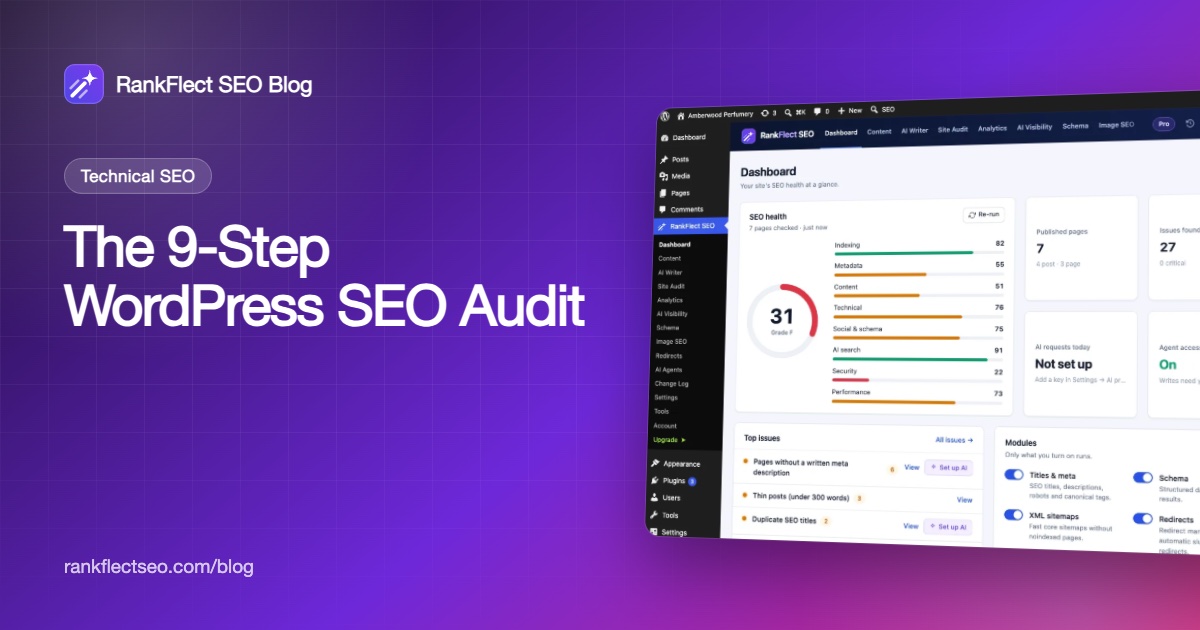
The result is a score from 0 to 100 with a grade from A to F and a score for each category: Indexing, Metadata, Content, Technical, Social & schema, AI search, Security and Performance. The same score appears on the RankFlect SEO Dashboard in the SEO health card, with the top six issues listed below it.
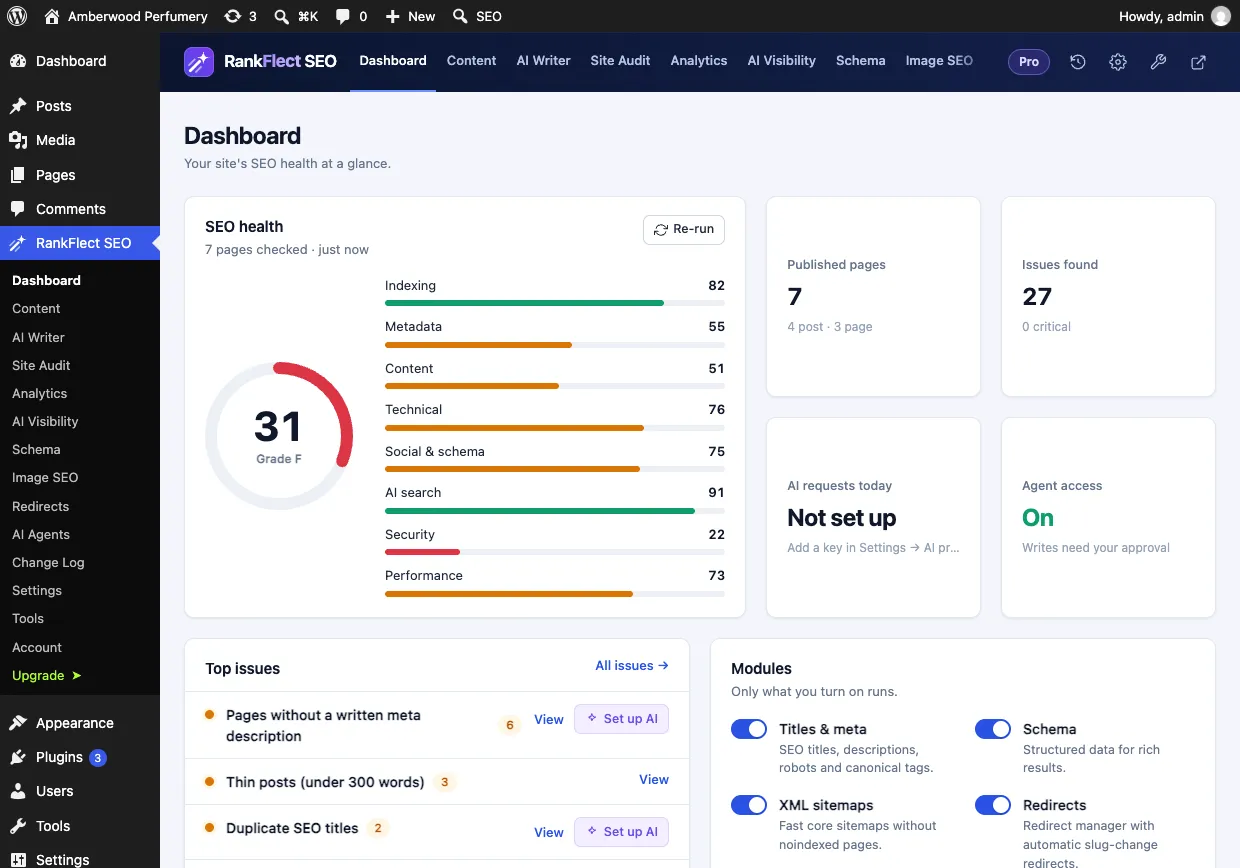
Each issue has a severity (Critical, Warning or Notice), a short explanation and, when it applies to specific pages, a View link that lists them with links to their edit screens. The button next to the issue tells you how it gets fixed:
- Fix it changes a RankFlect SEO setting for you, such as turning sitemaps or IndexNow back on, logs it in the Change Log with the note "Audit fix" and re-runs the audit.
- Set up opens the RankFlect SEO screen where you make the change.
- Open takes you to the WordPress screen, such as Settings → Reading or Updates.
- Issues with no button need a content edit or a server change; the explanation says what to do.
Every check, its severity and its fix are listed in every site audit check explained. Pair the audit with the Page speed tab, which runs PageSpeed Insights from inside WordPress, because the audit's performance checks look at your server and home page setup rather than real-user Core Web Vitals.
RankFlect SEO Pro adds a few things that matter for ongoing audits:
- Fix with AI on title, description and alt text issues, up to 20 items per click, applied as one Change Log batch you can undo.
- Audit history with a score chart and new and fixed issues since the previous run.
- Running the audit on demand with Run again (or Re-run on the Dashboard). On every plan, the audit already runs automatically every 7 days.
- A Search performance category when Search Console is connected: pages losing clicks, titles that underperform for their position and keywords close to page one.
- Index status for every post and a broken link checker.
If you connect an AI agent, it can read the audit and propose fixes with tools such as run_audit and fix_audit_issue. On the free plan, after the first audit, run_audit returns the latest automatic audit; with RankFlect SEO Pro it runs a new one. Every fix an agent applies waits in the Change Log for an administrator to approve it.
How often to audit a WordPress site
- Full audit: every quarter for most sites, monthly for large or fast-changing sites and shops.
- Quick re-check: after a theme change, a plugin migration, a redesign or a big content update.
- Search Console check: weekly, to catch indexing drops early.
If you are new to the plugin, you can download RankFlect SEO for free and run your first audit from the Dashboard in under a minute.
Frequently asked questions
How long does a WordPress SEO audit take?
An automated check takes seconds to minutes, depending on the tool. Reviewing the results and fixing the critical issues usually takes a few hours for a small site. Content work, such as merging thin posts, takes longer and is best spread over weeks.
Can I do a WordPress SEO audit for free?
Yes. Google Search Console and PageSpeed Insights are free, and several SEO plugins, including RankFlect SEO, include a free site audit. Paid crawlers and backlink tools add depth but are not required to find the most common problems.
What is the difference between a site audit and a crawl?
A crawler visits your pages like a search engine bot and reports what it finds in the HTML. A plugin audit can also read WordPress settings, plugin updates and content data directly. Crawls are better at finding broken links across thousands of URLs; plugin audits are faster and catch configuration problems.
Will fixing audit issues improve my rankings?
Fixing indexing and technical problems removes barriers, which can help pages that were held back. It does not guarantee higher rankings. Relevance and content quality still matter most, so treat the audit as the foundation, not the whole strategy.
What should I fix first after a WordPress SEO audit?
Fix critical issues that affect the whole site first, such as blocked indexing or HTTPS problems. Then move to warnings that affect many pages, starting with your highest-traffic pages. Leave minor notices for last.
- #seo audit
- #wordpress seo
- #technical seo
- #site audit
Written by
RankFlect SEO TeamThe people who build RankFlect SEO, the WordPress SEO plugin with a built-in MCP server. We write about what we learn shipping SEO tools for AI search.
All articles →Let AI agents fix your SEO. You keep the undo button.
RankFlect SEO is free for unlimited sites, with a built-in MCP server, approval for every change and no AI credits.