Website Traffic Drop? 6 Steps to Find the Cause and Recover
A step-by-step way to confirm a traffic drop, pinpoint the pages and queries behind it, and fix the real cause instead of guessing.
In this article
- Key takeaways
- Step 1: Confirm the website traffic drop is real
- Step 2: Read the Performance report the right way
- Step 3: Find which pages and queries lost traffic
- Step 4: Rule out technical and security problems
- Step 5: Check for a Google update or a change in demand
- Step 6: Fix pages that are losing traffic
- How to find a website traffic drop faster in WordPress
- Prevent the next drop
- Frequently asked questions
- Why did my website traffic suddenly drop?
- How long does it take to recover from a traffic drop?
- Is my traffic drop caused by AI Overviews?
- Should I delete pages that lost traffic?
- Can a plugin or theme update cause a traffic drop?
A website traffic drop usually has one of a handful of causes: a tracking or reporting problem, a technical issue such as a stray noindex tag, a Google ranking update, a seasonal dip in demand, or individual pages slowly losing ground to fresher competitors. The fastest way to recover is to confirm the drop is real, find out which pages and queries lost clicks, and then fix the cause instead of guessing. This guide gives you that diagnosis in order, with the exact Search Console checks to run and what to do for each cause.
Key takeaways
- Check the data before the site. Analytics tags, consent banners and reporting glitches can make a drop look worse than it is.
- Compare clicks and impressions. If impressions held but clicks fell, the problem is your snippet or a change on the results page, not your rankings.
- Sort pages by lost clicks. A drop across the whole site points to technical problems or an update; a drop on a few pages points to content decay.
- After a core update, wait for the rollout to finish and avoid rushed rewrites of pages that still perform.
- Refreshing a page that already ranks is usually faster than winning new rankings with a new page.
Step 1: Confirm the website traffic drop is real
Before you change anything, make sure the numbers are right. Many "drops" are measurement problems.
- Compare two sources. Look at the same date range in Google Search Console and in Google Analytics 4. Search Console counts clicks from Google results; GA4 counts sessions it can see. If only one of them fell, suspect tracking.
- Check the tracking tag. A theme change, a new cookie banner or a second analytics plugin can remove the GA4 tag or count every visit twice. View the page source and look for one
gtag/js?id=G-line. - Check Google's data anomalies page. Google's guide to debugging drops in Search traffic lists reporting glitches as one of the main causes and tells you to check for known data issues first.
- Look at the date the drop started. Write it down. Every later step compares what happened before and after that date.
If Search Console shows the same fall in clicks as GA4, the drop is real and comes from Google Search. If only GA4 dropped, fix the tag or your consent setup before you touch content.
Step 2: Read the Performance report the right way
Open Performance → Search results in Search Console and turn on all four metrics: clicks, impressions, average CTR and average position. Then use the comparison mode, for example the last three months against the previous period, or year over year.
The shape of the chart narrows the cause quickly:
- Clicks and impressions both fell. You are appearing less often. That points to lost rankings, indexing problems or lower demand for your topics.
- Impressions held, clicks fell. You still appear, but fewer people click. Your titles and descriptions may no longer match what searchers want, or the results page changed and now answers more of the question before anyone clicks.
- A sharp cliff on one day. Usually technical: a site-wide noindex, a broken robots.txt, a migration, or server errors.
- A slow slide over months. Usually content decay: competitors publish fresher or more complete pages and you lose a position or two at a time.
Set the date range to the last 16 months as well. A drop that repeats every year at the same time is seasonality, not a penalty.
Step 3: Find which pages and queries lost traffic
In comparison mode, open the Pages tab and sort by the clicks difference. Google recommends exactly this to see whether the loss is site-wide, limited to one section, or limited to a few key pages.
- If most pages lost a similar share of clicks, look at site-wide causes in Step 4.
- If one folder lost traffic (for example
/shop/or/blog/), check what changed in that template or section. - If a handful of pages account for most of the loss, open each one, switch to the Queries tab and see which searches it lost.
Also filter out your brand name in the Queries tab. Branded searches reflect demand for your business; non-branded searches reflect your SEO. They can move in opposite directions.
Finally, check other dimensions: Countries, Devices and Search appearance. A drop on mobile only, or in one country only, is a strong clue.
Step 4: Rule out technical and security problems
Site-wide technical problems cause the sharpest drops, so rule them out next.
- Page indexing report. Look for a jump in "Excluded by noindex tag", "Blocked by robots.txt", "Not found (404)" or "Server error (5xx)" around your start date.
- URL Inspection. Inspect two or three of your biggest losers. Check that Google can crawl them, that the canonical is the page itself and that indexing is allowed.
- Robots.txt and the "Discourage search engines" setting. In WordPress, Settings → Reading has a checkbox that asks search engines not to index the site. It is easy to leave on after moving a staging site live.
- Redirects after a migration or URL change. Every old URL should 301 to its closest new equivalent, not to the home page.
- Manual actions and security issues. Both reports live in Search Console. Hacked content or a manual action needs fixing before anything else, then a reconsideration request.
- Crawl stats. A spike in server errors or response time can reduce crawling and, over time, visibility.
Step 5: Check for a Google update or a change in demand
Compare your start date with the ranking updates listed on the Google Search status dashboard. If the drop lines up with a core update, read Google's guidance on core updates before you react. Google says core updates are broad, don't target specific sites, and that you should wait at least a full week after the rollout completes before you analyse the impact.
Google also warns against changing content that is already performing well. For a large, lasting drop, it recommends reviewing your most affected pages against its questions about helpful, reliable content, and treating deleting content as a last resort. Recovery can take time: Google says it may take several months, sometimes until the next core update, before improvements show.
To check demand, enter your top lost queries into Google Trends. If interest in the topic itself fell, your traffic fell with it, and no on-page fix will bring it back. In that case, look for adjacent topics where demand is growing.
Step 6: Fix pages that are losing traffic
Most drops on established sites are not penalties. They are pages that slowly lose relevance: facts go out of date, search intent shifts, and competitors cover the topic better. The fix is a refresh, not a rewrite from scratch.
- Look at the queries the page lost. Search each one and read the top results. What do they cover that your page doesn't? Is the intent now a comparison, a list or a tutorial instead of an explainer?
- Update outdated facts. Prices, version numbers, screenshots, dates and steps that no longer work all erode trust.
- Add missing sections. Answer the questions people now ask. Use the lost queries as a checklist.
- Rewrite the title and meta description if impressions held but clicks fell. Match the words searchers use and give a clear reason to click.
- Strengthen internal links from related, well-performing pages to the page you refreshed.
- Change the date honestly. Only show an updated date when you made a meaningful update.
- Measure again in a few weeks. Compare the same period before and after the refresh in Search Console.
Start with the pages that lost the most clicks and still have plenty of impressions. They have the most to gain.
How to find a website traffic drop faster in WordPress
Doing all of this in Search Console works, but it takes time every month. If your site runs on WordPress, RankFlect SEO brings the same data into your dashboard so you can spot slipping pages early.
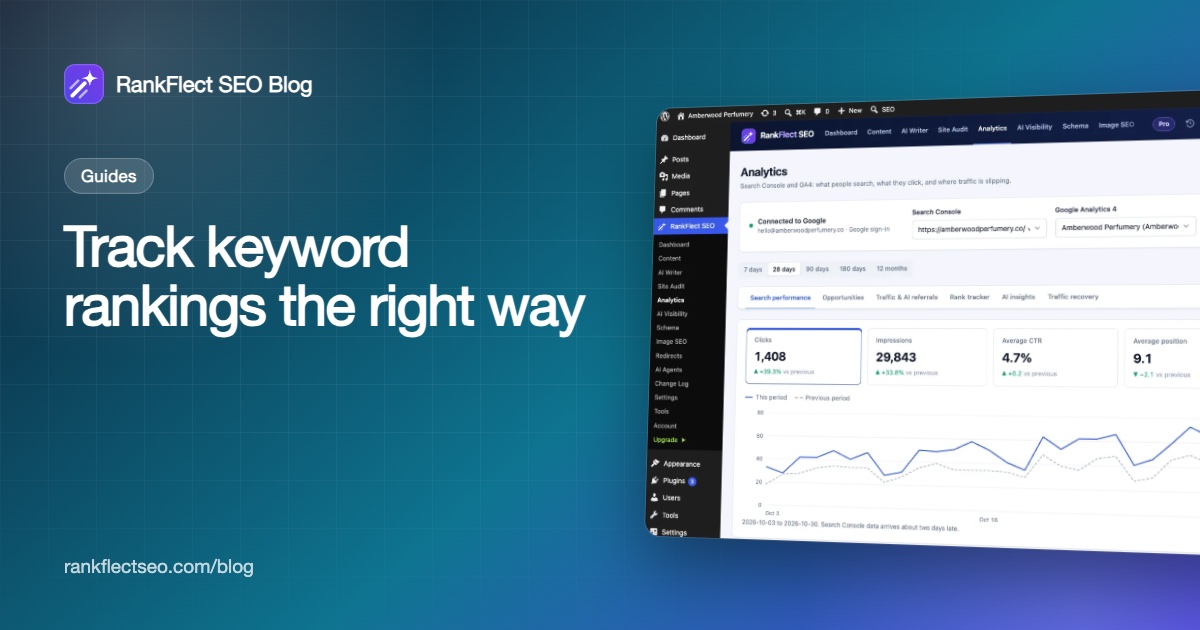
After you connect Google Search Console and GA4, the free search and traffic reports show clicks, impressions, CTR and average position with a comparison to the previous period, plus top queries, top pages and GA4 sessions. That alone tells you whether a drop is real and when it started.
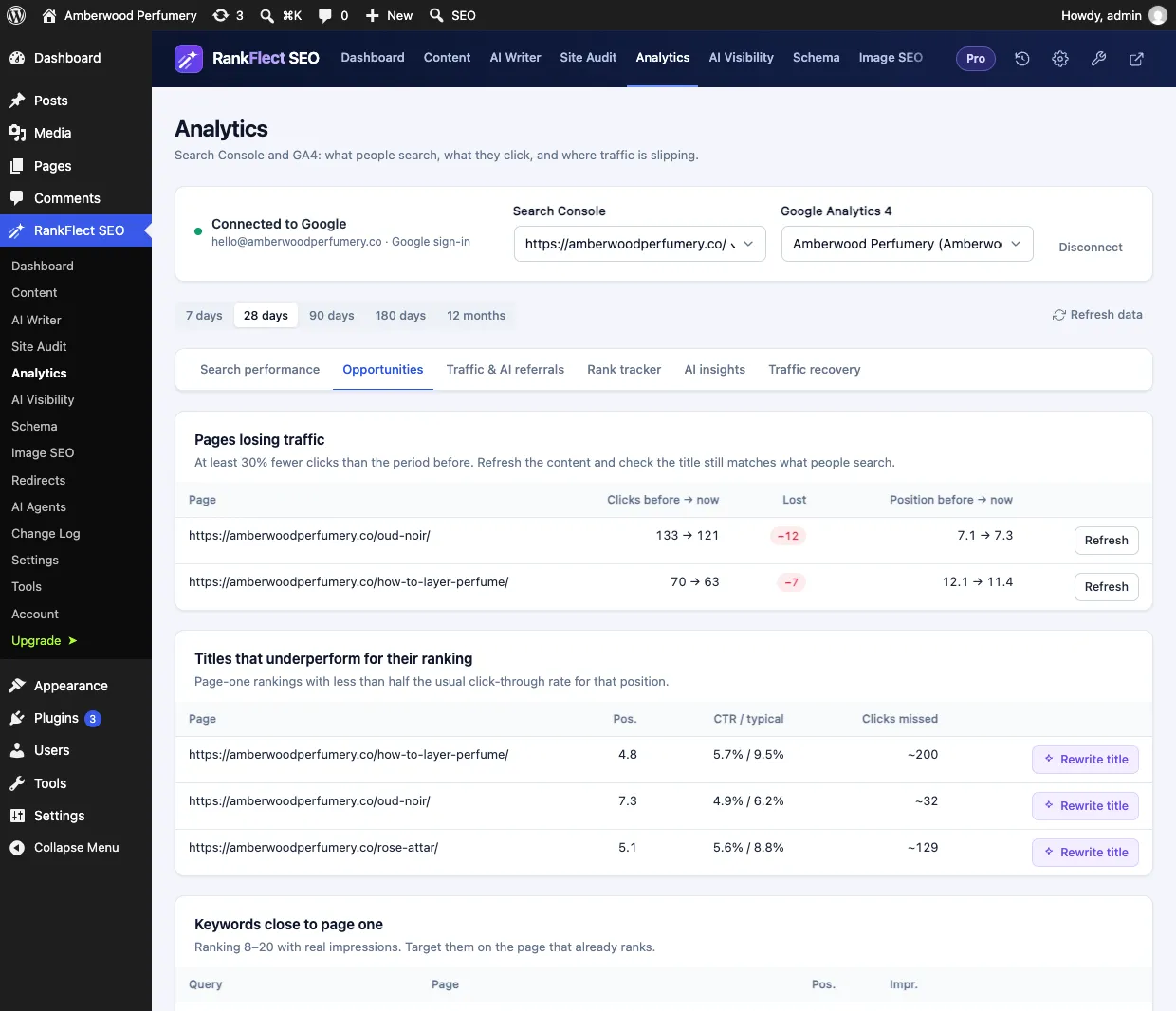
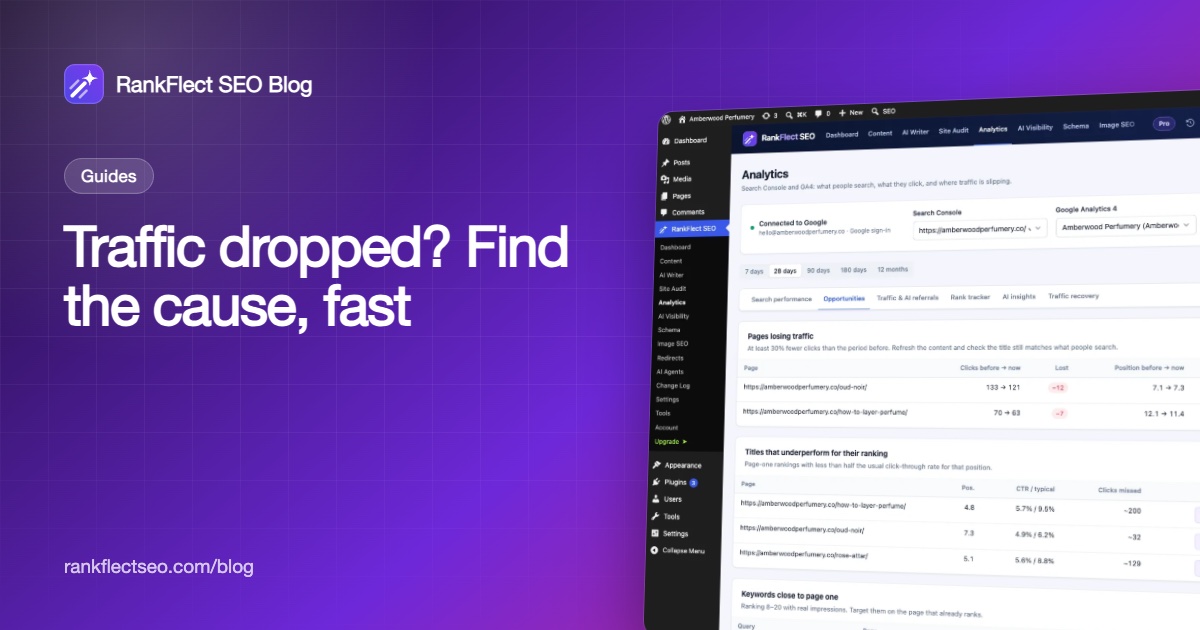
In RankFlect SEO Pro, the Opportunities tab lists pages with 30% or more fewer clicks than the previous period, page-one titles with a low click-through rate for their position, and keywords ranking in positions 8 to 20. Each row has an action, such as opening the page to refresh it or rewriting the title with your own AI provider.
For a written plan, Traffic Recovery (also in RankFlect SEO Pro) uses a lower threshold. It lists pages that lost 20% or more of their clicks or dropped two or more positions on average, rates each one by severity, and can write a refresh brief per page. A brief includes what to update, sections to add, the queries the page lost, the queries to target, and a suggested SEO title and meta description. It doesn't change your page: you make the edits yourself and check again in a few weeks.
Briefs use your own AI provider key, so you pay your provider directly and there are no credits. Finding decaying pages works without AI. For the technical side, the site audit checks indexing, metadata and other common problems for free; RankFlect SEO Pro adds a search performance category when Google is connected.
If you are new to Search Console itself, our guide to Google Search Console for WordPress covers setup and the basic reports.
Prevent the next drop
- Review your top pages every quarter. Update facts, screenshots and steps before they go stale.
- Watch trends monthly, not daily. Small position changes are normal and often reverse on their own.
- Keep a change log. Note theme updates, plugin changes, migrations and content edits with dates. When traffic moves, you can match it to a change.
- Test before you launch. After a redesign or migration, crawl the site and check indexing settings, redirects and canonical tags the same day.
- Measure more than Google. Visits from AI assistants and other referrals are growing for many sites, so track them alongside organic search.
RankFlect SEO's free version includes the analytics reports, site audit and change log. You can download RankFlect SEO free and connect Google in a few minutes.
Frequently asked questions
Why did my website traffic suddenly drop?
A sudden drop on one day is most often technical: a noindex tag, a robots.txt change, a broken migration, server errors or a missing analytics tag. A drop that lines up with an announced Google update is more likely algorithmic. Check the Page indexing report and the date of the drop first.
How long does it take to recover from a traffic drop?
Technical fixes can show results as soon as Google recrawls the affected pages. Content improvements after a core update take longer: Google says some changes show in days, but confirming that a site is consistently helpful can take several months. Keep improving rather than waiting.
Is my traffic drop caused by AI Overviews?
It can be one reason when impressions stay steady but clicks fall, because more of the answer appears on the results page. Compare CTR before and after for the affected queries, and make sure your page offers something worth the click, such as depth, examples or tools.
Should I delete pages that lost traffic?
Usually not. Google describes deleting content as a last resort. Refresh, merge or redirect pages that overlap first, and only remove pages that have no value for readers and can't be improved.
Can a plugin or theme update cause a traffic drop?
Yes. An update can change titles, canonical tags, robots settings, page speed or the analytics tag. If your drop starts right after an update, compare the page source and SEO settings before and after.
- #traffic drop
- #google search console
- #core update
- #content refresh
- #seo recovery
Written by
RankFlect SEO TeamThe people who build RankFlect SEO, the WordPress SEO plugin with a built-in MCP server. We write about what we learn shipping SEO tools for AI search.
All articles →Let AI agents fix your SEO. You keep the undo button.
RankFlect SEO is free for unlimited sites, with a built-in MCP server, approval for every change and no AI credits.