RankFlect SEO 1.3.8: Content Signals, Tag Manager, CSV editing and Slack alerts
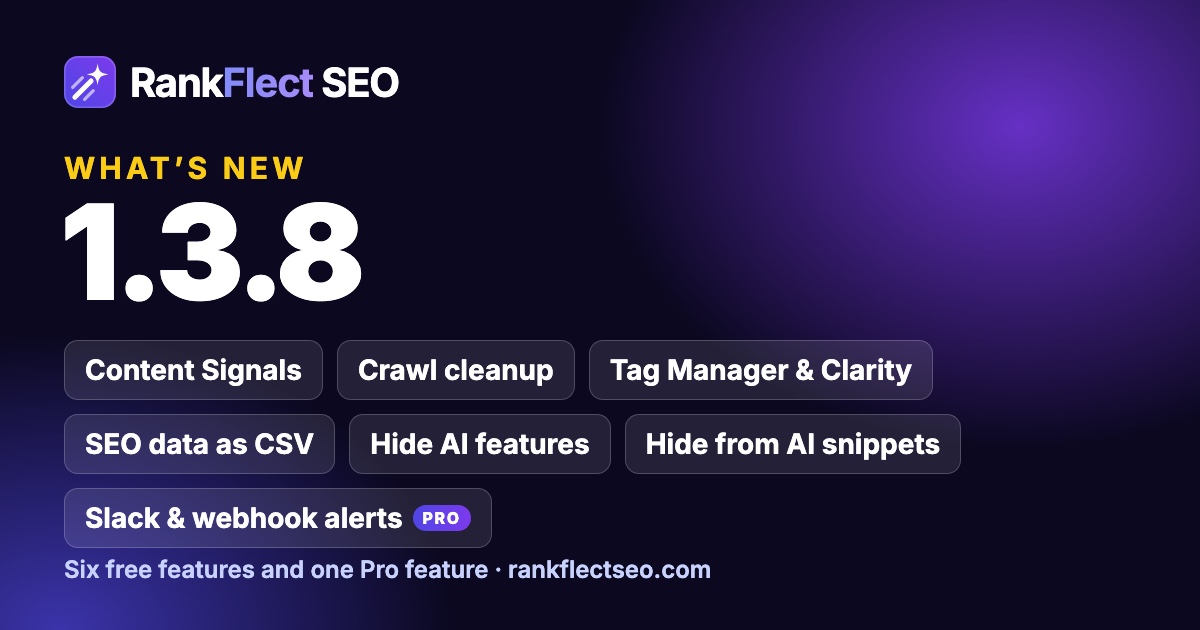
RankFlect SEO 1.3.8 adds six free features and one Pro feature: Content Signals in robots.txt, crawl cleanup, Google Tag Manager and Clarity, SEO data as CSV, Hide AI features, da…
In this article
RankFlect SEO 1.3.8 adds six free features and one for RankFlect SEO Pro. Several of them replace a small plugin you may run today, such as a header and footer code plugin.
Everything new is off or empty by default. Updating changes nothing on your site until you turn a feature on.
Content Signals in robots.txt
robots.txt can only say "crawl" or "don't crawl". Content Signals are a line in robots.txt that says how your content may be used after it is crawled. There are three signals: search, AI answers (ai-input) and AI training (ai-train). Each one is yes or no.
To turn it on, go to RankFlect SEO → Settings → Robots & AI crawlers and find the AI usage preferences (Content Signals) card. Turn on Add Content Signals to robots.txt, set the three switches and click Save changes. The defaults allow search and AI answers and opt out of AI training:
Content-Signal: search=yes, ai-input=yes, ai-train=noRankFlect SEO puts the line right under User-agent: *. Your AI crawler switches and extra rules stay as they are. If you serve your own robots.txt file, the card shows the exact line to add by hand.
One thing to keep in mind: Content Signals state a preference. They do not block any crawler, and no crawler is forced to follow them. To block a bot, use the AI crawler switches on the same tab.
Read more: Content Signals in robots.txt.
Crawl cleanup
WordPress adds several links and scripts to the head of every page: feed links, a shortlink, an RSD link, oEmbed discovery links, a REST API link and the emoji script and style. Most sites never need them, but crawlers still find them, and every page carries them.
The new Crawl cleanup card, on the same Robots & AI crawlers tab, has a switch for each one. Only the output goes away. Your feeds, the REST API, oEmbed and shortlinks keep working for anyone who uses them directly.
Turn the switches on one at a time and check your site after each one. Keep the feed links if your readers subscribe by RSS. Every change can be undone in the Change Log.
Read more: Crawl cleanup.
Google Tag Manager, Microsoft Clarity and custom code
The new Code and tracking tab in RankFlect SEO → Settings adds tracking tags and your own code to your pages.
- Google Tag Manager container ID: paste your
GTM-ID. RankFlect SEO adds the container snippet in the head and its noscript part right after the opening body tag. - Microsoft Clarity project ID: paste the ID from Clarity's Settings → Overview. The Clarity tracking code goes in the head.
- Custom code: three fields for code in the head, after the body opens and before the body closes.
IDs are checked before they are saved, so a typo never prints broken code. Do not load for logged-in editors and admins is on by default, so your own visits are not tracked. Code is only added to front-end pages, never in wp-admin, feeds or sitemaps.
What is sent where: with a Tag Manager ID, visitors' browsers load Google's Tag Manager script, which then runs the tags in your container. With a Clarity ID, browsers load Microsoft's Clarity script, which sends page views, clicks, scrolling and browser data to Microsoft. RankFlect SEO does not add a cookie banner, so check your consent setup first if your site needs one.
Custom code can break a page, so only administrators who can post unfiltered HTML can change it. AI agents can never change this tab, even with an administrator's token.
If you already use the GA4 tag in Settings → Webmaster tools and your Tag Manager container also loads GA4, every visit is counted twice. The tab shows a note when both are set. Keep one of them.
Read more: Google Tag Manager, Microsoft Clarity and custom code.
SEO data as CSV
Sometimes it is faster to fix fifty meta descriptions in a spreadsheet than one by one. The new SEO data as CSV card on RankFlect SEO → Tools lets you do that.
Click Export CSV to download one row per published post, page and term, with the SEO title, meta description, focus keyword, canonical URL and noindex and nofollow. Edit the cells you want in Excel, Google Sheets or LibreOffice, then click Import CSV.
Before anything changes, RankFlect SEO shows a preview: how many items will change, the old and new value of example fields, and every row it will skip with the reason. An empty cell leaves a field as it is, and [clear] clears it.
RankFlect SEO takes a backup before the import, and the whole import is one batch in the Change Log. One click on Revert puts every field back.
Read more: Edit SEO data in a spreadsheet.
Hide AI features
Some sites want no AI in the admin at all, for example a client site or a team with an AI policy. The new Hide AI features switch in RankFlect SEO → Settings → AI provider, right below Pause all AI, removes every AI button, panel, menu item and prompt from RankFlect SEO, and stops all AI requests. That includes requests from agents, Autopilot and automatic metadata.
Everything else keeps working: titles and meta, schema, sitemaps, redirects, the site audit and analytics. Your AI key stays saved, so turning the switch off brings everything back as it was.
Read more: Hide AI features.
Hide a block from search and AI snippets
Some text should be on the page but not in a search snippet or an AI answer: a price that changes often, a coupon code, a disclaimer.
Every block in the block editor now has a Hide from search and AI snippets switch in its Advanced panel. When it is on, RankFlect SEO adds data-nosnippet to the block, so Google leaves it out of search snippets, AI Overviews and AI Mode. Visitors still see the block, and the page stays indexed.
In the Classic Editor or a page builder, wrap the content in [rankflect_nosnippet]…[/rankflect_nosnippet].
Read more: Hide a block from search and AI snippets.
Pro: alerts to Slack or a webhook
Some problems should not wait for the monthly email report. RankFlect SEO Pro now sends a short alert to a Slack channel, to any webhook URL, or to both.
You choose the events: the site audit score dropped by 5 points or more, 404 errors are spiking, Autopilot changes are waiting for approval, an AI visibility check finished, new broken links were found, or search engines are blocked by the "Discourage search engines" setting. Each event is sent at most once a day.
Set it up in RankFlect SEO → Settings → Email reports, in the Alerts to Slack or a webhook card. Paste a Slack incoming webhook URL or any https:// webhook URL, pick the events, and click Save and send a test alert. Webhooks receive a JSON POST, so tools such as Zapier, Make or n8n can pass alerts on to anywhere else.
An alert holds your site name and address, the event, a short message and a link to the right screen in wp-admin. It does not include post content or keys.
Read more: Alerts to Slack or a webhook. Slack and webhook alerts are part of RankFlect SEO Pro: see plans and the 14-day money-back guarantee.
How to update
Go to Dashboard → Updates in WordPress, or update RankFlect SEO from the Plugins screen. Your settings and SEO data stay as they are, and every new feature waits until you turn it on.
For the full list of changes, see the changelog. To compare plans, see RankFlect SEO Free vs Pro.
- #release
- #product update
Written by
RankFlect SEO TeamThe people who build RankFlect SEO, the WordPress SEO plugin with a built-in MCP server. We write about what we learn shipping SEO tools for AI search.
All articles →Let AI agents fix your SEO. You keep the undo button.
RankFlect SEO is free for unlimited sites, with a built-in MCP server, approval for every change and no AI credits.