Open Graph in WordPress: How to Fix Your Social Share Previews
Which Open Graph tags WordPress needs, the right share image size, X cards, per-post overrides and how to fix stale previews on Facebook and LinkedIn.
In this article
- Key takeaways
- What Open Graph tags are and why WordPress needs them
- The Open Graph tags that matter
- Getting the share image right
- X (Twitter) cards
- How to add Open Graph tags to WordPress
- Option 1: Code in a child theme
- Option 2: Your SEO plugin
- Set up Open Graph in WordPress with RankFlect SEO
- Step 1: Site-wide defaults
- Step 2: Per-post overrides
- Which image RankFlect SEO picks
- Write social titles and descriptions that earn the click
- Fix the wrong image or old text on Facebook and LinkedIn
- Frequently asked questions
- Does WordPress add Open Graph tags by default?
- What size should my Open Graph image be?
- Why is Facebook still showing my old image?
- Do Open Graph tags help SEO?
- Do I need separate Twitter card tags if I have Open Graph?
Open Graph in WordPress is the set of og: meta tags in your page head that decides how a link looks when someone shares it on Facebook, LinkedIn, WhatsApp, Slack and similar apps: the title, the description and, above all, the image. WordPress doesn't add these tags on its own, so you need a plugin or a few lines of code. This guide covers which tags matter, the right image size, how to set them up site-wide and per post, and how to fix the classic "wrong image on Facebook" problem.
Key takeaways
- The Open Graph protocol has four required tags:
og:title,og:type,og:imageandog:url. Addog:descriptionandog:site_nameas well. - Facebook recommends share images of at least 1200 × 630 px, close to a 1.91:1 ratio, and no larger than 8 MB.
- X reads its own
twitter:tags; settwitter:cardexplicitly rather than relying on fallbacks. - Always set a default share image, so pages without a featured image don't share as a bare text link.
- Networks cache previews. After a change, re-scrape the URL in the network's debugger.
- Run only one tool that outputs Open Graph tags, or networks get conflicting sets.
What Open Graph tags are and why WordPress needs them
When you paste a link into a post or chat, the app fetches the page and looks for og: tags to build a preview card. Without them, it guesses: it may pick a logo, an ad or a random image from the sidebar, and a truncated title.
Open Graph has no direct effect on Google rankings. Its job is to make shares look intentional, which matters for clicks from social feeds, group chats and newsletters. A clear image and a specific title get noticeably more attention than a grey box with a URL.
The Open Graph tags that matter
The Open Graph protocol defines four required properties for every page:
og:title: the title as it should appear in the card.og:type: the kind of object, usuallyarticlefor blog posts andwebsitefor everything else.og:image: the image URL for the card.og:url: the canonical URL, used as the page's permanent ID.
Useful optional tags include og:description (one or two sentences), og:site_name and og:locale. For images, the protocol adds og:image:width, og:image:height and og:image:alt, a description of what the image shows; pages with an og:image should include the alt too. Articles can also carry article:published_time and article:modified_time.
A full set for a blog post looks like this:
<meta property="og:locale" content="en_US">
<meta property="og:type" content="article">
<meta property="og:title" content="How to Layer Perfume So It Lasts All Day">
<meta property="og:description" content="Build your fragrance in thin coats, from moisturiser to mist.">
<meta property="og:url" content="https://example.com/how-to-layer-perfume/">
<meta property="og:site_name" content="Amberwood Perfumery">
<meta property="og:image" content="https://example.com/wp-content/uploads/layering-1200x630.jpg">
<meta property="og:image:width" content="1200">
<meta property="og:image:height" content="630">
<meta property="og:image:alt" content="Three perfume bottles on a wooden tray">
<meta name="twitter:card" content="summary_large_image">
Getting the share image right
The image does most of the work, and it is where most problems come from. Facebook's image guidance for link shares says:
- Use images of at least 1200 × 630 px for the best display on high-resolution screens.
- Keep the ratio as close to 1.91:1 as possible, so the full image shows without cropping.
- Images below 600 × 315 px display much smaller, and the absolute minimum is 200 × 200 px.
- The file must not exceed 8 MB.
A 1200 × 630 px JPG or PNG works on Facebook, LinkedIn and X. Keep text and faces away from the edges, since some apps crop slightly. Pinterest is the exception: it favours tall images, around 2:3.
X (Twitter) cards
X uses its own twitter: tags. The key one is twitter:card: summary_large_image shows a wide image above the title, while summary shows a small thumbnail beside it. X can fall back to your Open Graph title, description and image when the matching twitter: tags are missing, but set the card type yourself so you get the layout you want. Add twitter:site with your brand's handle.
How to add Open Graph tags to WordPress
Option 1: Code in a child theme
You can hook into wp_head and print the tags with values from get_the_title(), get_permalink() and the featured image. It is fine for a simple site, but you need fallbacks for archives, the home page and posts without an image, plus a way to override the text per post. And if any SEO plugin is active, it probably outputs its own tags, so you would print two sets.
Option 2: Your SEO plugin
Most SEO plugins output Open Graph tags already, with site-wide defaults and per-post overrides. That is the simplest setup, and it keeps the social title and description in sync with your SEO fields. The steps below use RankFlect SEO.
Set up Open Graph in WordPress with RankFlect SEO
RankFlect SEO, free on WordPress.org, adds Open Graph and X card tags to every page automatically. You only need a few minutes to set good defaults.
Step 1: Site-wide defaults
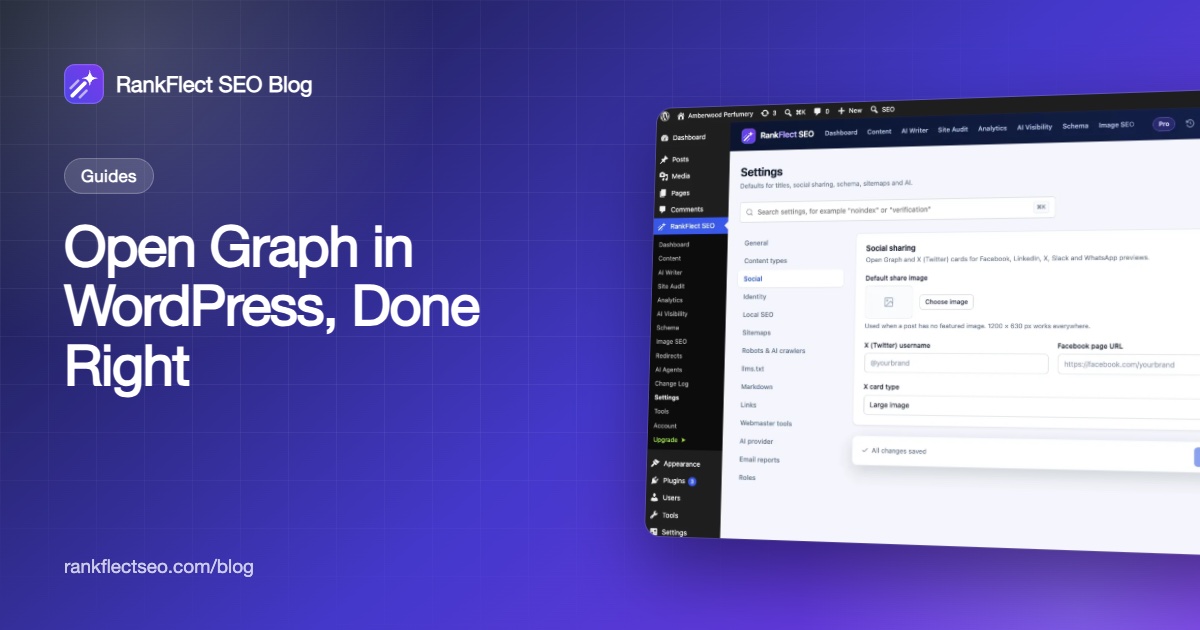
- Go to RankFlect SEO → Settings → Social.
- Under Default share image, click Choose image and pick a 1200 × 630 px image from the Media Library, such as your logo on a branded background.
- Enter your X (Twitter) username (added as
twitter:site) and your Facebook page URL (added asarticle:publisheron blog posts). - Choose the X card type: Large image (the default) or Small image.
- Click Save changes.
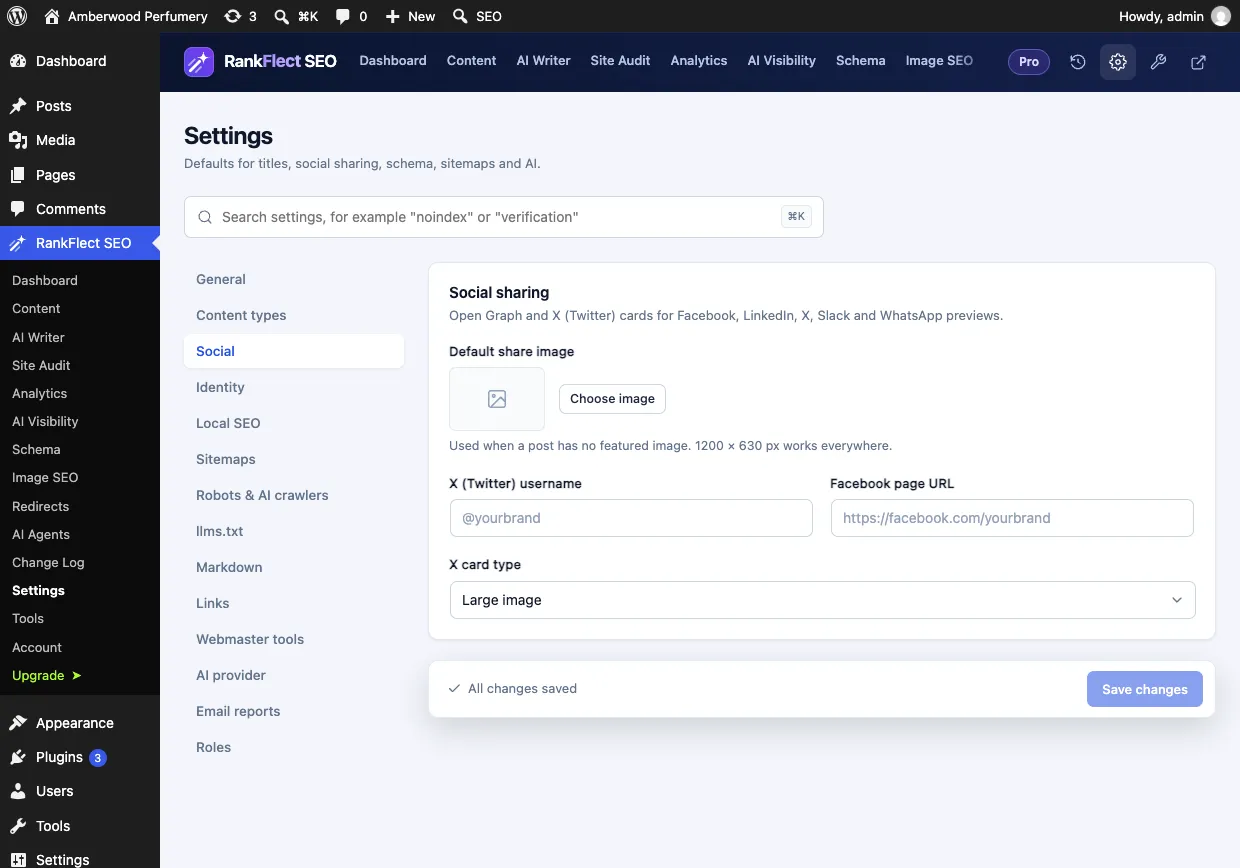
The full list of fields is in the social sharing guide. Your Facebook page and X username are also added to your Organization schema's profile list automatically; see site identity.
Step 2: Per-post overrides
In the block editor, click the RankFlect SEO button in the toolbar and choose Social. You can set a Social title (defaults to the SEO title), a Social description (defaults to the meta description) and a Social image (defaults to the featured image). The Share preview shows the card for Facebook, X, LinkedIn or Pinterest. The rest of the panel is covered in editing SEO in the block editor.
Use the overrides when the social angle differs from search. A search title answers a query; a social title can be more conversational.
Which image RankFlect SEO picks
- The post's Social image.
- The featured image.
- The first image in the post content.
- The Default share image.
Category and tag archives, the home page and other non-post pages use the default share image. The plugin outputs og:type as article on blog posts and website elsewhere, og:url as the canonical URL, and the image width, height and alt when the image is in your Media Library. The site audit flags "No default social image" if you skip step 1.
Write social titles and descriptions that earn the click
The share card is read in a feed, between other posts, not on a results page. A few habits help:
- Lead with the benefit. "Make perfume last all day" beats "Perfume layering guide, part 2".
- Keep titles short. Many apps cut long titles. RankFlect SEO's social title counter targets 70 characters, and the description counter targets 200.
- Match the image to the promise. If the title promises a result, show it.
- Don't stuff keywords. Social titles are for people; there's no search snippet to optimise here.
Fix the wrong image or old text on Facebook and LinkedIn
This is the most common Open Graph complaint, and it is almost always caching.
- Check the source. Open the page, view the source and search for
og:image. There should be exactly one, pointing at the image you expect. - Look for duplicates. If you see two sets of
og:tags, another plugin or your theme is printing them too. Switch off its social tags. - Clear your page cache, so the network fetches the current HTML.
- Re-scrape. Paste the URL into Facebook's Sharing Debugger and fetch it again, or use LinkedIn's Post Inspector. X refreshes on its own after a while.
- Check the image. It must be publicly reachable, at least 1200 × 630 px for a large card, and under Facebook's 8 MB limit.
Open Graph is one item on a longer list of on-page basics. Our WordPress SEO checklist covers the rest.
If you want complete Open Graph and X card tags with share previews in the editor, download RankFlect SEO free and set your default share image first.
Frequently asked questions
Does WordPress add Open Graph tags by default?
No. WordPress core doesn't output og: tags. You need an SEO plugin, a dedicated social plugin or code in your theme. Many SEO plugins add them out of the box.
What size should my Open Graph image be?
Use 1200 × 630 px, close to a 1.91:1 ratio. Facebook recommends at least that size for high-resolution screens, and it works well on LinkedIn and X too. Keep the file under 8 MB.
Why is Facebook still showing my old image?
Facebook caches link previews. Clear your page cache, then re-scrape the URL in Facebook's Sharing Debugger. Also confirm that only one og:image tag is in the page source.
Do Open Graph tags help SEO?
Not directly. They don't change Google rankings, but they make shared links look intentional, which can bring more clicks from social feeds and messaging apps.
Do I need separate Twitter card tags if I have Open Graph?
X can fall back to Open Graph for the title, description and image, but you should still set twitter:card so you control the card layout. Most SEO plugins output both sets together.
- #open graph
- #og tags
- #social sharing
- #twitter cards
- #facebook preview
Written by
RankFlect SEO TeamThe people who build RankFlect SEO, the WordPress SEO plugin with a built-in MCP server. We write about what we learn shipping SEO tools for AI search.
All articles →Let AI agents fix your SEO. You keep the undo button.
RankFlect SEO is free for unlimited sites, with a built-in MCP server, approval for every change and no AI credits.