Image SEO for WordPress: 12 Steps to Rank Your Images in Google
Twelve practical image SEO steps for WordPress, from file names and alt text to formats, lazy loading and fixing the images already in your media library.
In this article
- Key takeaways
- Why image SEO matters for WordPress sites
- Image SEO in WordPress, step by step
- 1. Choose images that earn their place
- 2. Rename the file before you upload it
- 3. Resize to the display size and compress
- 4. Pick a modern format
- 5. Write alt text that describes the image
- 6. Add captions where they help readers
- 7. Set width and height to prevent layout shift
- 8. Lazy-load below the fold, not above it
- 9. Use real image elements, not CSS backgrounds
- 10. Handle attachment pages
- 11. Set a clear featured and social image
- 12. Make sure images can be discovered
- How to fix image SEO on an existing WordPress site
- How RankFlect SEO helps with image SEO
- Common image SEO mistakes in WordPress
- Frequently asked questions
- Does alt text help SEO?
- Should I use WebP or AVIF images in WordPress?
- Do I need an image sitemap in WordPress?
- What is the difference between alt text and the image title?
- How long should alt text be?
Image SEO in WordPress comes down to three jobs: help Google find your images, help it understand them, and keep them light enough that they do not slow the page down. That means descriptive file names, useful alt text, the right size and format, and images placed next to the text they illustrate. This guide walks through each step in the order you would do it, then shows how to clean up the images already in your media library.
Key takeaways
- Google calls alt text the most important metadata for an image. Write it for people first: describe what the image shows in the context of the page.
- Rename files before uploading.
red-running-shoes.jpgtells Google more thanIMG_2041.jpg. - Resize images to the size they are displayed at and compress them. Images are often the heaviest part of a page.
- Use real
<img>elements for images you want indexed. Google does not index CSS background images. - Always set width and height, and never lazy-load the main image at the top of the page.
Why image SEO matters for WordPress sites
Images can bring traffic from Google Images and from the image results that appear inside normal search. They also shape how your page looks when shared on social media, and they are often the largest element a visitor waits for, which ties them directly to page speed.
WordPress already does a fair amount for you. It creates several sizes of every upload, adds srcset so browsers pick a suitable size, and adds loading="lazy" to images in your content. What it cannot do is name your files well, write meaningful alt text or stop you uploading a 5 MB photo. That part is on you.
Image SEO in WordPress, step by step
Follow these steps for every new image. They take a minute each once they become habit.
1. Choose images that earn their place
Original photos, diagrams and screenshots tell Google and readers something a stock photo cannot. Put each image near the text it relates to. Google's image SEO best practices say it uses the surrounding content, captions and image titles to understand what an image is about, so an image floating in an unrelated section loses context.
2. Rename the file before you upload it
WordPress uses the file name in the image URL, and you cannot easily change it later without breaking links. Use short, descriptive, hyphenated names:
- Good:
mango-pickle-in-glass-jar.jpg - Weak:
IMG00023.JPG,image1.jpg,final-final-v2.png
If your site is multilingual, translate file names along with the page. Google recommends this in the same guide.
3. Resize to the display size and compress
A photo straight from a phone can be several thousand pixels wide. If your content column is 800 pixels wide, upload something close to that, or around twice that for sharp display on high-density screens. Then compress it with an image editor or an optimization plugin.
WordPress scales very large uploads down automatically, but it is still better to start from a sensible size. Smaller files load faster on mobile, which helps your Largest Contentful Paint when the image is the main element on the page.
4. Pick a modern format
Google supports BMP, GIF, JPEG, PNG, WebP, SVG and AVIF in search. WebP and AVIF usually give much smaller files than JPEG or PNG at the same visible quality. WordPress accepts WebP uploads, and WordPress 6.5 added AVIF support when your server's image library supports it. Check Tools → Site Health → Info → Media Handling to see what your host can process.
No format gets a ranking bonus. The benefit is speed. Keep the file extension matching the real file type.
5. Write alt text that describes the image
Alt text is read aloud by screen readers, shown when an image fails to load, and used by search engines to understand the image. When the image is a link, it also acts as the link's anchor text.
Google's own example shows the progression well: no alt text is bad, alt="puppy" is better, and alt="Dalmatian puppy playing fetch" is best. Some practical rules:
- Describe what is in the image, in the context of the page. A product photo and a chart need different kinds of description.
- Keep it to one short sentence. Many accessibility guides suggest staying around 125 characters, because some screen readers handle long text poorly.
- Skip "image of" or "picture of". Screen readers already announce that it is an image.
- Use your keyword only when it describes the image honestly. Keyword stuffing is against Google's spam policies.
- Purely decorative images (dividers, background shapes) can have empty alt text so screen readers skip them.
In the block editor, select the image and fill in Alternative text in the block settings. In the Media Library, the same field is on each attachment. Note the difference: alt text set in the Media Library is used when you insert the image later, but an image already placed in a post keeps the alt text stored in that post.
6. Add captions where they help readers
Captions are among the most-read text on a page. Use them when they add information, such as a source, a date or what to notice in a chart. Do not add a caption to every image just for SEO.
7. Set width and height to prevent layout shift
When an image has no dimensions, the browser does not know how much space to reserve, so text jumps down when the image arrives. That jump counts towards Cumulative Layout Shift, one of the Core Web Vitals. Images inserted through the block editor get width and height automatically. Theme templates and page builders sometimes leave them out, so check your hero images and sliders.
8. Lazy-load below the fold, not above it
Lazy loading delays images until the visitor scrolls near them. That is good for images further down the page, but harmful for the main image at the top, which should load as early as possible. WordPress tries to skip lazy loading on the first images it outputs. If a theme or optimization plugin forces loading="lazy" on the hero image, turn that off for above-the-fold images.
9. Use real image elements, not CSS backgrounds
Google finds images in the src attribute of <img> elements, and it does not index images set as CSS backgrounds. Page builders often use background images for hero sections. That is fine for decoration, but if the image matters for search, place it as an image block or widget instead.
10. Handle attachment pages
WordPress can create a separate page for each media upload. These pages usually contain only the image and a title, which makes them thin content. Most SEO plugins redirect them to the parent post or the file. Check what happens on your site by opening an attachment URL.
11. Set a clear featured and social image
The featured image is often used in your Article schema and as the og:image that Facebook, LinkedIn and X show when the page is shared. Google also lists og:image and schema markup as ways to signal your preferred image for a page. Choose a relevant, high-resolution image without large blocks of text, and set a default share image for pages that have none.
12. Make sure images can be discovered
Google discovers most images by crawling the pages they appear on, so your XML sitemap of pages already does most of the work. WordPress core sitemaps list page URLs, not individual images. Google offers image sitemaps for images it might not otherwise find, for example images loaded by JavaScript. For a typical WordPress blog or shop that uses normal image blocks, a separate image sitemap is optional.
How to fix image SEO on an existing WordPress site
New habits help future posts, but most sites have hundreds of older uploads with no alt text and oversized files. Work through the backlog in this order:
- Find images without alt text. Sort by the pages that get the most traffic first, since those matter most for both readers and search.
- Find the heaviest images. Look for files over a few hundred kilobytes, especially on your home page and top landing pages.
- Compress or replace them. An optimization plugin can recompress existing uploads and create WebP copies.
- Check page templates. Run a speed test on a post, a page and (for shops) a product page to spot theme-level problems such as missing dimensions or a lazy-loaded hero image.
How RankFlect SEO helps with image SEO
RankFlect SEO covers the alt text side of image SEO for free and flags the speed side in its audit. You still need an image optimization plugin or your host's tools for compression and format conversion.
Alt text on upload. The Image SEO module is on by default. When you upload an image with no alt text, it turns the file name into a readable phrase and drops camera prefixes, numbers and words like "final" or "copy". For example, IMG_2041-red-running-shoes_final.jpg becomes "Red running shoes". It only fills empty fields, so it never replaces alt text you wrote. This is another reason to rename files before uploading.
A fallback at render time. When a theme outputs a Media Library image without alt text, such as a featured image, RankFlect SEO uses the image's title instead. Nothing in your media library is changed.
A list of images missing alt text. Under RankFlect SEO → Image SEO, each image without alt text appears with a thumbnail and a suggestion from its file name. Edit and save, or click Write with AI to have your own AI provider describe the image. With Anthropic Claude, OpenAI, Google Gemini or OpenRouter, the AI receives a resized copy of the image itself, so it describes what is actually shown. Every save is recorded in the Change Log. The full workflow is in the image SEO and AI alt text guide, and the provider setup is in add your AI provider key.
Checks while you write. The content analysis in the editor flags "Images without alt text" in the post you are editing, so you catch it before publishing. See the content analysis checks.
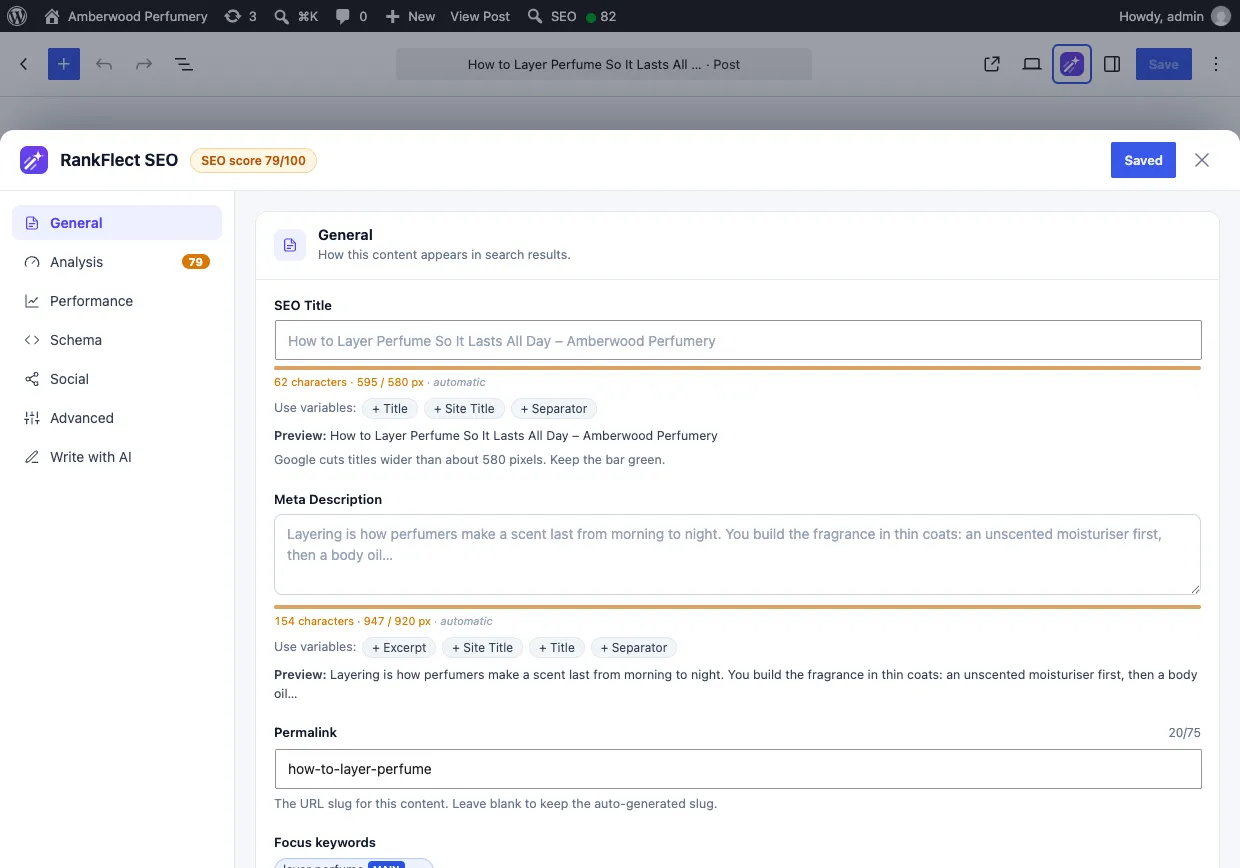
Site-wide checks. The site audit lists images without alt text across your media library, images over 500 KB among your recent uploads, large image files on the home page, home page images without width and height, and images below the fold that are not lazy-loaded. Each check and its fix is explained in every site audit check explained.
Attachment pages and sitemaps. RankFlect SEO redirects attachment pages to their file by default and leaves them out of your XML sitemaps.
In RankFlect SEO Pro, Fix with AI on the "Images without alt text" audit issue writes alt text for up to 20 images per run and applies them as one Change Log batch that you can undo. Single images stay free. See the overview of AI features for what is free and what is Pro.
Common image SEO mistakes in WordPress
- Stuffing keywords into alt text. "Best cheap running shoes running shoes sale" helps nobody and can look spammy.
- Uploading full-resolution camera photos. They slow the page even when WordPress shows a smaller version in some places.
- Lazy-loading the hero image. This delays the largest element on the page.
- Text inside images. Search engines and screen readers cannot rely on reading it. Put important text in HTML.
For the bigger picture beyond images, the WordPress SEO checklist puts every task in order of impact. If you want to try the alt text tools described above, you can download RankFlect SEO for free.
Frequently asked questions
Does alt text help SEO?
Yes. Google says alt text is the most important piece of metadata for understanding an image, and it is essential for accessibility. It helps your images appear in Google Images and gives context to the page. It does not guarantee rankings on its own.
Should I use WebP or AVIF images in WordPress?
Usually yes, because they are smaller than JPEG or PNG at similar quality, which helps page speed. Google does not rank one format above another. Check that your server supports the format in Site Health before switching.
Do I need an image sitemap in WordPress?
Not for most sites. Google finds images on the pages listed in your normal sitemap. An image sitemap helps when images are loaded in ways Google might miss, such as through JavaScript.
What is the difference between alt text and the image title?
Alt text describes the image for screen readers and search engines. The title attribute is an optional tooltip shown on hover. Google may use it as extra context, but alt text matters far more, so focus your effort there.
How long should alt text be?
Google gives no fixed limit, but one concise sentence is enough for most images. Many accessibility guides suggest about 125 characters. Describe what matters about the image on that page and stop there.
- #image seo
- #alt text
- #wordpress images
- #webp
- #page speed
Written by
RankFlect SEO TeamThe people who build RankFlect SEO, the WordPress SEO plugin with a built-in MCP server. We write about what we learn shipping SEO tools for AI search.
All articles →Let AI agents fix your SEO. You keep the undo button.
RankFlect SEO is free for unlimited sites, with a built-in MCP server, approval for every change and no AI credits.