Google Site Verification for WordPress: 5 Methods and Fixes
Prove you own your WordPress site in Google Search Console with the HTML tag, DNS or another method, and fix the usual reasons verification fails.
In this article
- Key takeaways
- Which Google verification method should you use?
- How to verify a WordPress site with the HTML tag
- Google site verification in WordPress with RankFlect SEO
- Other ways to verify Google on WordPress
- DNS record (Domain property)
- HTML file upload
- Google Analytics or Tag Manager
- Site Kit by Google
- Why Google verification fails (and how to fix it)
- After you verify
- Frequently asked questions
- Where do I paste the Google verification code in WordPress?
- Can I remove the verification tag after Google verifies my site?
- How long does Google site verification take?
- Should I use a Domain property or a URL-prefix property?
- Does verifying my site help my rankings?
Google site verification on WordPress proves to Google Search Console that you own your site, so it will show you search data and let you submit sitemaps. The quickest way is the HTML tag method: copy the code from the google-site-verification meta tag, paste it into your SEO plugin's verification field, save, and click Verify. This guide covers that method step by step, the four alternatives, and how to fix verification when it fails.
Key takeaways
- A URL-prefix property can be verified with an HTML tag, an HTML file, Google Analytics, Google Tag Manager or DNS. A Domain property can only be verified through DNS.
- With the HTML tag method, paste only the value inside
content="…"into a plugin field, not the whole tag. - Keep the tag, file or DNS record in place after verifying. Google re-checks and removes access if it disappears.
- Most failures come from caching, a pasted full tag, or the tag missing from the logged-out home page.
- Verification and connecting Search Console to a plugin are two different steps.
Which Google verification method should you use?
Google's Search Console help on verifying site ownership lists these methods:
- HTML tag: a meta tag in the
<head>of your home page. URL-prefix properties only. The easiest on WordPress. - HTML file upload: a file in your site's root folder. URL-prefix only. Needs FTP or file manager access.
- Google Analytics: uses the
gtag.jssnippet already on your home page, if your Google account has edit permission on that Analytics property. URL-prefix only. - Google Tag Manager: uses your container snippet, if you have Publish or Admin rights on it. URL-prefix only.
- Domain name provider (DNS): a TXT or CNAME record at your registrar or DNS host. The only way to verify a Domain property, which covers all subdomains and both
httpandhttps.
Which to pick? If you want one property that covers www, non-www and every subdomain, use a Domain property and DNS. If you can't edit DNS, or you want quick access to one site, use a URL-prefix property with the HTML tag. You can also add more than one method, so verification survives if one breaks.
How to verify a WordPress site with the HTML tag
This method works on any WordPress host and doesn't need FTP. You need an SEO plugin (or another tool) that adds the tag to your home page.
- Open Google Search Console and click Add property.
- Choose URL prefix and enter your exact home URL, including
https://andwwwif your site uses it. - Under the verification methods, open HTML tag. Google shows a tag like
<meta name="google-site-verification" content="abc123XYZ" />. - Copy only the value inside the quotes after
content=, hereabc123XYZ. - In WordPress, paste it into your SEO plugin's Google verification field and save.
- Clear any page cache or CDN cache so Google sees the new home page.
- Back in Search Console, click Verify.
Most WordPress SEO plugins have a field for this. If you don't use one, you can add the full tag to your theme's <head> with a header-scripts plugin or a child theme. Avoid editing the parent theme's header.php, because a theme update will overwrite it and Google will lose verification.
Google site verification in WordPress with RankFlect SEO
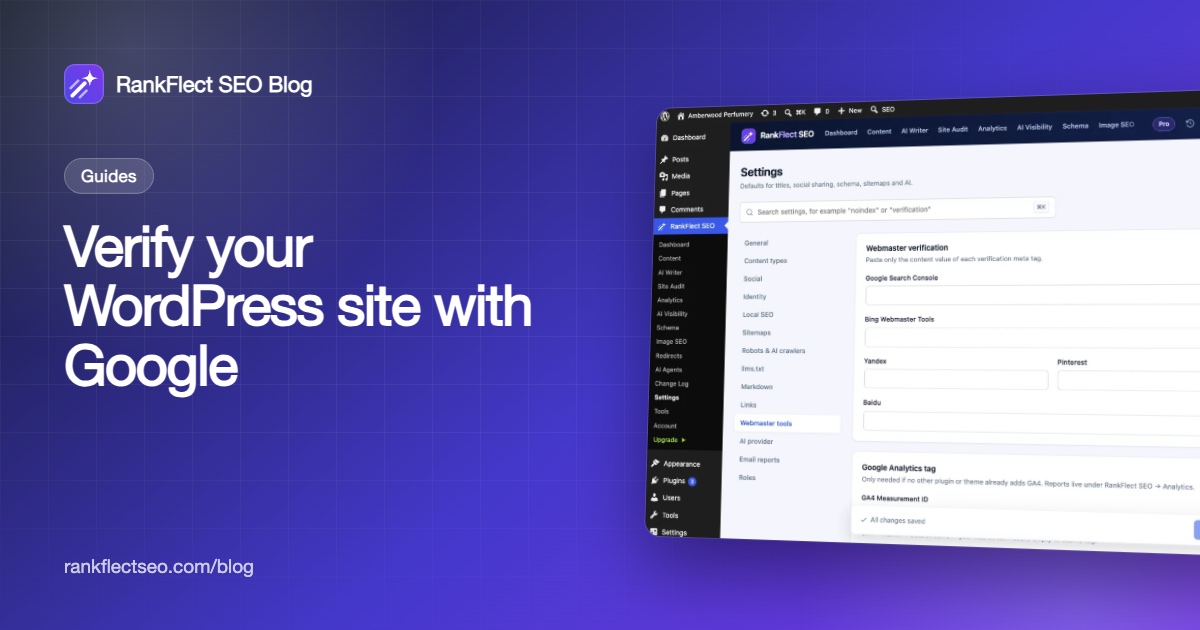
In RankFlect SEO, verification codes live under RankFlect SEO → Settings → Webmaster tools. The Webmaster verification card has one field each for Google Search Console, Bing Webmaster Tools, Yandex, Pinterest and Baidu, with the reminder "Paste only the content value of each verification meta tag."
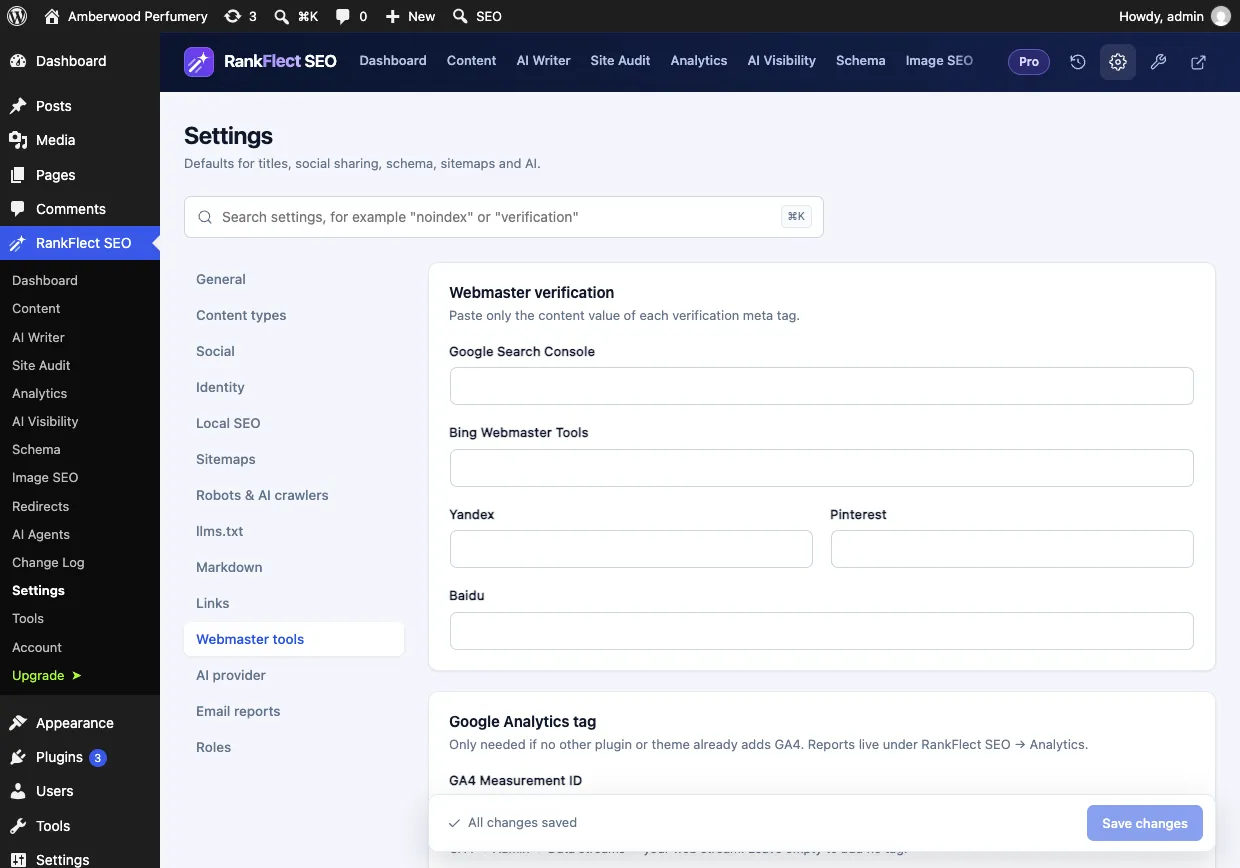
- Paste the content value from Google into Google Search Console.
- Click Save changes.
- Return to Search Console and click Verify.
RankFlect SEO adds the google-site-verification meta tag to your home page only, which is where Google looks for it. Because the code is stored in the plugin, it stays in place when you switch themes. This feature is free, and the webmaster verification guide lists the tag each field outputs.
One detail matters: if you paste the whole <meta> tag, the HTML is stripped when you save, so the field ends up empty and no tag is printed. Paste the code only.
For security, verification codes can only be changed by an administrator in wp-admin. AI agents connected to RankFlect SEO can't use the update_verification_codes tool, as explained in approval, dry run and undo.
Other ways to verify Google on WordPress
DNS record (Domain property)
Choose Domain when adding the property. Google gives you a TXT record that starts with google-site-verification=. Add it as a TXT record for your root domain at your registrar or DNS host (Cloudflare, your hosting panel, and so on), then click Verify. DNS changes can take time to spread, so if verification fails at first, wait and try again later. Never delete the record afterwards.
HTML file upload
Download the google….html file from Search Console and upload it unchanged to your site's root folder (the one that contains wp-config.php) with your host's file manager or SFTP. Open the file's URL in your browser to confirm it loads, then click Verify. Google won't follow redirects to another domain for this file.
Google Analytics or Tag Manager
If your Google account can edit the Analytics property and the gtag.js snippet is in your home page's <head>, choose the Google Analytics method and click Verify. The Tag Manager method works the same way with your container snippet. These are handy if tracking is already set up, but if someone removes the tag later, verification goes with it.
Site Kit by Google
Google's own Site Kit plugin handles verification as part of its setup when you sign in with Google. If you already use it, RankFlect SEO can reuse Site Kit's Google connection for its reports; see using Site Kit by Google's connection.
Why Google verification fails (and how to fix it)
- The page cache serves an old home page. Clear your caching plugin, your host's cache and your CDN, then verify again.
- You pasted the full tag into a code-only field. Paste only the content value and check that the tag appears in your page source.
- The tag isn't on the logged-out home page. Open your home page in a private window, view the source and search for
google-site-verification. Google checks the public version. - Wrong property URL. A URL-prefix property for
https://example.comis different fromhttps://www.example.com. Match the URL your site actually loads on. - A maintenance or coming-soon mode hides the real home page from Google. Turn it off while verifying.
- A security plugin or firewall blocks Google, or the server times out. Check your firewall logs.
- Two different codes. If an old plugin and a new one both add a tag, each can contain a different token. That's allowed, but check that the one you're verifying is present.
After you verify
Leave the verification in place. Google's help says verification lasts as long as Search Console can confirm your token is present and valid. If you remove the tag, file or DNS record, you lose access.
When you switch SEO plugins, copy your verification codes into the new plugin before deactivating the old one. Then do the same for Bing Webmaster Tools, which also lets you import sites you have already verified in Google Search Console.
Next, submit your sitemap and explore the reports. Our guide to Google Search Console for WordPress covers that part.
Verification only proves ownership. To see Search Console data inside WordPress, you connect it separately. In RankFlect SEO you do that under RankFlect SEO → Analytics, with your own Google Cloud OAuth client or a service account; see connect Google Search Console and GA4. The same Webmaster tools page also has a card for adding the GA4 tag.
If you don't have an SEO plugin yet, you can download RankFlect SEO free and add your verification codes in a minute.
Frequently asked questions
Where do I paste the Google verification code in WordPress?
Paste it into your SEO plugin's webmaster or verification settings. In RankFlect SEO that is Settings → Webmaster tools → Google Search Console. Without a plugin, add the full meta tag to the <head> of your home page through a child theme or a header-scripts plugin.
Can I remove the verification tag after Google verifies my site?
No. Google checks periodically, and if the tag is gone you lose verified access to the property. Keep it for as long as you use Search Console.
How long does Google site verification take?
The HTML tag and file methods usually verify as soon as you click Verify, provided the tag is live and not cached. DNS verification can take longer because the record has to spread; if it fails, wait and try again.
Should I use a Domain property or a URL-prefix property?
A Domain property covers every subdomain and protocol in one view, but it needs DNS access. A URL-prefix property covers one exact address and can be verified with the HTML tag from WordPress. Many site owners set up a Domain property and keep URL-prefix properties for specific sections.
Does verifying my site help my rankings?
No. Verification only gives you access to Search Console's data and tools. The value comes from what you do with that data, such as fixing indexing problems and improving pages with low click-through rates.
- #google site verification
- #google search console
- #wordpress seo
- #meta tag
- #dns verification
Written by
RankFlect SEO TeamThe people who build RankFlect SEO, the WordPress SEO plugin with a built-in MCP server. We write about what we learn shipping SEO tools for AI search.
All articles →Let AI agents fix your SEO. You keep the undo button.
RankFlect SEO is free for unlimited sites, with a built-in MCP server, approval for every change and no AI credits.