How to Edit robots.txt in WordPress: 4 Safe Methods (With Examples)
Four ways to edit robots.txt in WordPress, how to tell which one applies to your site, a safe starter file and the mistakes to avoid.
In this article
- Key takeaways
- How robots.txt works in WordPress
- Step 1: Check what your robots.txt says today
- Method 1: Edit robots.txt in WordPress with an SEO plugin's settings
- Method 2: Use a robots.txt file editor inside WordPress
- Method 3: Upload a physical robots.txt file
- Method 4: Change the virtual file with code
- A safe WordPress robots.txt to start from
- Mistakes to avoid when you edit robots.txt
- Blocking CSS, JavaScript or wp-content
- Using robots.txt to hide pages
- Relying on Crawl-delay for Google
- Leaving "Discourage search engines" on
- Forgetting the cache
- How to test your robots.txt changes
- Frequently asked questions
- Where is the robots.txt file in WordPress?
- Why don't my robots.txt changes show up?
- Can I edit robots.txt in WordPress without a plugin?
- Should I block AI crawlers in robots.txt?
- Does robots.txt affect rankings?
To edit robots.txt in WordPress, you have four options: add rules through your SEO plugin's settings, use its file editor, upload a real robots.txt file to your site's root folder, or change the virtual file with a small code filter. Which one is right depends on whether a physical file already exists. This guide shows how to tell, walks through each method step by step, and gives you a safe starting file plus the mistakes that can quietly hurt your rankings.
Key takeaways
- WordPress serves a "virtual" robots.txt that doesn't exist as a file. A real
robots.txtin your root folder always overrides it. - robots.txt controls crawling, not indexing. To keep a page out of Google, use noindex and leave the page crawlable.
- Never block CSS, JavaScript or
/wp-content/. Google needs them to render your pages. - Google caches robots.txt for up to 24 hours, so changes aren't instant.
- Test every change: open
/robots.txtin a browser, then check Search Console's robots.txt report.
How robots.txt works in WordPress
robots.txt is a plain text file at the root of your domain (https://example.com/robots.txt) that tells crawlers which paths they may fetch. Google's introduction to robots.txt describes it as a way to manage crawler traffic, and it is clear that it "is not a mechanism for keeping a web page out of Google."
WordPress doesn't ship a robots.txt file. When a crawler asks for /robots.txt, WordPress builds the response on the fly. On a typical live site it looks like this:
User-agent: *
Disallow: /wp-admin/
Allow: /wp-admin/admin-ajax.php

Sitemap: https://example.com/wp-sitemap.xml
That default is sensible. It keeps crawlers out of the admin area, leaves admin-ajax.php open because some front-end features use it, and points to your sitemap. Most sites only need a few additions on top of it.
The catch: because the file is virtual, there's nothing to open over FTP. And if someone (or some plugin) once uploaded a real robots.txt file, the web server sends that file and WordPress's virtual one is never used. Any setting you change in a plugin then has no effect, which is the number one reason people say "my robots.txt changes don't show up."
Step 1: Check what your robots.txt says today
- Open
https://yoursite.com/robots.txtin a private browser window. - If it shows only
Disallow: /for all user agents, check Settings → Reading → Discourage search engines from indexing this site. That box blocks everything; untick it when the site goes live. - Connect with your host's file manager or FTP and look in the folder that holds
wp-config.php. If a file namedrobots.txtis there, it's a physical file and it wins over anything WordPress generates.
Once you know whether a real file exists, pick the method below that fits.
Method 1: Edit robots.txt in WordPress with an SEO plugin's settings
This is the safest option for most sites, because you only add your own lines and the plugin keeps the defaults and the sitemap line for you. Yoast SEO, Rank Math, AIOSEO and RankFlect SEO all offer some form of robots.txt editing at the time of writing; the menus differ.
In RankFlect SEO (free), it works like this:
- Go to RankFlect SEO → Settings → Robots & AI crawlers.
- On the robots.txt card, type your rules into Extra rules. They're appended to the virtual robots.txt, and the sitemap line is added for you.
- Click Save changes, then View to open the live file.
The same tab has an AI crawlers card with an Allowed/Blocked switch for 15 AI bots, such as GPTBot, OAI-SearchBot, ClaudeBot and PerplexityBot. Each bot you block gets its own Disallow: / group. Blocking training bots doesn't remove you from AI search answers; blocking search and browsing bots does. Our guide to blocking GPTBot in WordPress covers that choice in depth.
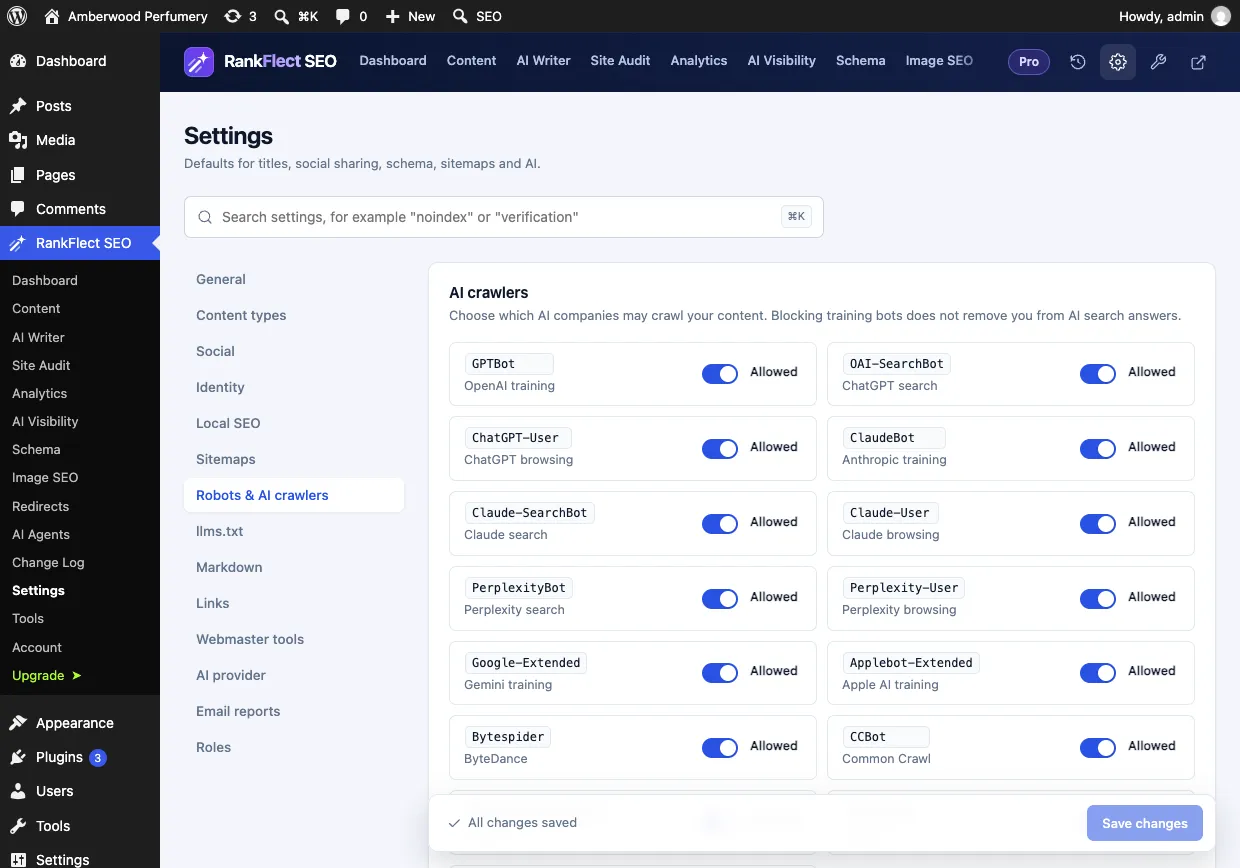
The final file is built in a fixed order: WordPress's default rules, a block per AI crawler you switched off, your extra rules, then the Sitemap: line if one isn't there yet. The details are in the robots.txt documentation.
Method 2: Use a robots.txt file editor inside WordPress
Sometimes you want to control the whole file, or a physical file already exists and you'd rather not use FTP. A file editor handles both.
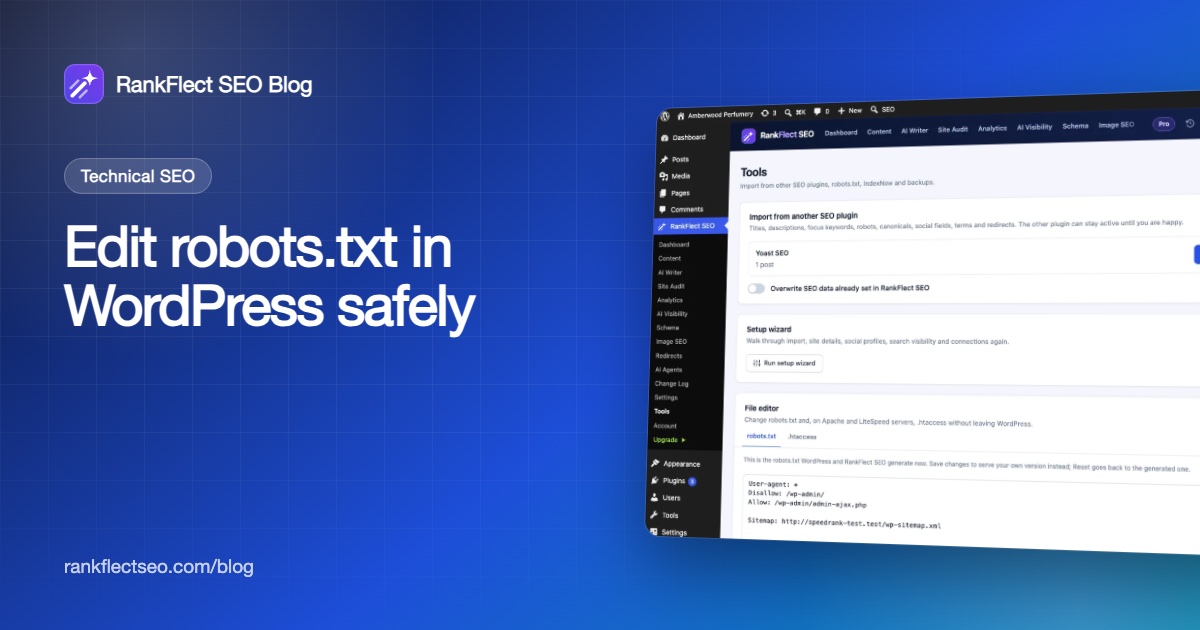
In RankFlect SEO, open RankFlect SEO → Tools and find the File editor card. Its robots.txt tab shows the file WordPress and RankFlect SEO generate right now.
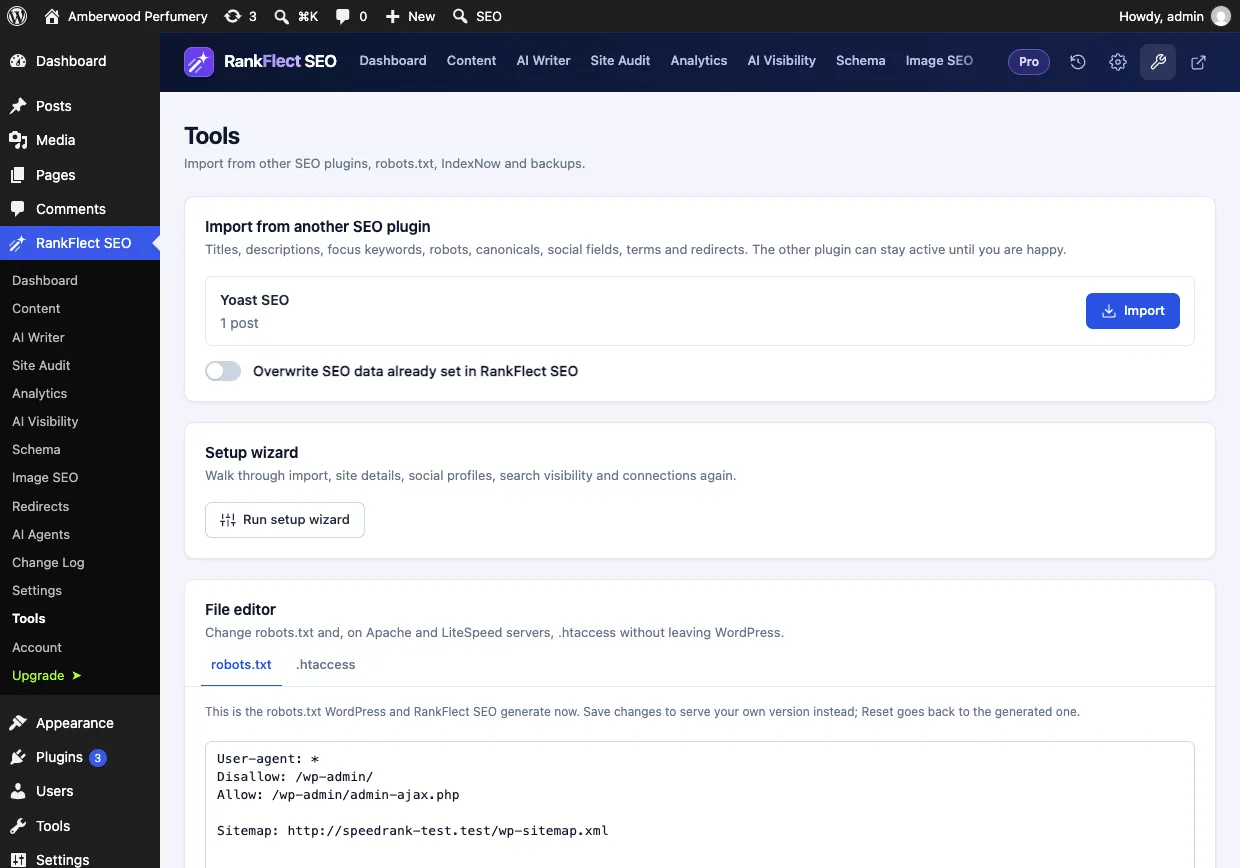
- Save robots.txt serves exactly what's in the box instead. Your version replaces the generated one entirely, including AI crawler blocks and the sitemap line, so keep those lines if you want them.
- Reset to generated appears after you save your own version and takes you back.
- If a physical file exists, the editor tells you. Save robots.txt then writes into that real file and keeps the previous content as a backup, while Move the file aside renames it so WordPress manages robots.txt again.
Only administrators can save, and saving is switched off when wp-config.php sets DISALLOW_FILE_EDIT. See the file editor documentation for the full rules. The file editor is part of the free plugin.
Method 3: Upload a physical robots.txt file
This works with any setup and no plugin at all.
- Create a plain text file named exactly
robots.txt, saved as UTF-8. Use a code editor, not a word processor. - Write your rules, including a
Sitemap:line with your full sitemap URL. - Upload it to your site's root folder (the one with
wp-config.php) using FTP or your host's file manager. - Open
/robots.txtin a browser to confirm the new content.
The downside is that it's static. Your SEO plugin can no longer add your sitemap or AI crawler rules, and you'll need to update the file by hand when your sitemap URL changes.
Method 4: Change the virtual file with code
Developers can use WordPress's robots_txt filter, which receives the generated text and whether the site is public. Put this in a small custom plugin or your child theme's functions.php:
add_filter( 'robots_txt', function ( $output, $public ) {
    if ( $public ) {
        $output .= "\nUser-agent: *\nDisallow: /*?add-to-cart=\n";
    }
    return $output;
}, 20, 2 );
This keeps the virtual file and adds to it. It only runs when no physical file exists.
A safe WordPress robots.txt to start from
Most WordPress sites need very little. Here is a reasonable starting point for a blog or shop:
User-agent: *
Disallow: /wp-admin/
Allow: /wp-admin/admin-ajax.php
Disallow: /?s=
Disallow: /search/
Disallow: /*?add-to-cart=

Sitemap: https://example.com/wp-sitemap.xml
What each addition does:
/?s=and/search/keep crawlers out of internal search results, which can create endless thin URLs./*?add-to-cart=stops crawlers from triggering WooCommerce add-to-cart links, which wastes crawl activity.
Google's robots.txt specification supports * as a wildcard and $ for the end of a URL, and paths are case-sensitive. When an Allow and a Disallow rule both match, Google uses the most specific one, and the least restrictive if they tie.
Mistakes to avoid when you edit robots.txt
Blocking CSS, JavaScript or wp-content
Old guides suggest Disallow: /wp-content/ or /wp-includes/. Don't. Google renders pages like a browser, and blocking your theme's files can make pages look broken to it.
Using robots.txt to hide pages
A blocked page can still be indexed, without a description, if other sites link to it. Worse, Google can't see a noindex tag on a page it isn't allowed to crawl. To remove a page from search, set it to noindex and leave it crawlable. See Noindex, nofollow and canonical URLs.
Relying on Crawl-delay for Google
Google doesn't support crawl-delay; it ignores the line. Some other crawlers honour it, so it's fine to keep for them.
Leaving "Discourage search engines" on
Launching with this box still ticked is one of the most common reasons a new site never gets indexed.
Forgetting the cache
A page cache or CDN may keep serving the old /robots.txt. Purge that URL after every change.
How to test your robots.txt changes
- Open
/robots.txtin a private window and read it top to bottom. - In Google Search Console, open the robots.txt report under Settings. It shows when Google last fetched the file and any parsing errors, and you can choose Request a recrawl after an urgent fix.
- Use URL Inspection on an important page to confirm it isn't blocked.
- Give it time. Google generally caches robots.txt for up to 24 hours.
If you track AI bots, RankFlect SEO's free AI crawler tracking shows which bots visit and marks the ones you block, so you can see whether a bot keeps coming after you blocked it.
One note for teams using AI agents: in RankFlect SEO, an agent connected over MCP can read your robots.txt and switch AI crawler access, but it can't edit your custom robots.txt rules. That stays with an administrator in wp-admin, and site-wide changes an agent requests wait for administrator approval (Approval mode, dry runs and undo).
Want a robots.txt editor, AI crawler switches and a safe file editor in one free plugin? You can download RankFlect SEO free.
Frequently asked questions
Where is the robots.txt file in WordPress?
Usually nowhere: WordPress generates a virtual robots.txt when someone requests /robots.txt. If a real file exists, it sits in your site's root folder next to wp-config.php, and it overrides the virtual one.
Why don't my robots.txt changes show up?
Either a physical robots.txt file is overriding your plugin's virtual file, or a cache or CDN is serving an old copy. Check the root folder for a real file, then purge the cache for /robots.txt.
Can I edit robots.txt in WordPress without a plugin?
Yes. Upload a plain text robots.txt to your root folder with FTP or your host's file manager, or add rules with the robots_txt filter in code. A plugin is simply easier and keeps your sitemap line up to date.
Should I block AI crawlers in robots.txt?
It depends on your goal. Blocking training bots like GPTBot keeps your content out of future training sets without affecting Google Search. Blocking AI search bots such as OAI-SearchBot or PerplexityBot makes you less likely to be cited in their answers.
Does robots.txt affect rankings?
Not directly, but mistakes can. Blocking important pages or your theme's CSS and JavaScript can stop Google from crawling or rendering your content properly. A short, careful file is better than a long one.
- #robots.txt
- #wordpress seo
- #technical seo
- #ai crawlers
- #crawling
Written by
RankFlect SEO TeamThe people who build RankFlect SEO, the WordPress SEO plugin with a built-in MCP server. We write about what we learn shipping SEO tools for AI search.
All articles →Let AI agents fix your SEO. You keep the undo button.
RankFlect SEO is free for unlimited sites, with a built-in MCP server, approval for every change and no AI credits.