Organization Schema: What to Include and How to Add It in WordPress
Which Organization schema properties matter, Google's logo rules, Organization vs LocalBusiness or Person, a JSON-LD example and WordPress setup.
In this article
- Key takeaways
- What organization schema does
- Organization schema properties to include
- The essentials
- Contact and location
- Identity details
- Logo requirements
- Where organization schema belongs
- Organization, OnlineStore, LocalBusiness or Person?
- Example organization schema in JSON-LD
- How to add organization schema in WordPress
- Adding your address and opening hours
- How to test your organization schema
- Common mistakes
- Frequently asked questions
- What are the required properties for organization schema?
- Should organization schema be on every page?
- Will organization schema get me a knowledge panel?
- What logo size does Google need for organization schema?
- What is the difference between Organization and LocalBusiness schema?
Organization schema is structured data that tells Google and other machines who is behind your website: your organization's name, logo, address, contact details and official profiles elsewhere on the web. Google uses it to tell your organization apart from others with similar names, and some of it, such as the logo, can show in search results and your knowledge panel. This guide explains which properties to include, where the markup belongs, how it fits with the rest of your schema and how to set it up in WordPress.
Key takeaways
- Google's Organization documentation lists no required properties. Every property is recommended; add the ones that apply.
- Start with
name,url,logoandsameAs, then add contact and legal details if you have them. - Your logo should be at least 112 × 112 px, crawlable, and look right on a white background.
- Google says the markup belongs on your home page or a page about your organization. It doesn't need to be on every page, though a connected graph on every page does no harm.
- Use the most specific type that fits:
OnlineStorefor ecommerce, aLocalBusinesssubtype for a physical location. - Choose Person instead of Organization only when the site represents one individual.
What organization schema does
Search engines see thousands of businesses with overlapping names. Organization markup gives them a clear statement from the source: this is our official name, this is our logo, these are our profiles on LinkedIn, Instagram and YouTube.
Google's Organization structured data documentation describes two kinds of benefit. Some properties help Google understand and disambiguate your organization, for example identifiers like iso6523Code and naics. Others, such as logo, can affect how you appear in search results and in your knowledge panel. Merchants can also use it to inform their merchant knowledge panel, including return policy, address and contact details.
None of this guarantees a knowledge panel. Google decides when to show one. Consistent details across your site and your profiles make it more likely that Google connects them correctly.
Organization schema properties to include
Google lists no required properties, but here is a practical order of priority.
The essentials
name: your organization's usual name, exactly as you use it on the site.url: your home page URL.logo: a URL orImageObjectfor your logo.sameAs: URLs of your official profiles on other sites, such as social networks, review sites or a Wikipedia page.
Contact and location
addressas aPostalAddress, with street, locality, region, postal code and country.telephone,email, or acontactPointfor customer service.
Identity details
legalNameif it differs from your trading name, andalternateNamefor other names people use.description,foundingDateandnumberOfEmployees.- Identifiers where they apply:
vatID,taxID,duns,leiCode,globalLocationNumber,naicsandiso6523Code.
Shops can also describe their merchant return policy with hasMerchantReturnPolicy. Google's changelog notes that merchant-level return policies are defined under Organization markup.
Logo requirements
The logo is the property most likely to be visible, so get it right. According to Google's documentation, the image must be at least 112 × 112 px, its URL must be crawlable and indexable, and the file must be in a format Google Images supports. It should look as intended on a plain white background, because a light logo can disappear. If you use an ImageObject, give it a valid contentUrl or url.
A square version of your logo with some padding is the safest choice. Keep a dedicated file for schema rather than relying on a wide header logo that is tuned for your theme.
Where organization schema belongs
Google says to add Organization markup to your home page or a single page that describes your organization, such as an About page, and that it doesn't need to be on every page.
Many SEO plugins still output the Organization node on every page as part of a connected graph. That is fine and has a purpose: each page's WebSite and Article nodes can reference the same organization as their publisher by its @id, so every page points back to one consistent identity. What matters is that it's the same node, with the same details, everywhere.
Organization, OnlineStore, LocalBusiness or Person?
- Organization: companies, publications, agencies, nonprofits and most brand sites.
- OnlineStore: Google suggests this more specific subtype for ecommerce sites, rather than the general
OnlineBusiness. - LocalBusiness (and its subtypes, such as
Restaurant): a business with a physical location customers visit. Use the most specific subtype and follow the LocalBusiness fields too. - Person: a personal blog, a freelancer's portfolio or an author site, where one individual is the publisher.
The schema.org Organization page lists every subtype and property if you need something more specialised.
Example organization schema in JSON-LD
{
  "@context": "https://schema.org",
  "@type": "Organization",
  "@id": "https://example.com/#organization",
  "name": "Amberwood Perfumery",
  "url": "https://example.com/",
  "logo": {
    "@type": "ImageObject",
    "url": "https://example.com/wp-content/uploads/amberwood-logo-512.png"
  },
  "sameAs": [
    "https://www.instagram.com/amberwoodperfumery",
    "https://www.linkedin.com/company/amberwood-perfumery",
    "https://facebook.com/amberwoodperfumery"
  ]
}
The @id is a stable identifier other nodes can point at. Add address, telephone and the other properties above as they apply to you.
How to add organization schema in WordPress
You can paste a JSON-LD block like the one above into your home page with a child theme hook. The catch is that most SEO plugins already output an Organization or Person node, and two different organization nodes send mixed signals. Check your page source for "@type":"Organization" before adding your own.
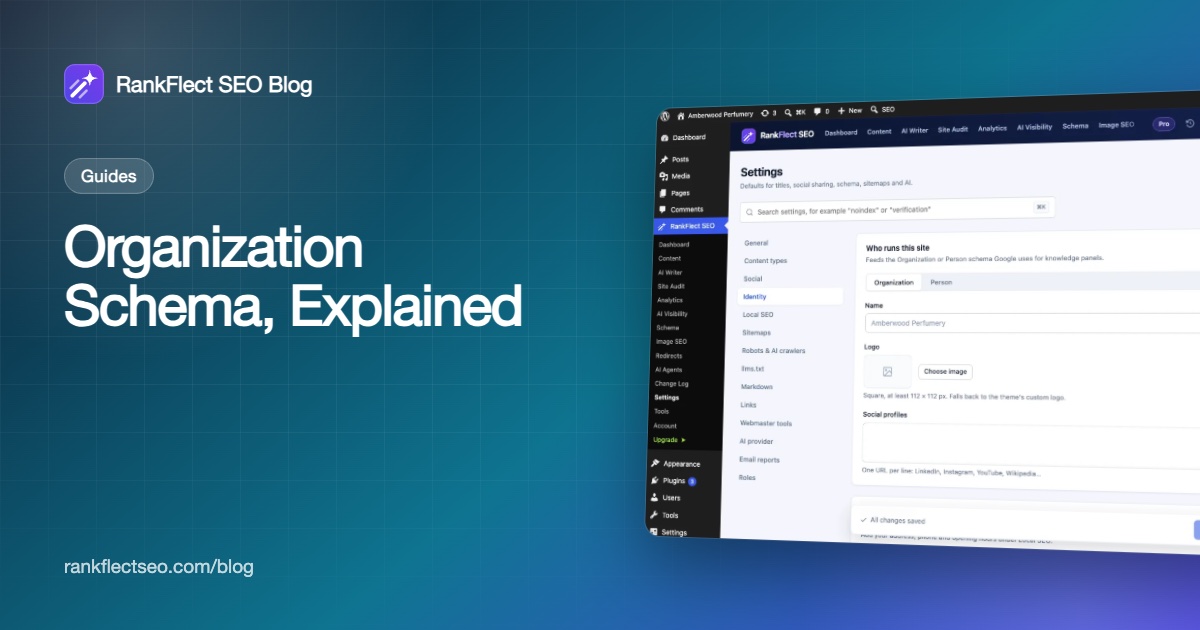
The cleaner route is to fill in your SEO plugin's identity settings, so the organization is defined once and reused across the whole graph. Here is how it works in RankFlect SEO, which is free on WordPress.org.
- Go to RankFlect SEO → Settings → Identity.
- In the Who runs this site card, choose Organization (the default) or Person.
- Enter the Name. Leave it empty to use your WordPress site title.
- Under Logo, click Choose image and pick a square image of at least 112 × 112 px. If you leave it empty, your theme's custom logo is used.
- Add your Social profiles, one URL per line: LinkedIn, Instagram, YouTube, Wikipedia and so on.
- Click Save changes.
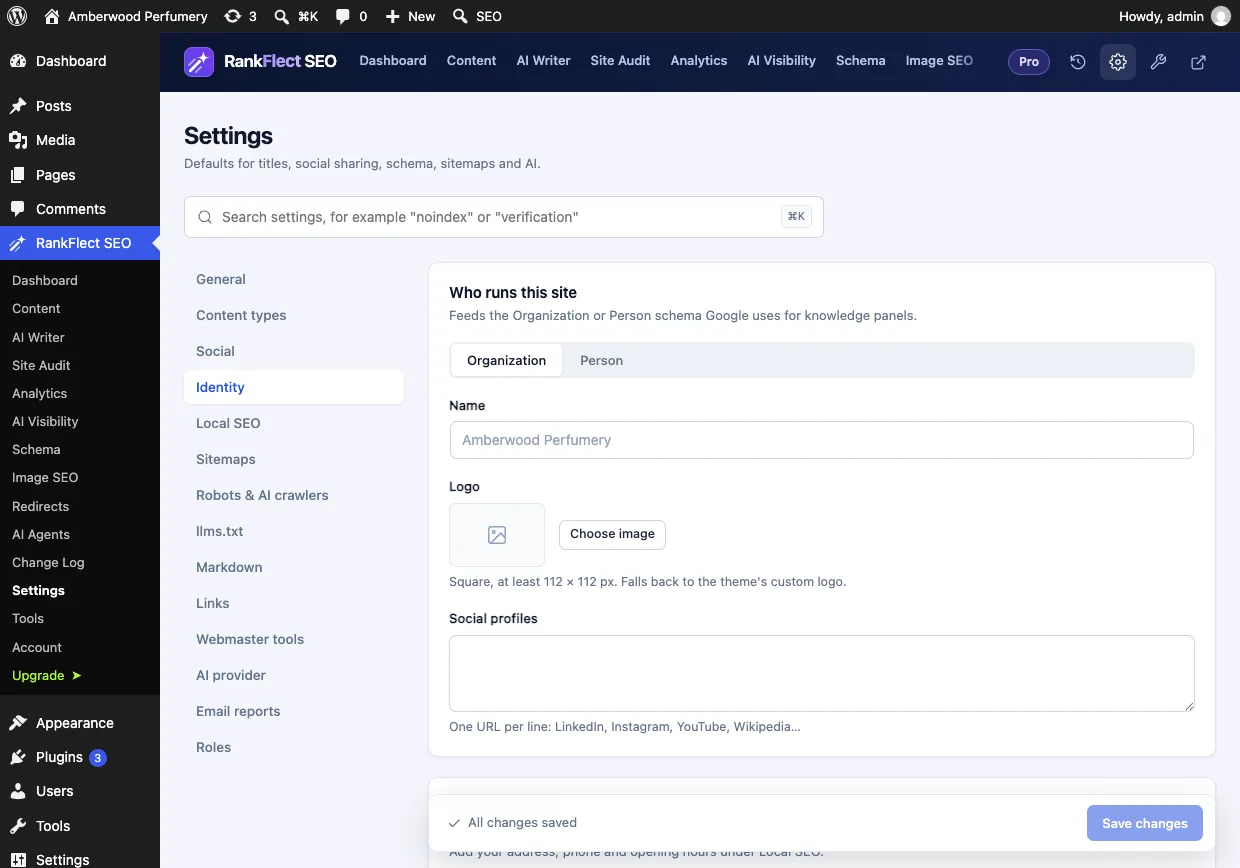
The social profiles become the sameAs list. Your Facebook page URL and X username from Settings → Social are added automatically, so you don't need to repeat them; see social sharing. The full field list is in the site identity guide.
RankFlect SEO then prints the Organization node in its JSON-LD graph on every page, as the publisher of your WebSite and of every Article. The schema overview shows how the nodes connect.
Adding your address and opening hours
With Organization selected, a Local business card appears below the identity fields. Click Local SEO settings to add your address, phone number and opening hours. With Local SEO on, your Organization also gets a LocalBusiness type with address, phone, opening hours and price range. Details are in the Local SEO guide.
How to test your organization schema
- Run your home page through Google's Rich Results Test. Organization is a supported feature in Google's search gallery, so the test should detect it.
- In RankFlect SEO, open RankFlect SEO → Schema and use the schema validator on any page to see the final JSON-LD, including the Organization node.
- Check the site audit. It flags "No logo in schema" when neither a logo nor a theme custom logo is set, and "No social profiles in your Organization schema" when an organization has no profile links and no Facebook page.
- Look for duplicates in the page source. One Organization node per site is the goal.
Common mistakes
- Two organization nodes from a theme, a schema plugin and an SEO plugin, each with slightly different details.
- A logo Google can't use: too small, blocked by robots.txt, or white on transparent so it vanishes on a white background.
- Profiles you don't control in
sameAs, such as a fan page or a directory listing you never claimed. - Inconsistent names: "Amberwood", "Amberwood Perfumery Ltd" and "Amberwood Perfumes" across the site and profiles. Use one name and put others in
alternateName. - Person for a business, or Organization for a personal blog.
If you'd like organization schema built from a short settings form, download RankFlect SEO free and fill in the Identity tab first.
Frequently asked questions
What are the required properties for organization schema?
Google's documentation lists none: every property is recommended. In practice, start with name, url, logo and sameAs, then add address, contact details and identifiers that apply to your organization.
Should organization schema be on every page?
Google says the home page or one page about your organization is enough. Outputting the same node on every page as part of a connected graph is also fine, as long as it's one consistent organization and not several different ones.
Will organization schema get me a knowledge panel?
It can help Google understand your organization, but it doesn't guarantee a knowledge panel. Google decides when to show one, and consistent names, logos and profiles across the web make the connection clearer.
What logo size does Google need for organization schema?
At least 112 × 112 px, in a format Google Images supports, at a crawlable URL. It should look right on a white background. A square logo with some padding is the safest choice.
What is the difference between Organization and LocalBusiness schema?
LocalBusiness is a more specific subtype of Organization for businesses with a physical location, and it adds properties like opening hours. Use it, or a more specific subtype, if customers visit you; use Organization or OnlineStore otherwise.
- #organization schema
- #structured data
- #knowledge panel
- #json-ld
- #local seo
Written by
RankFlect SEO TeamThe people who build RankFlect SEO, the WordPress SEO plugin with a built-in MCP server. We write about what we learn shipping SEO tools for AI search.
All articles →Let AI agents fix your SEO. You keep the undo button.
RankFlect SEO is free for unlimited sites, with a built-in MCP server, approval for every change and no AI credits.