How to Add Google Analytics to WordPress (GA4): 4 Easy Methods
Set up GA4, install the Google tag on WordPress the safe way, test it in Realtime and keep your data clean of duplicate tags and your own visits.
In this article
- Key takeaways
- Step 1: Create a GA4 property and web data stream
- Before you add Google Analytics to WordPress: check for an existing tag
- Method 1: Add GA4 with an SEO plugin's Measurement ID field
- Method 2: Use Site Kit by Google
- Method 3: Add the Google tag manually (without a plugin)
- Method 4: Use Google Tag Manager
- Which method should you choose?
- Step 2: Test that GA4 is collecting data
- Step 3: Set up consent and privacy correctly
- Step 4: Configure the GA4 settings that matter
- View your Google Analytics data inside WordPress
- Common mistakes when adding GA4 to WordPress
- Frequently asked questions
- Can I add Google Analytics to WordPress without a plugin?
- How long does it take for Google Analytics to show data?
- Where do I find my GA4 Measurement ID?
- Why don't my own visits show up in GA4?
- Do I need Google Analytics if I have Search Console?
To add Google Analytics to WordPress, create a GA4 property with a web data stream, copy its Measurement ID (it starts with G-), and load the Google tag on every page, either through a plugin field or by adding the tag to your theme's head. Then confirm it works in the Realtime report. This guide covers all four ways to install GA4 on WordPress, how to test it, and how to avoid the double-counting and consent mistakes that spoil your data.
Key takeaways
- GA4 needs two things: a property with a web data stream, and the Google tag (
gtag.js) on every page. - Use one installation method only. Two tags count every page view twice.
- A plugin field is the safest method for most sites; manual code belongs in a child theme, never the parent theme.
- Exclude your own logged-in visits, and check whether your visitors' location requires consent before analytics runs.
- Installing the tag collects data; connecting GA4 to a dashboard plugin reads it back. They are separate steps.
Step 1: Create a GA4 property and web data stream
Google's GA4 setup help describes the process. In short:
- Go to Google Analytics and click Start measuring, or open Admin → Create → Account if you already use Analytics.
- Create a property: give it a name, set your reporting time zone and currency, and answer the business questions.
- Under Data collection and modification → Data streams, click Add stream → Web. Enter your site's URL and a stream name.
- Leave Enhanced measurement on. Google recommends it; it collects page views plus events such as scrolls, outbound clicks, site search and file downloads without extra code.
- Click Create stream, then copy the Measurement ID shown in the stream details, for example
G-ABC123XYZ9.
Keep that tab open. Every method below uses the Measurement ID.
Before you add Google Analytics to WordPress: check for an existing tag
Many themes, page builders, cookie banners and plugins can already add GA4. Open your site in a private window, view the page source and search for googletagmanager.com/gtag/js or GTM-. If you find one, decide which tool will own the tag and remove the others. Duplicate tags inflate page views and break engagement metrics.
Method 1: Add GA4 with an SEO plugin's Measurement ID field
The simplest route is a plugin that loads the tag for you. You paste the ID once, and it survives theme changes and updates.
In RankFlect SEO, the free GA4 tag installer is on RankFlect SEO → Settings → Webmaster tools, in the Google Analytics tag card below the verification fields. The card notes it is "Only needed if no other plugin or theme already adds GA4."
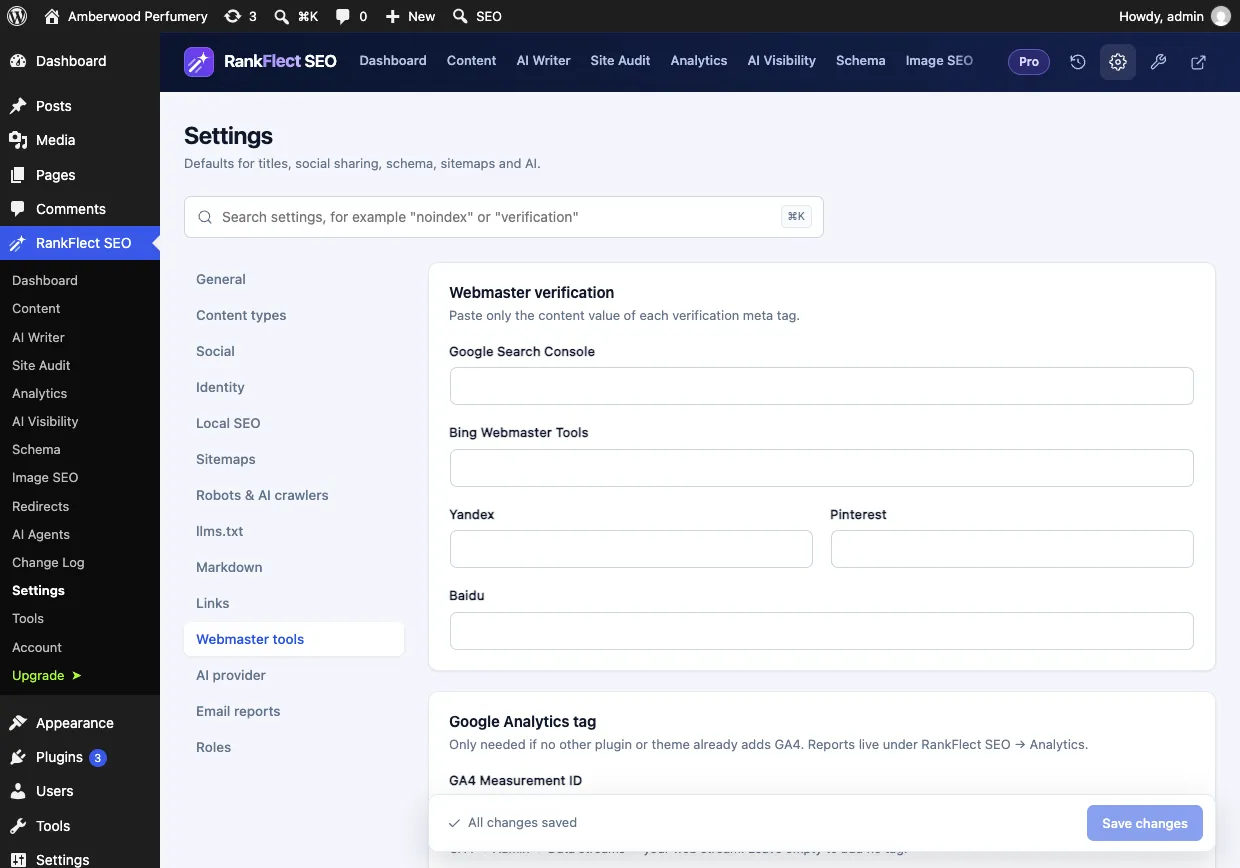
- Paste your ID into GA4 Measurement ID.
- Leave Do not track logged-in editors and admins on (the default). It skips the tag for logged-in contributors, authors, editors and administrators, so your own visits don't skew the numbers.
- Click Save changes.
RankFlect SEO only outputs the tag for a valid G- ID and loads the script asynchronously, so it doesn't block rendering. It doesn't accept Universal Analytics (UA-) or Tag Manager (GTM-) IDs. Details are in the GA4 tag documentation.
Method 2: Use Site Kit by Google
Site Kit is Google's official WordPress plugin. You sign in with Google, and it can verify Search Console, place the GA4 tag and show summary reports in your dashboard. It is a good choice if you want everything set up through Google's own sign-in flow.
If you use Site Kit for the tag, leave other plugins' Measurement ID fields empty. RankFlect SEO can also reuse Site Kit's Google connection for its reports instead of a separate sign-in; see use Site Kit by Google's connection.
Method 3: Add the Google tag manually (without a plugin)
Google's instructions say to paste the full Google tag immediately after the <head> element on every page. In GA4, open your web stream, click View tag instructions → Install manually and copy the snippet. It looks like this:
<script async src="https://www.googletagmanager.com/gtag/js?id=G-ABC123XYZ9"></script>
<script>
  window.dataLayer = window.dataLayer || [];
  function gtag(){dataLayer.push(arguments);}
  gtag('js', new Date());
  gtag('config', 'G-ABC123XYZ9');
</script>
On WordPress, don't paste it into the parent theme's header.php. The next theme update overwrites the file and your tracking silently stops. Instead, add it from a child theme's functions.php using the wp_head hook:
add_action( 'wp_head', function () {
    if ( is_user_logged_in() ) {
        return; // Skip your own visits.
    }
    ?>
    <!-- paste the Google tag here -->
    <?php
}, 1 );
Back up your site first: a typo in functions.php can take the site down. A header-and-footer scripts plugin does the same job with less risk if you are not comfortable editing PHP.
Method 4: Use Google Tag Manager
Tag Manager suits sites that run several marketing tags (ads, heatmaps, chat) and want to manage them without touching code. Install the GTM container snippet on WordPress once, then inside Tag Manager add a Google tag with your G- Measurement ID and a trigger on all pages. Publish the container.
When GTM loads GA4, leave every plugin's GA4 field empty so the tag is not added twice.
Which method should you choose?
- Just need traffic numbers? A plugin field (Method 1) or Site Kit (Method 2).
- Want no extra plugin? A child theme snippet (Method 3), if you or a developer maintain the theme.
- Running ads, conversions and many tags, or need consent management? Tag Manager (Method 4), usually paired with a consent platform.
Step 2: Test that GA4 is collecting data
- Open your site in a private window, so you are logged out and your visit isn't excluded.
- In Google Analytics, open Reports → Realtime. Your visit should appear shortly. Google notes that data collection can take up to 30 minutes to begin after setup.
- View the page source and confirm there is exactly one
gtag/js?id=G-…script. - For deeper checks, use Google Tag Assistant or GA4's DebugView to see individual events firing.
If nothing shows up, clear your page cache and CDN, and check that a cookie banner isn't blocking the tag until consent is given. Ad blockers also block GA4, so test in a clean browser.
Step 3: Set up consent and privacy correctly
Analytics sets cookies and sends visitor data to Google, so privacy rules may apply. If you have visitors in regions such as the EU or UK, you may need consent before analytics runs, and Google requires Consent Mode for some features in the European Economic Area. Get advice for your situation.
A basic GA4 tag from a plugin field does not include a cookie banner. RankFlect SEO's tag loads for every visitor except the excluded logged-in users and doesn't include consent mode. If your site needs consent first, add GA4 through your consent management tool instead and leave the RankFlect SEO field empty. Also update your privacy policy to mention Google Analytics.
Step 4: Configure the GA4 settings that matter
- Data retention: under Admin → Data collection and modification → Data retention, consider raising event data retention from the default so explorations can look further back.
- Key events: mark the actions that matter (form submissions, purchases, sign-ups) as key events.
- Internal traffic: define your office IP as internal traffic and add a filter, in addition to excluding logged-in users.
- Link Search Console: link your Search Console property under Admin → Product links to see organic queries next to GA4 data.
View your Google Analytics data inside WordPress
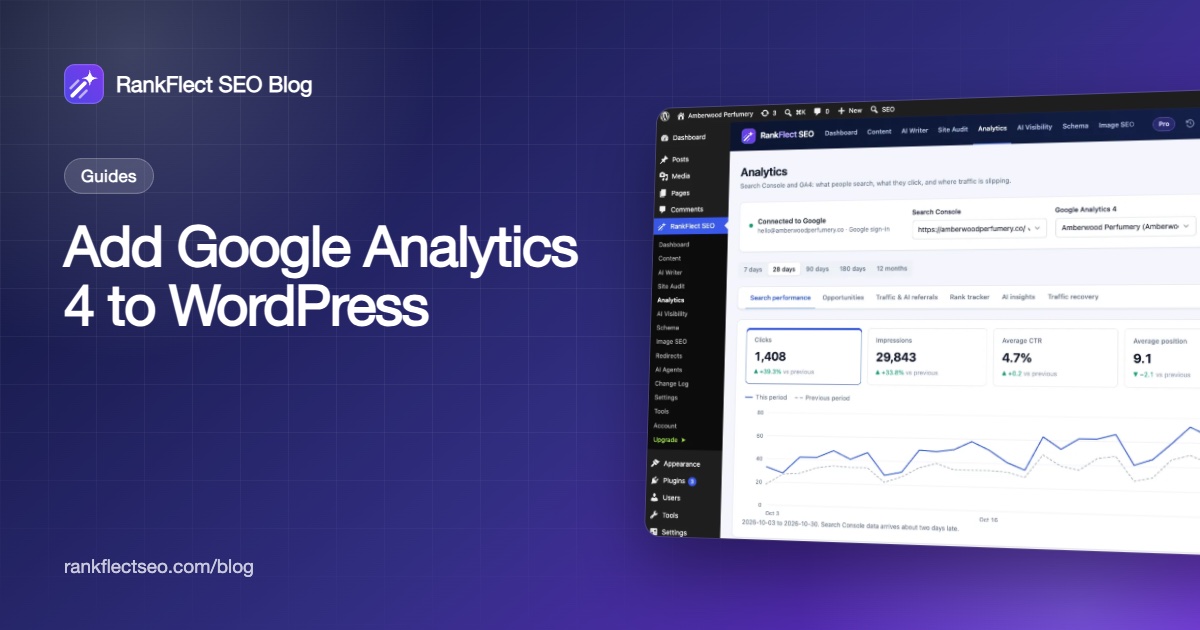
Installing the tag sends data to Google. To read it without leaving WordPress, connect GA4 to a reporting plugin. In RankFlect SEO, go to RankFlect SEO → Analytics and connect Google Search Console and GA4 with your own Google Cloud OAuth client, a service account, or Site Kit's connection. The connection is read-only and free.
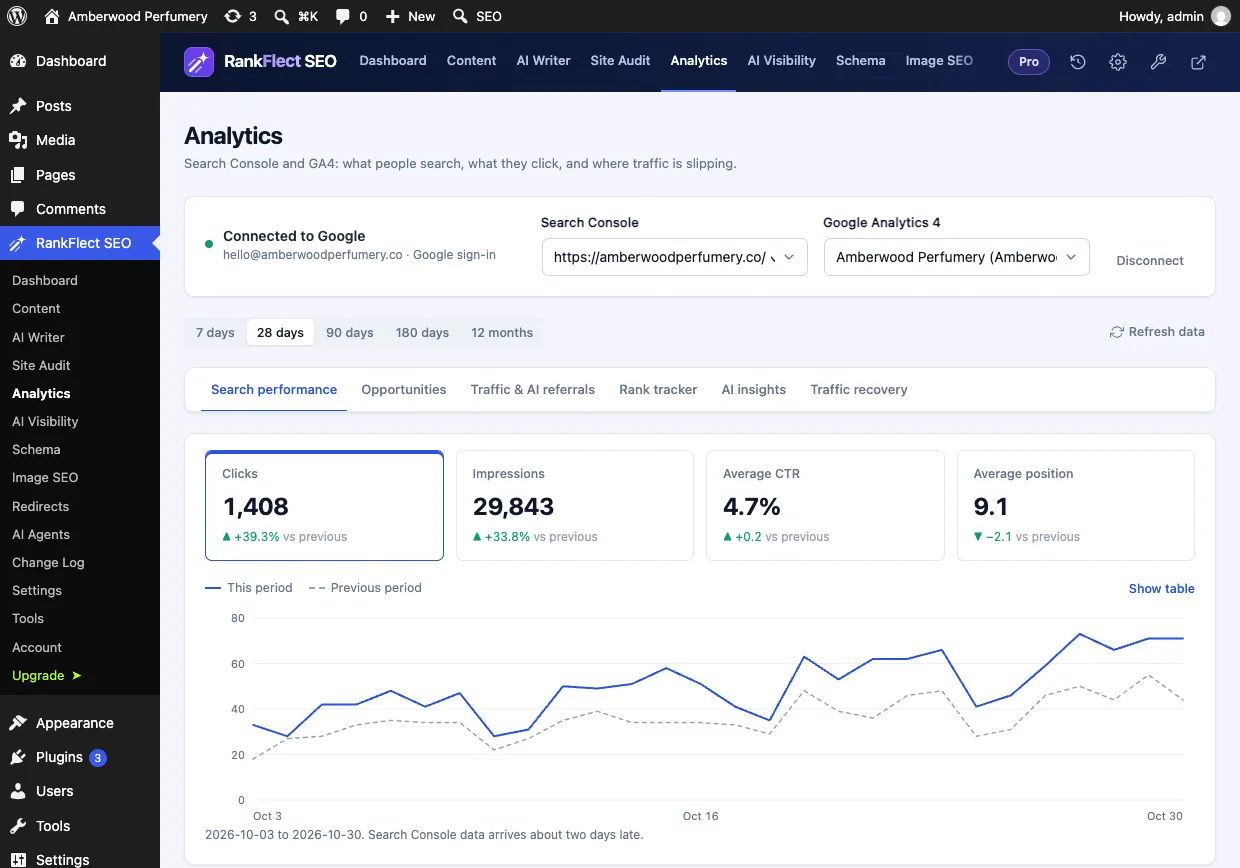
The free Traffic & AI referrals tab shows sessions, organic search sessions, engagement rate and key events compared with the previous period, plus visits referred by AI assistants such as ChatGPT, Perplexity, Claude, Gemini and Copilot. The Search performance tab adds Search Console clicks, impressions, CTR and position. See the search and traffic reports guide. Top organic landing pages are in RankFlect SEO Pro.
Common mistakes when adding GA4 to WordPress
- Two tags from a theme and a plugin, which doubles page views.
- Code in the parent theme that disappears on update.
- Testing while logged in with admin exclusion on, then assuming the tag is broken.
- Using an old
UA-ID. Universal Analytics has been retired; GA4 IDs start withG-. - Caching the old page after adding the tag. Clear caches when you change tracking.
If you want the tag and the reports in one free plugin, you can download RankFlect SEO and set both up from the Webmaster tools and Analytics screens.
Frequently asked questions
Can I add Google Analytics to WordPress without a plugin?
Yes. Paste the Google tag into the head of every page through a child theme's functions.php with the wp_head hook. Avoid editing the parent theme, because updates overwrite it.
How long does it take for Google Analytics to show data?
The Realtime report shows visits soon after the tag is live, though Google says collection can take up to 30 minutes to start. Standard reports take longer to process, so expect a delay before the main reports fill in.
Where do I find my GA4 Measurement ID?
In Google Analytics, open Admin → Data streams, click your web stream and copy the Measurement ID at the top of the stream details. It starts with G-.
Why don't my own visits show up in GA4?
Your plugin is probably excluding logged-in users, which is the default in RankFlect SEO. Test in a private window, or temporarily turn off the exclusion.
Do I need Google Analytics if I have Search Console?
They answer different questions. Search Console shows how people find you in Google Search; GA4 shows what visitors do on your site from every source. Most sites benefit from both.
- #google analytics
- #ga4
- #wordpress
- #google tag
- #site kit
Written by
RankFlect SEO TeamThe people who build RankFlect SEO, the WordPress SEO plugin with a built-in MCP server. We write about what we learn shipping SEO tools for AI search.
All articles →Let AI agents fix your SEO. You keep the undo button.
RankFlect SEO is free for unlimited sites, with a built-in MCP server, approval for every change and no AI credits.